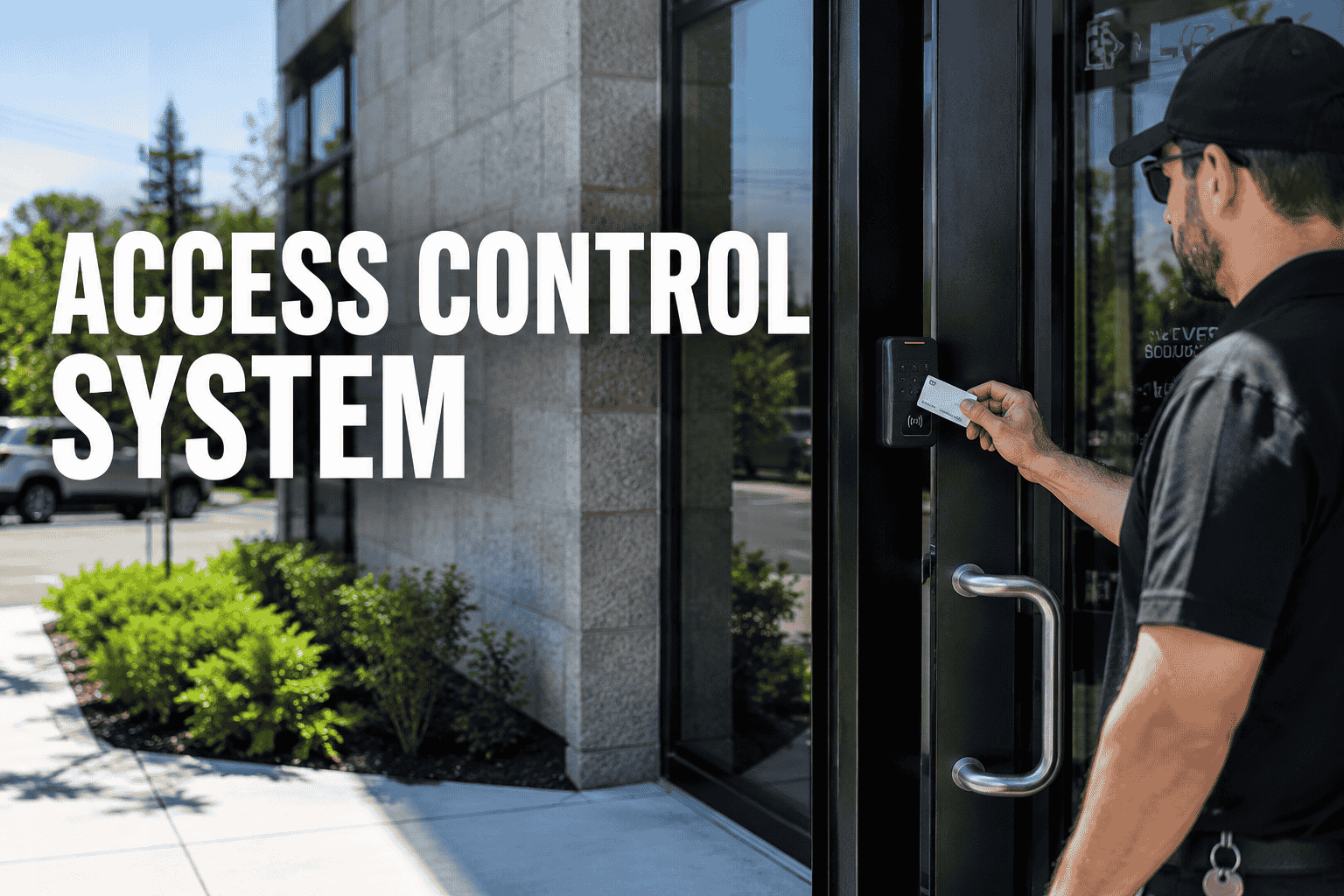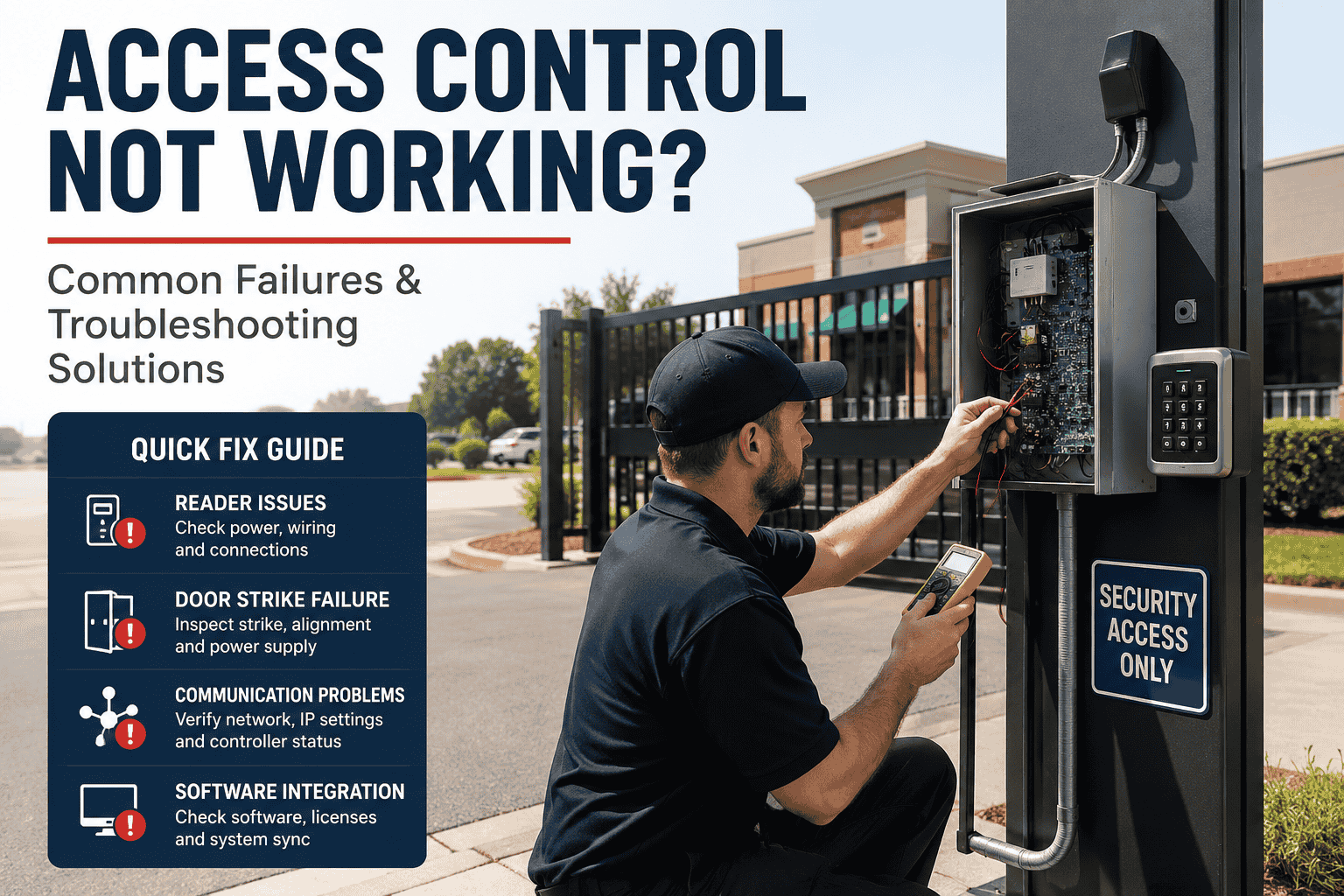
It starts with a single complaint — a tenant whose badge stopped working at 7 AM. By the time you investigate, three other readers are flagging errors, a door on the second floor has been propped open for two hours, and your controller dashboard shows a communication timeout you've never seen before. Sound familiar? According to an ASIS International survey, more than 90% of commercial facilities report an access control failure within any given six-month window. The real problem isn't that failures happen — it's that most facilities have no systematic way to diagnose them fast. This guide covers the five most common failure categories in commercial access control systems, exactly how to troubleshoot each one, and where automated analytics prevent these situations before the first complaint arrives. Book a demo to see how iFactory surfaces these failure patterns in real time.
Stop Reacting. Start Predicting Access Failures.
iFactory's analytics layer monitors reader health, controller communication, and credential status continuously — flagging failures before tenants ever notice.
Why Access Control Systems Fail: The Real Numbers
Most access control failures don't originate from a single dramatic component collapse. They develop from compounding micro-degradations — a reader voltage slowly drifting, a door frame settling 1/8 inch, a controller firmware version that hasn't been updated in 14 months. By the time the failure is visible to the naked eye, the underlying cause has been present for weeks.
Card Reader Malfunctions: Diagnosing the Front Line
Card readers are the highest-touch component in any access system — handling hundreds of credential presentations daily, exposed to weather, dust, cleaning chemicals, and physical impact. When a reader fails, it almost always produces one of four recognizable symptom patterns. Matching the symptom to the root cause cuts diagnostic time from hours to minutes.
Root Cause: Power supply failure, blown fuse, or severed Wiegand wiring between reader and controller. Reader is receiving zero voltage.
Fix: Measure DC voltage at reader terminals. Standard readers require 12V or 5V depending on model. If voltage is absent, trace back to the controller relay output. Check for blown fuses at the power supply panel before replacing the reader.
Root Cause: Reader sensing area contaminated with dirt or moisture, credential technology mismatch (125kHz vs 13.56MHz), or demagnetized/damaged card.
Fix: Clean the sensing area with a dry cloth. Test with a known-good card from your admin set. If multiple cards fail, verify the reader's card technology matches your credential format in software. Outdoor readers require weatherproof cleaning monthly.
Root Cause: RS-485 bus congestion, excessive electromagnetic interference from adjacent electrical conduits, or reader firmware requiring update.
Fix: Check RS-485 terminal resistance — should be 120 ohms at line end. Ensure reader wiring does not run parallel to high-voltage conduit. Update reader firmware and check controller polling interval settings in software.
Root Cause: Reader accepted the credential but the door strike relay failed to activate, or the software access schedule has a time restriction blocking the event.
Fix: Check the event log in software — if the access event shows "Granted" but the door didn't open, the fault is downstream in the strike or relay. If the log shows "Denied," check the user's access group and time zone schedule in the management software.
Electric Strike & Magnetic Lock Failures
Door hardware operates on physics — voltage, mechanical alignment, and repetitive cycle stress. A maglock rated for 1,200 lbs of holding force doesn't fail catastrophically; it degrades from 1,200 to 900 to 600 lbs over 18 months of daily cycling, quietly losing the integrity that justifies its presence in your security design. Here's how to find and fix each mode of failure.
Maglock Not Holding Under Load
Apply rated voltage and attempt to manually separate the armature plate. A degraded maglock will flex or release under moderate pressure. Check voltage at the lock terminals under load — voltage drop of more than 0.5V during activation indicates undersized wiring or a failing power supply. Clean the contact face of both the lock body and armature plate with isopropyl alcohol; oil contamination from door frames is a common and easily missed cause of holding force loss.
Mechanical + ElectricalElectric Strike Failing to Release
Measure solenoid coil resistance — a healthy solenoid reads within 10% of the manufacturer's rated impedance. A shorted or open coil will fall outside this range and requires strike replacement. Also inspect mechanical alignment: door frame settling of even 1/8 inch causes the latch to bind against the strike plate, creating the illusion of an electrical fault when the cause is purely mechanical. Adjust strike plate position before replacing electrical components.
Electrical + Mechanical AlignmentDoor Not Fully Latching After Release
A door that doesn't re-latch after opening defeats the entire locking mechanism. Check the door closer tension and adjustment — if the door decelerates before fully latching, increase the closing speed at the closer's adjustment valve. Confirm the door position switch (reed switch) is reporting accurate status in software; a misaligned reed switch will show "door closed" in your dashboard while the door is actually ajar, suppressing the propped-door alarm.
Mechanical + Software StatusFail-Safe vs. Fail-Secure Misconfiguration
Simulate a power interruption to the lock circuit and observe the door state. If an exit door remains locked during power loss, it is wired fail-secure — a NFPA 730 life-safety violation. If a server room door releases on power loss, it is wired fail-safe when it should be fail-secure. Confirming correct fail-state configuration at every controlled door is a non-negotiable part of any troubleshooting walkthrough.
Life Safety ComplianceController & Communication Failures: Tracing Upstream
When multiple readers fail simultaneously, the fault is almost never in the readers — it's always upstream. A controller that loses network communication, exhausts its database capacity, or runs corrupted firmware can take every reader on its bus offline at once. Knowing how to trace this hierarchy stops blind component swapping and gets systems back online faster.
| Symptom Pattern | Likely Upstream Cause | Diagnostic Step | Typical Fix |
|---|---|---|---|
| All readers on one controller go offline | Controller power failure or firmware crash | Check controller LED — CPU indicator should blink. Solid or dark = fault. | Reboot controller. If CPU LED stays solid, reflash firmware via USB. |
| IP-based controller loses connection intermittently | Network switch port flapping, DHCP IP conflict, or switch misconfiguration | Ping the controller IP from management workstation. Check switch port stats for errors. | Assign a static IP to the controller. Replace the switch port if error count is rising. |
| RS-485 bus readers dropping in sequence | Electromagnetic interference, incorrect terminal resistance, or cable damage | Measure terminal resistance at line end. Should be 120 ohms. Check cable routing near high-voltage conduit. | Add or correct termination resistor. Re-route cable away from interference source. |
| Controller shows online but access events not logging | Database capacity reached, corrupted event log, or software communication timeout | Check database size in management software. Verify communication port settings match controller configuration. | Archive and clear event database. Verify TCP port is not blocked by firewall on server. |
| Controller operates in "degraded mode" after network loss | Designed behavior — controller using locally cached permissions | Verify local database download was current before connectivity loss. Check backup schedule. | Ensure full permission download executes after every major software change. |
Manual controller diagnostics require physical access to each panel — across a multi-building portfolio, that's a significant time investment per incident. Book a demo to see how iFactory's remote controller telemetry identifies upstream faults in under 30 seconds without leaving the management dashboard.
Software & Credential Integration Failures
The most difficult failures to diagnose are the ones where the hardware is working perfectly but the software configuration is wrong. A credential that was never properly enrolled, an access schedule that excludes weekends, an anti-passback rule that locks out a user after a tailgate event — these produce the same symptom (access denied) as hardware failures, but require completely different resolution paths.
User Permission Mismatch
User reports access denied. Event log confirms reader received the credential and denied it at the software level. Check: access group assignment, time zone restrictions, and whether the user's profile is active or suspended. Always check software before assuming hardware fault.
Credential ConfigAccess Schedule Blocking
Reader denies valid credentials outside configured time windows. A user who normally enters at 7 AM may find access blocked after a schedule change that wasn't communicated. Review the door's active time zone in the software and confirm it covers all required operational hours including weekends and holidays.
Schedule ConfigAnti-Passback Lock-Out
Anti-passback rules prevent re-entry until an exit event is logged. If a user tailgates through an entry point or the door sensor misses an exit event, the system locks that credential until manually reset or the passback timeout expires. Check event log for passback violations before investigating hardware.
Access Rule ConflictSoftware-Controller Sync Failure
Permissions updated in software but not downloaded to the controller's local database. The controller operates on its cached permissions, meaning a credential added or revoked in software may not take effect at the door for hours. Verify automatic download scheduling and trigger a manual download after any critical permission change.
Sync / DownloadPower Supply & Backup Failures: The Silent System Killer
Power failures are the access control failure category most likely to affect every component simultaneously — and the one most facility managers discover for the first time during an actual emergency. A UPS battery that hasn't been tested in two years may show green on the panel while delivering zero backup capacity under real load. The troubleshooting approach is straightforward but requires scheduled verification, not reactive testing.
The 5-Step Diagnostic Sequence for Any Access Failure
Before touching any hardware, run this sequence. It prevents the most common diagnostic mistake: replacing a functioning component because the symptom pointed toward it, when the actual fault was upstream or in software. This sequence works for any failure type, any system brand.
Check the Event Log First
Before touching hardware, open the management software and pull the access event log for the affected door. If the log shows an "Access Granted" event but the door didn't open, the fault is in the strike or relay — not the reader. If it shows "Access Denied," the fault is in the software configuration. If it shows nothing at all, the controller has lost communication. Each outcome points to a completely different resolution path.
Isolate: Is It One Door or Multiple?
Single door failure = hardware or software configuration at that specific door. Multiple doors failing simultaneously = upstream cause (controller, network, or power). Never start component replacement on individual readers when multiple doors are affected — the cause is always upstream and replacing readers will not fix it.
Verify Power Before Communication
Measure voltage at the affected component before checking wiring, software, or network. A communication error at a reader that has no power is a power problem, not a communication problem. Start at the power supply, verify output voltage under load, then trace downstream through wiring to the component.
Test with a Known-Good Credential
Always carry a pre-enrolled administrator test card with full access rights. When a user reports access denied, presenting a known-good credential immediately separates a user credential problem from a reader or hardware problem. If the admin card also fails, the fault is hardware or software. If the admin card works, the user's credential configuration is the issue.
Document the Fault and Root Cause
Log every failure, its symptom, the diagnostic steps taken, the root cause identified, and the corrective action. Patterns in the documentation reveal chronic issues — a reader that needs cleaning every 30 days is telling you its location is wrong. A controller that reboots every few weeks has an intermittent power issue. Documentation converts reactive troubleshooting into proactive maintenance planning.
iFactory automates steps 1 through 4 in real time — event log analysis, multi-door failure detection, power telemetry, and credential health monitoring run continuously without manual intervention. Book a demo to see the live fault isolation dashboard.
What Facilities Engineers Learn After the First Major Failure
The pattern we see constantly in commercial buildings is what I call the 'green light trap.' Everything looks healthy on the dashboard — readers are online, controllers are communicating, no active alarms. Then a tenant gets locked out at 6 AM because an access schedule wasn't updated after a daylight saving time transition, or a door closer has been degrading for three months and the latch finally stopped engaging. The dashboard said green because we were measuring the wrong things. Once we shifted to continuous analytics — measuring response latency, credential event patterns, and lock voltage under load — we started catching problems 3 to 4 weeks before they produced a failure event. That's the difference between a maintenance call you schedule and one you receive at 3 AM.
Catch Every Access Failure Before It Becomes a Crisis
iFactory monitors reader response latency, controller health, credential activity, and lock power telemetry continuously — so your team resolves failures in minutes, not hours.
The Fastest Path from Failure to Resolution
Every access control failure in this guide follows the same diagnostic logic: read the event log before touching hardware, isolate whether the fault is at one door or many, verify power before communication, test with a known-good credential, and document every resolution. That five-step sequence eliminates the most expensive mistake in access control troubleshooting — replacing components that weren't actually broken.
The facilities that resolve failures fastest aren't the ones with the newest hardware. They're the ones with the best visibility — continuous telemetry that flags anomalies before they escalate, so the troubleshooting sequence starts from information rather than guesswork. Book a demo to see how iFactory layers real-time diagnostics over your existing access control infrastructure, or book a free system health assessment for your property.
Frequently Asked Questions
Why does a card reader show green but the door still won't open?
This is one of the most common access control complaints, and it has a specific diagnostic path. A green LED means the reader accepted the credential and sent an unlock signal to the controller — but the door strike or magnetic lock failed to activate. Check the event log: if it shows "Access Granted," the fault is in the lock relay, wiring between the controller and lock, or the lock hardware itself. If the log shows "Access Denied" despite the green light, a software misconfiguration is causing a local LED behavior mismatch.
What causes multiple card readers to go offline at the same time?
Simultaneous failure of multiple readers on the same controller is almost never a reader problem — it is always an upstream issue. The three most common causes are: a controller power failure (check the controller's CPU LED indicator), a network communication loss for IP-based systems (verify the controller's IP address and network path), or an RS-485 bus fault for wired systems (check terminal resistance at the line end and cable routing for electromagnetic interference). Start at the controller before touching any individual reader.
How do I troubleshoot an access control system after a power outage?
After power restoration, check three things in sequence: (1) Verify that the controller restarted and its CPU indicator LED is blinking normally. (2) Check that the controller's local permission database is intact — if settings were lost, a fresh download from the management software is required before any credentialed access will work correctly. (3) Test UPS backup duration by briefly disconnecting AC power and timing how long the system remains operational — compare against the battery's rated backup time to assess whether battery replacement is needed.
Why would a valid credential suddenly stop working for one user?
Single-user credential failures are almost always a software configuration issue, not a hardware one. The most common causes are: the user's credential was accidentally deactivated during a batch credential audit, the user's access group was changed, an anti-passback violation locked the credential after a tailgate event, or the user's card was physically damaged or demagnetized. Always test the physical card with a known-good reader before modifying software — if the admin test card works at the same reader, the issue is the user's specific credential configuration.
How can analytics software reduce access control troubleshooting time?
Access control analytics platforms monitor the system continuously rather than waiting for a failure event to trigger an investigation. They track reader response latency (flagging degradation before failure), controller communication health (detecting intermittent network issues before they produce offline events), credential activity patterns (identifying unusual access denials before users complain), and power telemetry (monitoring lock voltage under load to catch power supply degradation). This shifts troubleshooting from reactive — starting with a complaint — to predictive, where the platform identifies the issue and its likely root cause before it impacts operations.