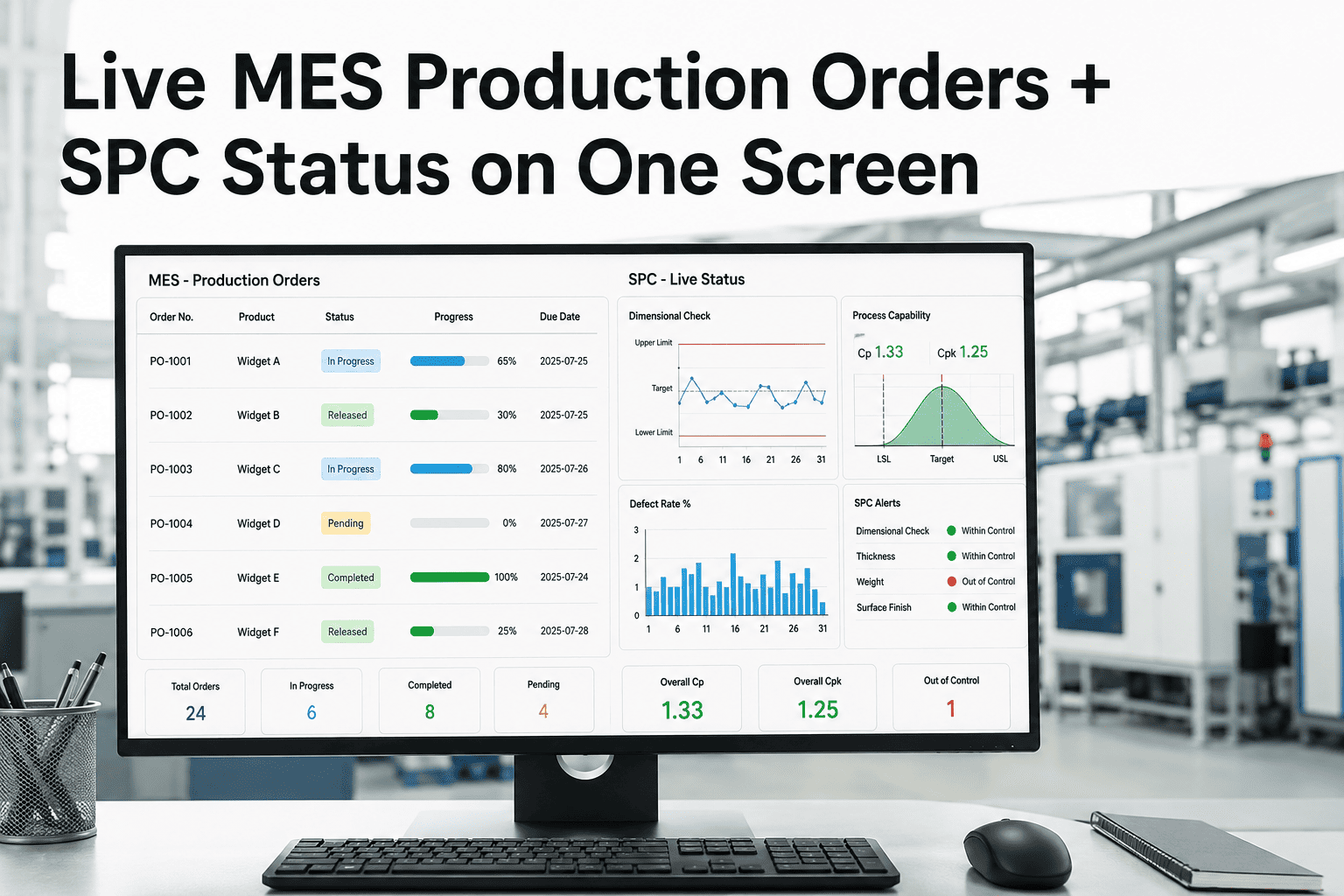
An MES operations manager trying to answer "what's actually running right now" usually ends up with three browser tabs open — one for order status, one for SPC charts, and one for the PLC view — none of which agree on the exact same moment in time. A single dashboard that shows every executing, queued, and inspection-stage order alongside its live SPC status removes that toggling entirely. Here's how a live orders dashboard keeps SAP context, recipe, PLC, and operator together on one screen.
Every Production Order, Its Real-Time SPC Status, One Screen
Executing, queued, and inspection-stage orders shown together with the SAP sales order, recipe, PLC, and operator behind each one — so the answer to "what's running right now" doesn't require three separate logins.
Three Screens to Answer One Question
MES operations managers describe the same routine every shift: check order status, switch to the SPC tool, switch again to confirm the PLC is actually running what the order says.
Order Status, Separately
The MES screen shows where an order sits in the queue, but says nothing about whether the quality it's producing is in control.
SPC Status, Separately
The SPC tool shows a control chart, but not which SAP order, which operator, or which PLC it's tied to without a manual lookup.
PLC View, Separately
The controller shows current parameters, but confirming those match the intended recipe still means cross-referencing a third screen.
Three Lanes, Every Order in Its Real Stage
Orders move through the same three lanes your floor already uses to talk about status — executing, queued, and in inspection.
Order SO-48213
Recipe R-220, Line 3, operator J. Nair, Cpk 1.42 and holding within the customer's tolerance band in real time.
Order SO-48219
Recipe R-118, staged for Line 2, waiting on the current run to clear before the next material load begins.
Order SO-48205
Recipe R-093, Line 1, final quality hold pending sign-off, with the SPC history for the full run attached.
Stop Cross-Referencing Three Systems for One Answer
iFactory's Active Production Orders panel shows executing, queued, and inspection-stage orders with full SAP order, recipe, PLC, and operator context — all on one screen.
What Changes When Context Travels With the Order
The underlying data doesn't change. What changes is how many systems a manager has to check to get the full picture.
| Capability | Separate Systems | Unified Orders Dashboard |
|---|---|---|
| Order and SPC status together | Manual cross-reference | Shown on the same card |
| Operator and PLC context | Looked up separately | Attached to every order |
| Queue visibility | Checked on demand | Always visible alongside active work |
| Inspection hold reason | Found in a separate quality log | Shown with the order's full SPC history |
Full Context, Not Just a Status Label
Each order on the dashboard carries the same detail a supervisor would otherwise have to piece together from separate reports.
SAP Sales Order
The commercial order tied to the production run, including customer, quantity, and promised date.
Recipe in Use
The exact recipe version currently loaded, with a link back to its parameter history if something looks off.
PLC and Line
Which controller and line are actually producing the order right now, confirmed against the recipe.
Operator on Shift
Who is currently responsible for the order, so a question about it has a clear first point of contact.
Getting to One Dashboard From Three Systems
None of the underlying MES, SPC, or PLC systems need to be replaced to bring their data together on one screen.
Map Order, SPC, and PLC Identifiers
Confirm how each system references the same production order, so records can be linked accurately.
Build the Unified Order View
Pull SAP order data, live SPC readings, and PLC status into a single order card for each active run.
Confirm Lane Logic
Validate that orders move correctly between executing, queued, and inspection lanes as their actual status changes.
Roll Out to the Control Room
Replace the multi-tab routine with the single dashboard for supervisors, planners, and quality staff.
Live Orders Dashboard — Questions Answered
What MES operations managers typically ask before consolidating order, SPC, and PLC views into one dashboard.
Q: Does this dashboard replace our existing MES screens?
No, the dashboard sits alongside your existing MES, SPC, and PLC interfaces rather than replacing them, pulling the same underlying data into one consolidated view. Teams that prefer the original screens for detailed work can continue using them, while the dashboard becomes the fast-answer screen for "what's running right now" questions. You can book a demo to see it running alongside your current MES setup.
Q: How current is the SPC status shown on each order card?
SPC readings update continuously as they're generated on the line, so the Cpk and control-chart status shown on an order card reflects the current state of the run rather than a periodic snapshot. This is what makes the dashboard useful for a supervisor deciding in real time whether a run needs intervention, rather than confirming after the fact that it should have.
Q: What happens when an order moves from executing to inspection?
The order card automatically moves to the inspection lane and carries its full SPC history for the run along with it, so whoever picks up the quality hold has the complete process record without needing to pull a separate report. The hold reason, when one is logged, is shown directly on the card as well. Our support team can walk through how hold reasons map from your current quality workflow.
Q: Can the dashboard show orders across multiple lines at once?
Yes, the dashboard is built to show every active line at once by default, with the option to filter down to a single line, shift, or product family when a supervisor needs a narrower view. This makes it usable both as a control-room overview screen and as a focused tool for someone managing a specific line.
Q: Does the operator field update automatically across shift changes?
Yes, the operator shown on each order card updates automatically when a shift handover is logged in the system, so the dashboard always reflects who is currently responsible for a given run rather than who started it. This keeps the "who do I ask" answer accurate throughout the day without any manual re-entry.
One Dashboard for "What's Running Right Now"
Stop toggling between MES, SPC, and PLC screens to answer a question that should take one glance. iFactory's Active Production Orders panel brings executing, queued, and inspection-stage orders together with full context on one screen.