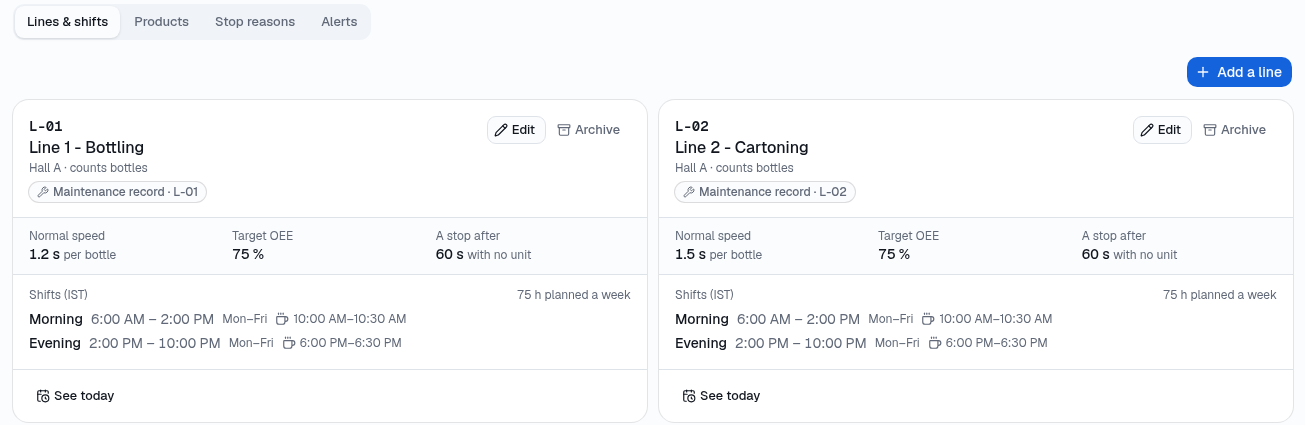
Setup → Lines & shifts is where each line in Line OEE is defined. Give it a short code such as L-01, a name, an area and the name of the unit it counts, such as bottles. Then set three numbers that drive every figure the tool shows: normal speed, target OEE and stop time. Add shifts with their breaks, and the machines along the line, each linked to a Maintenance asset. You can sign up to access Line OEE and set up your first line in minutes, with 14 days of Pro features and no card.
iFactory Tools · Production · Setup
Set up a line: code, normal speed, target OEE and stop time
Four labels and three numbers. Every OEE, target and stop in Line OEE starts from them.
The three numbers that matter
Normal speed drives performance, target OEE drives the hourly targets and alerts, and stop time decides when a gap in the counts becomes a stop.
Every field on a line
| Field | What it is | Example from the test account |
|---|---|---|
| Code | A short code, unique in the company | L-01 |
| Name and area | What the line is called and where it is | Line 1 - Bottling, Hall A |
| Unit name | What one count is | bottles |
| Normal speed | Seconds per unit at best; a product can set its own | 1.2 s per bottle |
| Target OEE | The line's own target, 85 % by default | 75 % |
| Stop time | Seconds with no unit before a stop starts | 60 s |
| Shifts and breaks | Days, start and end, breaks as planned time off | Morning and Evening, Mon–Fri |
| Machines | Machines along the line, each a Maintenance asset | Maintenance record · L-01 |
Set up your first line today
Code, speed, target and stop time, then shifts. Pro features are free for 14 days, no card required.
Set up a line in five steps
Add a line
In Setup → Lines & shifts, press Add a line and give the code, name, area and unit name.
Set normal speed
Use the best time you have seen for one unit, not an average.
Set target OEE and stop time
Keep 85 % and 60 s, or set the line's own. A shorter stop time records more short stops with a reason.
Add shifts and breaks
Each shift has its days, start, end and breaks. A shift may cross midnight. The card shows planned hours a week.
Add machines and products
List the machines along the line, then add products with their own speed and units per carton.
Products and placeholder speeds
Products can carry their own normal speed, units per carton and ERP item. A line with no shifts counts planned time only while a run is going, and a placeholder speed is marked as a starter value.

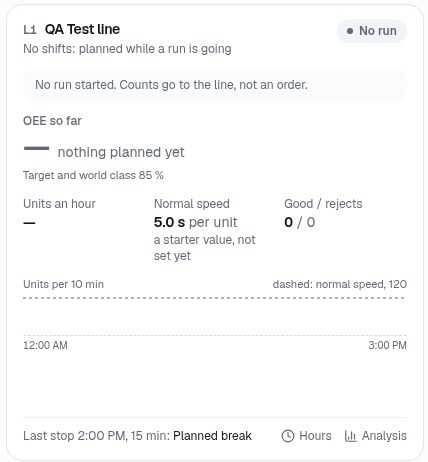
Starter value, not set yet
A line created with a placeholder normal speed shows it as a starter value until someone gives the real one, and a run cannot start on it before then. This test line also has no shifts, so it is planned only while a run is going.
Get these right before the first run
A slow normal speed hides losses
Performance is capped at 100 %, so a normal speed set too slow makes the line look perfect. Set it from a real best run.
Stop time changes what you see
Gaps shorter than the stop time lower speed; longer gaps become stops with a reason. Choose it for how fast the line runs.
Expert review
A close review of the line model in the product repository and the portal shows a small, sensible setup: a few labels and three numbers per line, with shifts, breaks and machines, and Maintenance assets created to match.
The settings deserve care because every figure depends on them. Normal speed in particular should come from a real best run, since performance is capped at 100 %.
Frequently asked questions
What do we need to set up a line?
A short code such as L-01, a name, an area and the name of the unit it counts, such as bottles. Then three numbers: normal speed, target OEE and stop time. Shifts with their breaks come next.
What is normal speed?
The best time to make one unit, in seconds, from 0.1 to 3,600. Performance is measured against it, and a product can set its own. You can sign up to access Line OEE and set it from a real best run.
What is the stop time?
The seconds with no unit before a stop starts. The default is 60 seconds and it can be set from 5 to 3,600. Gaps shorter than this lower speed instead of becoming stops.
What target OEE should we start with?
The default is 85 %, the world-class reference Line OEE uses, and each line can have its own. The test lines shown here use 75 %. Hour by hour targets and the OEE alert follow the line's own figure.
What does starter value, not set yet mean?
A line created with a placeholder normal speed is marked as a starter value until you give the real one. You can get started with Line OEE and replace it in Setup before the first run.
Set up a line and start counting
One line, three numbers and its shifts. The Overview and Hour by hour fill in from the first run.
- Code, name, area and unit
- Normal speed, target OEE, stop time
- Shifts, breaks and machines
Free for 14 days · no card needed