
Most plants start with a spreadsheet, and Line OEE lets you bring it with you. The Upload a spreadsheet button sits in the header of every Line OEE page. Upload the file, match its columns to the tool's fields once, and the records are added. After that you can keep adding or editing entries one by one. You can sign up to access Line OEE and load your production history, with 14 days of Pro features and no card.
iFactory Tools · Production · Data in and out
Bring your production spreadsheet into Line OEE
Upload, match the columns once, and your records join the same OEE views as counted ones.
Where the button is
Upload a spreadsheet is next to Add counts in the header, so it is one click away from any page.

From spreadsheet to OEE
Press Upload a spreadsheet
From any Line OEE page.
Choose the file
Spreadsheet handling uses SheetJS inside the app.
Match the columns once
Tell the tool which column is which field.
Check the views
Uploaded records appear in Hour by hour, Analysis and the shift report.
Keep it up to date
Add or edit entries one by one after the first upload.
Put your history to work
Load past records before a trial and compare them with counted lines. Pro features are free for 14 days, no card required.
Good reasons to upload
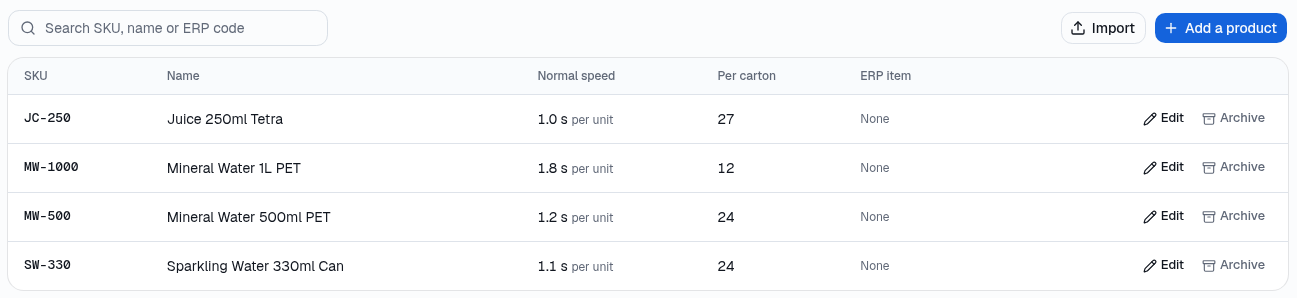
Import products in Setup
Setup → Products has its own Import button. Each product carries a normal speed and units per carton, which drive performance and pack-out.
Data in, data out
| Direction | Where | What |
|---|---|---|
| In | Header · Upload a spreadsheet | Production records, columns matched once |
| In | Setup → Products · Import | Product list |
| In | Header · Add counts | Good and rejected units, one entry at a time |
| Out | Stops, Runs, ERP posting | CSV downloads |
| Out | Hour by hour, Analysis | Hourly table and daily table as CSV, shift report as PDF |

Before you upload
Set up lines and products first
Records belong to a line, and speeds come from the line or the product. Add them in Setup before the first upload so every row has somewhere to go.
Keep one layout
The columns are matched once. Keep the same column order and headings in later files so the match still fits, and fix odd rows one by one afterwards.
Expert review
A close review of the portal shows the upload offered where people need it, in the header of every page, with a separate import for products. Uploaded records feed the same calculation as counted ones, so a plant can compare spreadsheet lines and camera lines in one report.
Check the column match carefully on the first upload; every later record depends on it. The data stays portable too, since every list downloads as CSV. Screenshots are from a test account.
Spreadsheet upload questions
Can I bring my existing spreadsheet?
Yes. Press Upload a spreadsheet in the header of any Line OEE page, match the file's columns to the tool's fields once, and the records are added. You can sign up to access Line OEE and upload yours.
Where do uploaded records show up?
In the same views as counted records: Hour by hour, Analysis and the shift report.
Can I edit records after the upload?
Yes. After the upload you can keep adding or editing entries one by one, with Add counts for units and Add a stop for stops.
Can I import products too?
Yes. Setup → Products has an Import button for a product file, next to Add a product. Each product carries its SKU, name, normal speed, units per carton and ERP item.
Can I get my data back out as a spreadsheet?
Yes. Stops, runs, ERP postings, the daily table and the hourly table download as CSV. You can get started with Line OEE and try both directions.
Upload your first spreadsheet
Bring your records in, match the columns once, and see your lines in Line OEE.
- Upload from any page
- Products import in Setup
- CSV export for every list
Free for 14 days · no card needed