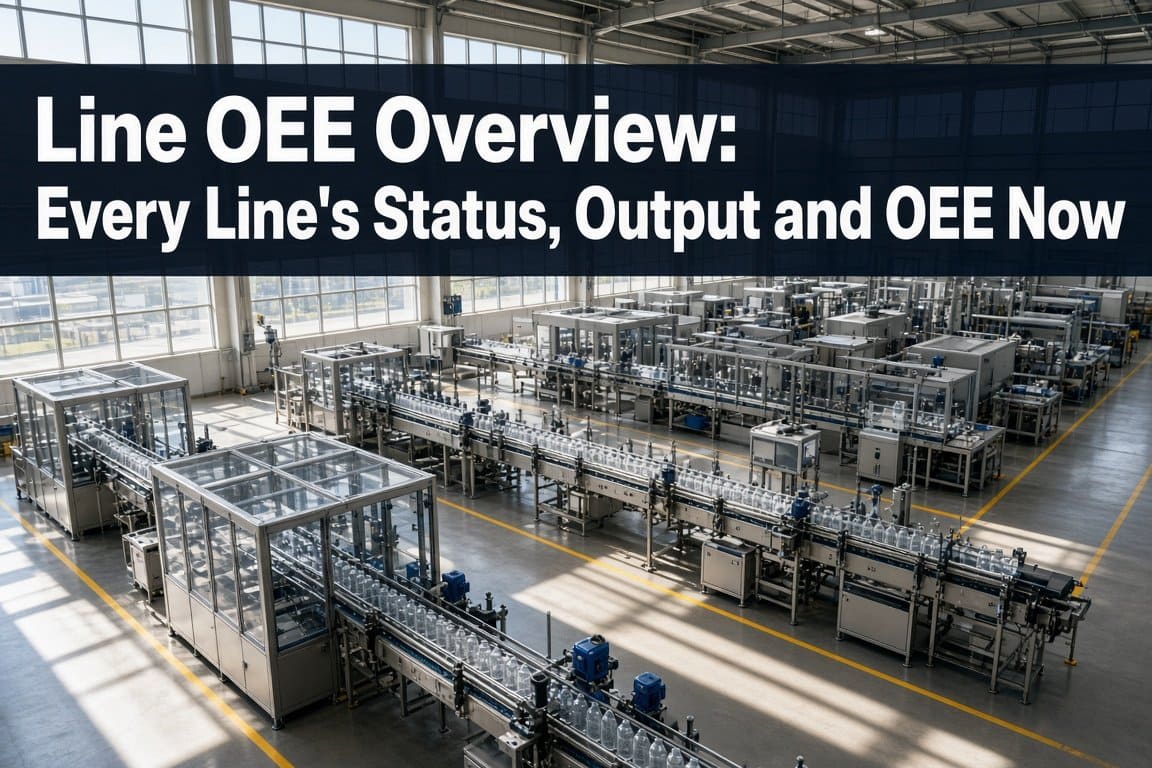
The Overview is the first page of Line OEE and answers the question every shift starts with: what is each line doing right now? A plant summary for today sits at the top, a Needs attention panel lists the lines that need action, and every line has its own card with status, output, OEE against target and the last stop with its reason. The page updates about every 15 seconds. You can sign up to access Line OEE and see your own lines on it, with a 14-day trial of Pro features and no card.
iFactory Tools · Production · Live views
Every line's status, output and OEE on one page
Running, stopped since its last unit, or no run yet. OEE so far against target, with the last stop and why.
The real page, from a test account
This is the Overview as it appears in the portal. The plant summary, the Needs attention panel and three line cards are all visible.

Today, all lines: the plant summary
Read from the screenshot above: sample data from a test account, not customer results. Links underneath go to Today's stops and Today's analysis.
Anatomy of a line card
Each card links to the line's hours and its analysis, so one click goes from a number to its cause.
| Field | What it tells the supervisor |
|---|---|
| Status | Running, stopped since its last unit, or no run yet |
| Product and order | What the line is making and for which order, with made against planned |
| OEE so far | OEE for the shift so far, against the line's target and world class 85 % |
| Units an hour and normal speed | How fast the line is running against the speed it should run at |
| Good and rejects | Units made and units rejected so far |
| Units per 10 minutes | A bar chart with the normal speed as a dashed line |
| Last stop | When it stopped, for how long, and the reason given |
Put your lines on one page
Start with one line, by camera or by hand. Pro features are free for 14 days, no card required.
Needs attention and the Why? link
The Needs attention panel lists lines that need action, such as a line that was below target last hour, with a link straight to that line's hour by hour view. In the test account, both bottling and cartoning lines were flagged that way.
What the footnote says
OEE is how much of what a line could make in its planned time it made as good units: uptime × speed × good. Breaks and planned stops do not count against it; minor stops count against speed, other stops against uptime.
Expert review
A close review of the Overview components and the portal shows a page built for the first minute of a shift: status first, then OEE against a target the plant sets per line, then the last stop and its reason. The world-class line at 85 % is a fixed reference in the code, not a promise.
One point to know: the page refreshes about every 15 seconds, while alert checks run every five minutes. They are separate jobs, so a stopped line can show on the Overview before an alert is sent.
Frequently asked questions
What does each line card on the Overview show?
Its status, the product and order on the line, OEE so far against the line's target and world class, units an hour, normal speed, good and rejected units, a chart of units per 10 minutes and the last stop with its reason.
How often does the Overview update?
The page footnote says it updates every 15 seconds. Alert checks are a separate job that runs every five minutes. You can sign up to access Line OEE and watch your own lines update.
What does the Why? link explain?
Why? opens a short explanation of what pulled OEE down, for the plant summary or for one line, so a supervisor can see the cause before walking to the line.
Can the Overview be shown on a screen on the shop floor?
The page header has a TV screen button, and the product has a shop-floor TV scoreboard link. Use it where the team can see the lines' status during the shift.
Do we need cameras for the Overview to work?
No. The Overview reads the same records whether units are counted by a camera or entered by hand. A line with no run yet simply shows no run. You can get started with Line OEE on one line first.
See every line on one page
Set up a line, start a run, and the Overview fills in as units are counted or entered.
- Running, stopped or no run yet
- OEE so far against target
- Last stop with its reason
Free for 14 days · no card needed