Line OEE & Production is the iFactory tool for plant, production and operations managers who want OEE from real counts, not from a board filled in after the shift. A phone, tablet or PC camera in the browser counts each unit that crosses a line you draw on the picture, or you can enter the counts by hand. OEE updates as the line runs, every gap in the counts becomes a stop that someone gives a reason for, and packed cartons can post to SAP Business One. Overview, Hour by hour, Runs and orders, Stops, Pack-out, ERP posting and Analysis all read the same records. You can sign in to access Line OEE and walk those pages in a 14-day trial of Pro features, with no card required.
iFactory Tools · Production · Line OEE & Production
OEE from real counts, every stop with its reason
Count with a camera you already have, or enter counts by hand. Overview, Hour by hour, Runs and orders, Stops, Pack-out, ERP posting and Analysis all read the same records.
From a count to a carton posting, on one set of records
The path through Line OEE is short and fixed. Counts land first, a quiet gap becomes a stop with a reason, packed cartons are booked against the run, and released cartons can post to SAP Business One. The same records feed Overview, Hour by hour and Analysis.
units
reason
cartons
SAP B1
The default stop time is 60 seconds with no unit, set per line as A stop after. SAP Business One is the only ERP in the product.

Camera counts, stops and pack-out, in one tool
Those three jobs sit on the same lines, runs and orders. OEE is Availability times Performance times Quality, and every page above reads that same calculation.
Camera counts
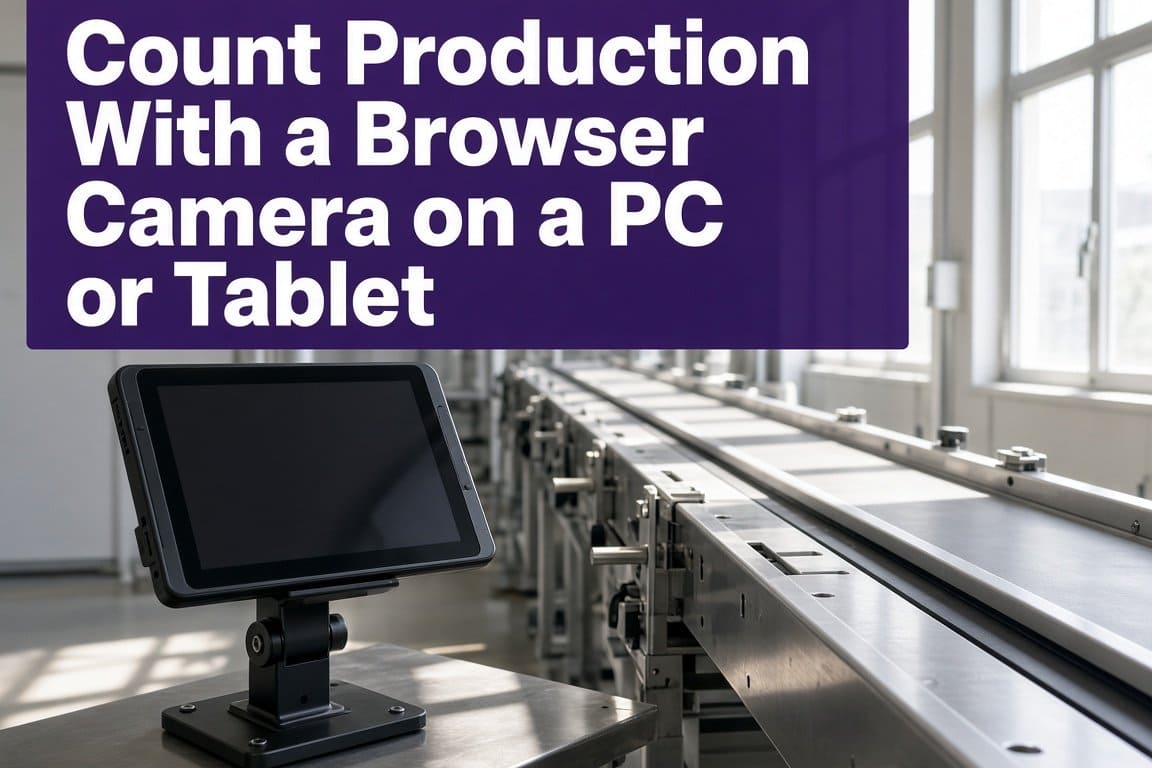
A phone, tablet or PC camera in the browser counts each unit that crosses a line you draw on the picture. You can also pair a phone with a QR code, replay a video, use a fixed camera the iFactory team connects, or enter counts by hand.
Stops with a reason
When counts go quiet for longer than the line's stop time, a stop is written from the counts. Anyone can also add one by hand. Each stop carries a reason from your list and a category that decides which loss it takes.
Pack-out and posting
Cartons are packed at the end of the line, by run, order and batch. Released cartons can post to SAP Business One as a Receipt from Production. Test mode builds and keeps every posting so you can check it before anything is sent.
See OEE from your own counts, not from a later spreadsheet
Sign in to access Line OEE, set a line and a shift, and start with a camera you already have or with counts entered by hand. Pro features are free for 14 days, and no card is required.
How to get a shift on the board
The setup is the same whether you count with a camera or enter units by hand. This sequence is what the portal actually asks for.
Set the line, the shift and the product
Add the line with its normal speed, target OEE and stop time, then set shifts and breaks and the product, including units per carton and an ERP item code if you will post.
Start a run
Open Runs and orders, start a run for the line, the product and the order, and the ideal cycle is fixed at the start of that run.
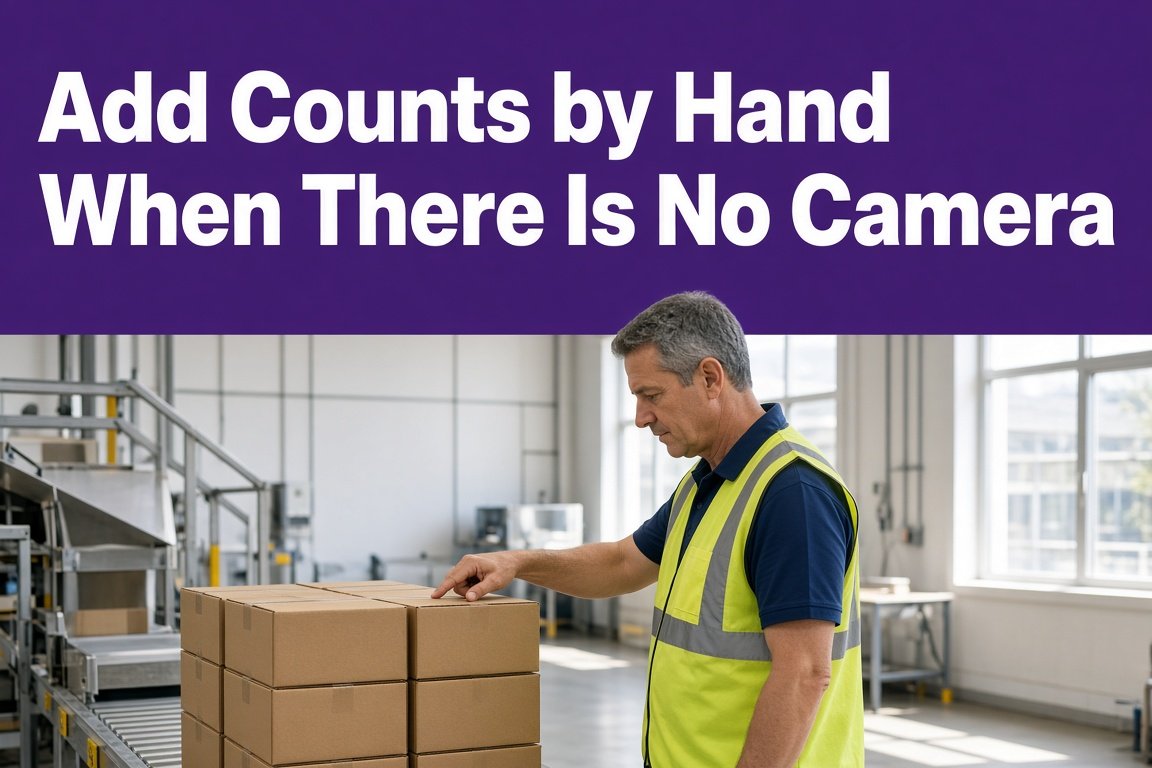
Count units, or enter them
Use this device's camera, a paired phone, a video or a fixed camera, or enter counts by hand. OEE and Hour by hour update from the same minute records.
Give every stop a reason
Review stops found from the counts, add any that were missed, and attach a reason so the loss is assigned to the right category.
Pack cartons and check the posting
Pack cartons against the run, hold or release them, and use ERP posting in test mode to see each SAP Business One receipt before you go live on the connection page.
What you work in Line OEE & Production
Each page answers one question about the line, and all of them work on one set of counts, stops, runs and cartons.
Hour by hour against the target
Each hour of the shift shows planned minutes, the target, good units, rejects, stopped minutes and the top stop reason, with running totals as the shift goes on.
The same records in Overview
Every line's status, OEE so far against its target, and a Needs attention list come from those same counts and stops, not from a second log.

Pack-out by run, order and batch
Cartons are packed at the end of the line, counted against packed, and can be held, released, posted or cancelled, with printable labels and a batch rule.
Test mode before anything is sent
ERP posting builds each SAP Business One receipt and keeps it to check. Queued, Failed, Sent and Test are listed, and live sending starts only on the connection page.

SAP Business One, and only that ERP
Released cartons post as a Receipt from Production against the production order, under their batch. Ended runs can post an Issue for Production. No other ERP is supported in the product.

You can sign in to access Line OEE and open Overview, Pack-out and ERP posting on your own lines during the 14-day trial.
Limits to be clear about
No PLC or machine-signal input
Counts come from cameras, video or manual entry. There is no OPC UA, MQTT or other PLC input in the product.
SAP Business One only
ERP posting supports SAP Business One. There is no posting path for other ERPs in the product.
Counts do not identify SKUs
The built-in counter records units that cross the line or move in a zone. The product on the run is the one you selected, not one the camera names.
Quality is rejects, not a defect taxonomy
Quality is good units over good plus rejects. Rejects come from an optional reject zone or from a manual entry. There is no rework or defect-type list.
Expert review
A close review of the Line OEE & Production module in the portal, and of the product repository, shows a complete count-to-pack-out path on one set of records. OEE is Availability times Performance times Quality, with planned breaks taken out of planned time and minor stops counted against speed, as described in the product's ISO 22400 and common-practice calculation.
Counts can come from a browser camera, a phone paired by QR, a video, a fixed camera, or a manual entry. The only ERP posting path in the repository is SAP Business One, and it can be run in test mode so each receipt is built and kept before anything is sent. There is no PLC, OPC UA or MQTT input. What you see in the screenshots is sample data from a test account, not customer results.
Frequently asked questions
Do we need special cameras?
No. A phone, tablet or PC camera in the browser can count a line, or a phone paired with a QR code. For a permanent setup, the iFactory team can connect a fixed camera you already have. You can sign in to access Line OEE and start on a camera you already own, or enter counts by hand until a camera is in place.
Can we start without cameras?
Yes. Set up your lines, shifts and products, and enter runs, stops and cartons by hand. OEE, the stop reasons and the shift report work the same, and you can add a camera to a line later. Sign in to access Line OEE and set the lines up first, then attach a camera when you are ready.
How does Line OEE calculate OEE?
Availability is run time over planned time, performance is ideal cycle times units over run time, capped at 100 percent, and quality is good units over good plus rejects. OEE is the three multiplied, following ISO 22400 and common practice in the product code. Breaks and planned stops come out of planned time, and minor stops count against speed. You can sign in to access Line OEE and see Availability, Performance and Quality on the same records.
Does it work with SAP Business One?
Yes. Released cartons post as Receipts from Production against the production order, under their batch, through the Service Layer. Start in test mode to see every posting before anything is sent. SAP Business One is the only ERP supported. You can sign in to access Line OEE and open ERP posting in test mode first.
Do I need a card for the trial?
No. Every new company starts with a 14-day free trial of Pro features, and no card is required. Line OEE and Production sits in the Pro and Agentic plans. You can sign in to access Line OEE and walk the pages during that trial.
Sign in to access Line OEE and count the next shift
Camera or manual counts, every stop with a reason, and pack-out that can post to SAP Business One, on one set of records.
- OEE as Availability times Performance times Quality
- Stops found from the counts or entered, with a reason
- SAP Business One posting, starting in test mode
Free for 14 days · no card needed