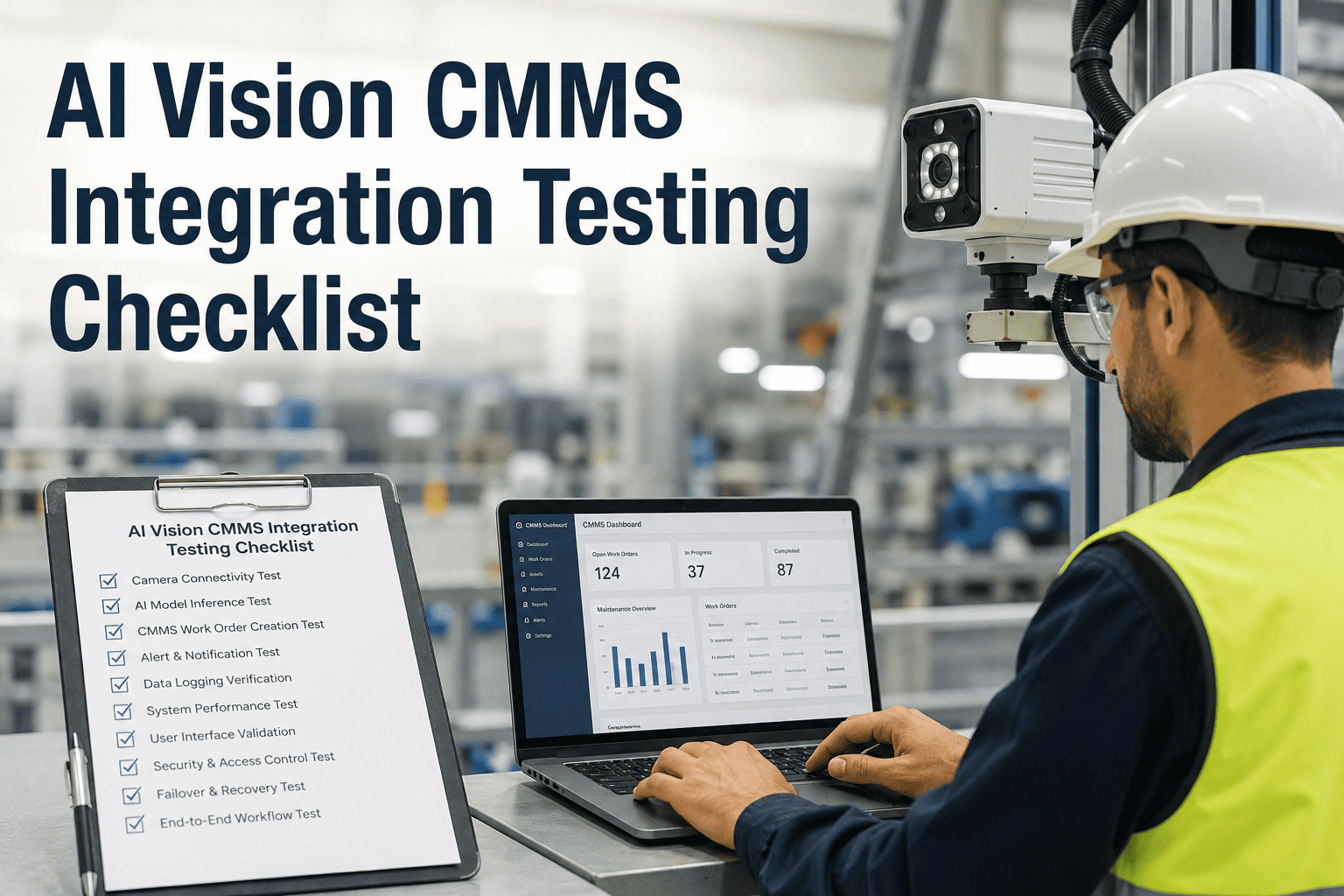
AI Vision CMMS Integration Testing Checklist

By Johnson on July 22, 2026

ai-vision-cmms-integration-testing-checklist

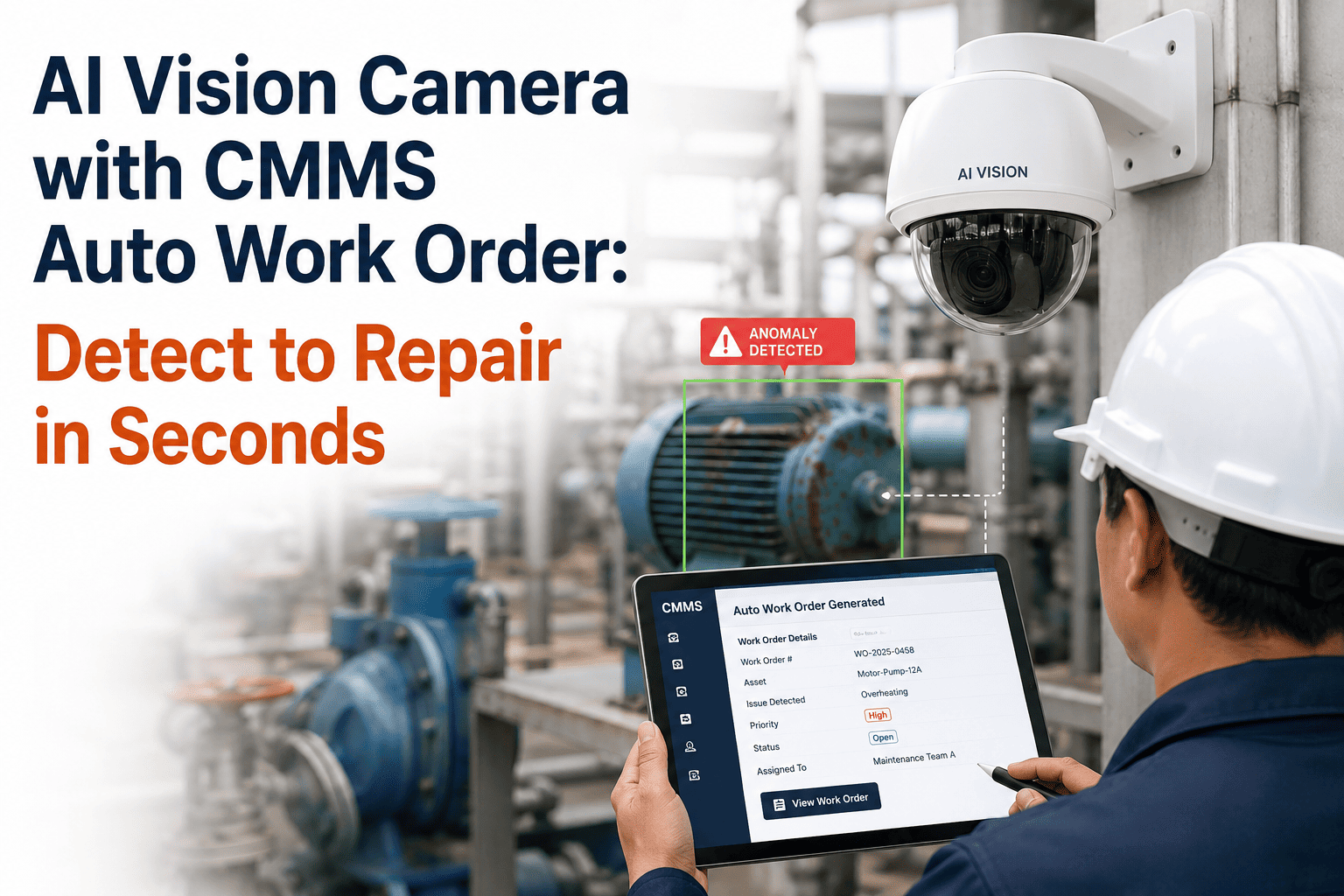
An AI vision camera that detects a fault correctly but fails to create a work order is not a monitoring system — it is an expensive notification nobody acts on. The biggest failure in AI vision deployments is not the detection model, it is the handoff: an alert reaches a dashboard nobody checks, an image attachment fails silently, or an asset ID maps to the wrong equipment record. Edge AI systems can cut false alerts by 90% compared to motion-only detection, but that number means nothing if confirmed detections never make it into a trackable work order. This checklist covers the five test suites that confirm your AI vision and CMMS are actually talking to each other. Book a demo to see this testing built into deployment.

The Integration Chain This Checklist Validates
1Detection Fires
2Asset Maps
3Work Order Creates
4Alert Delivers
5Data Syncs Back

Each break point in this chain is invisible until someone needs the work order that never arrived. Test every link before the system carries real safety and production decisions.

90%
Reduction in false alerts achieved by properly tuned edge AI systems versus motion-only detection
<2%
Target false positive rate once thermal and visual baselines are fully established over 2-4 weeks
60s
Target time from confirmed detection to a fully populated work order appearing in the CMMS queue
5
Test suites in this checklist, each targeting a distinct failure point in the integration chain

Test Suite 1: Work Order Auto-Creation Accuracy

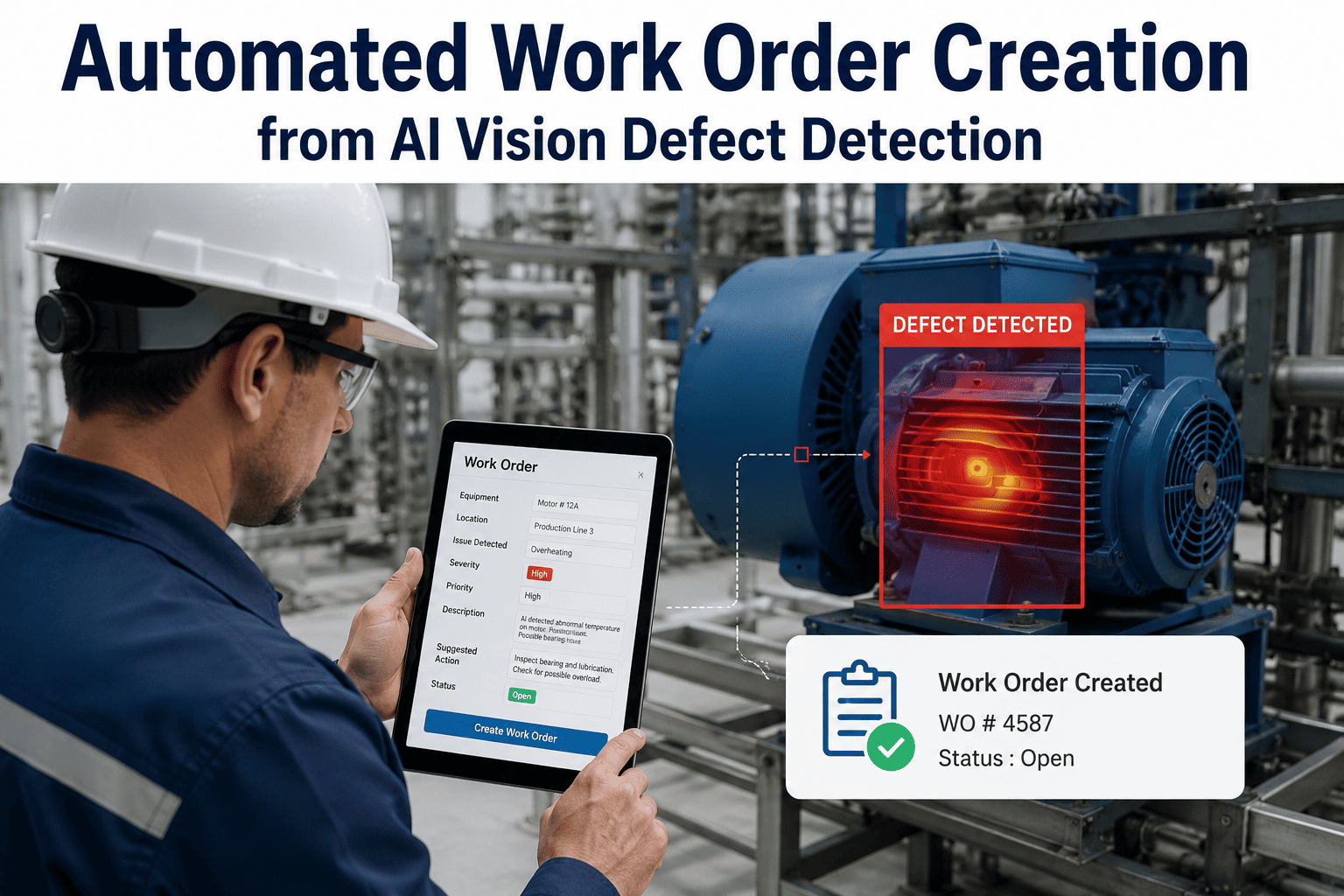
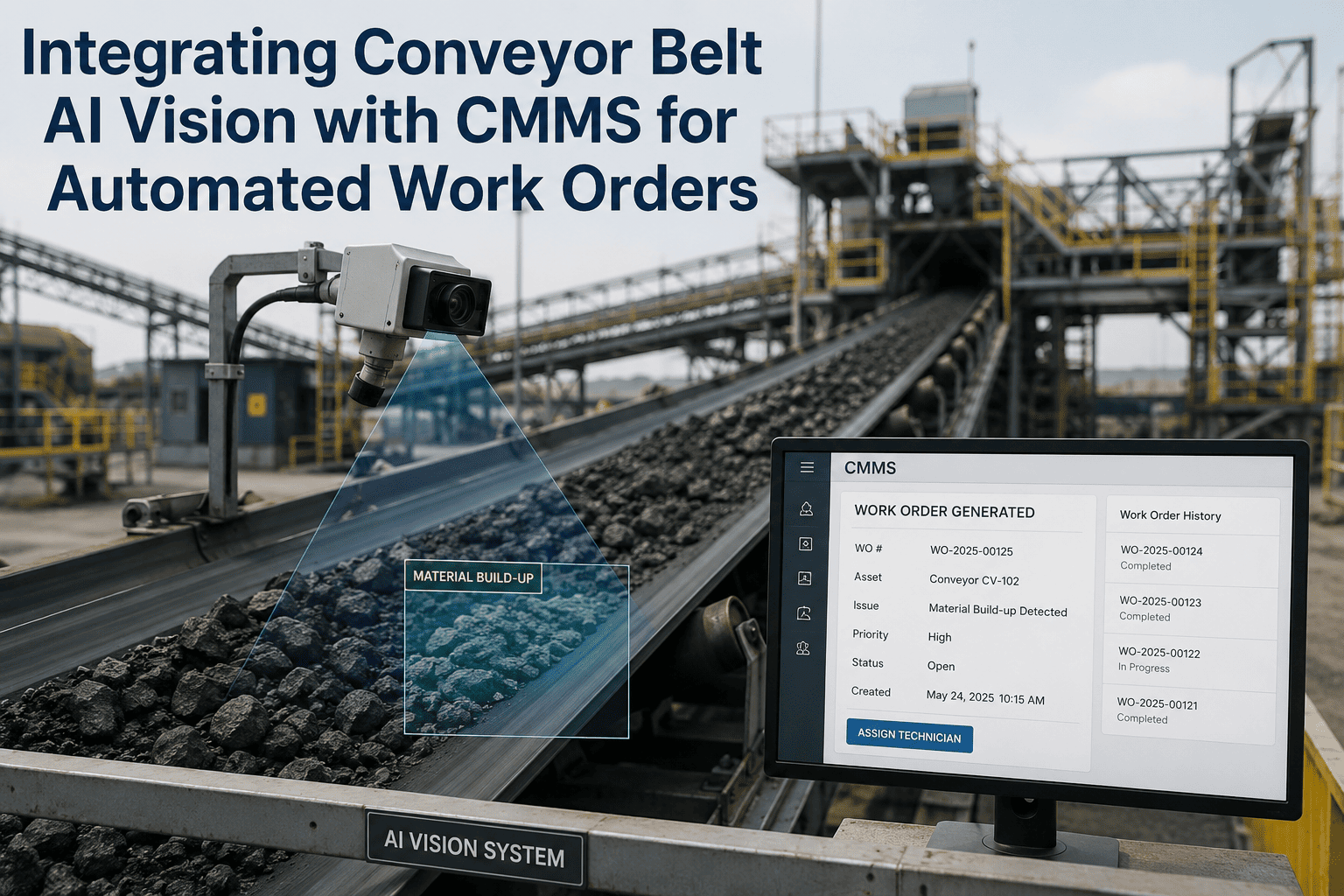
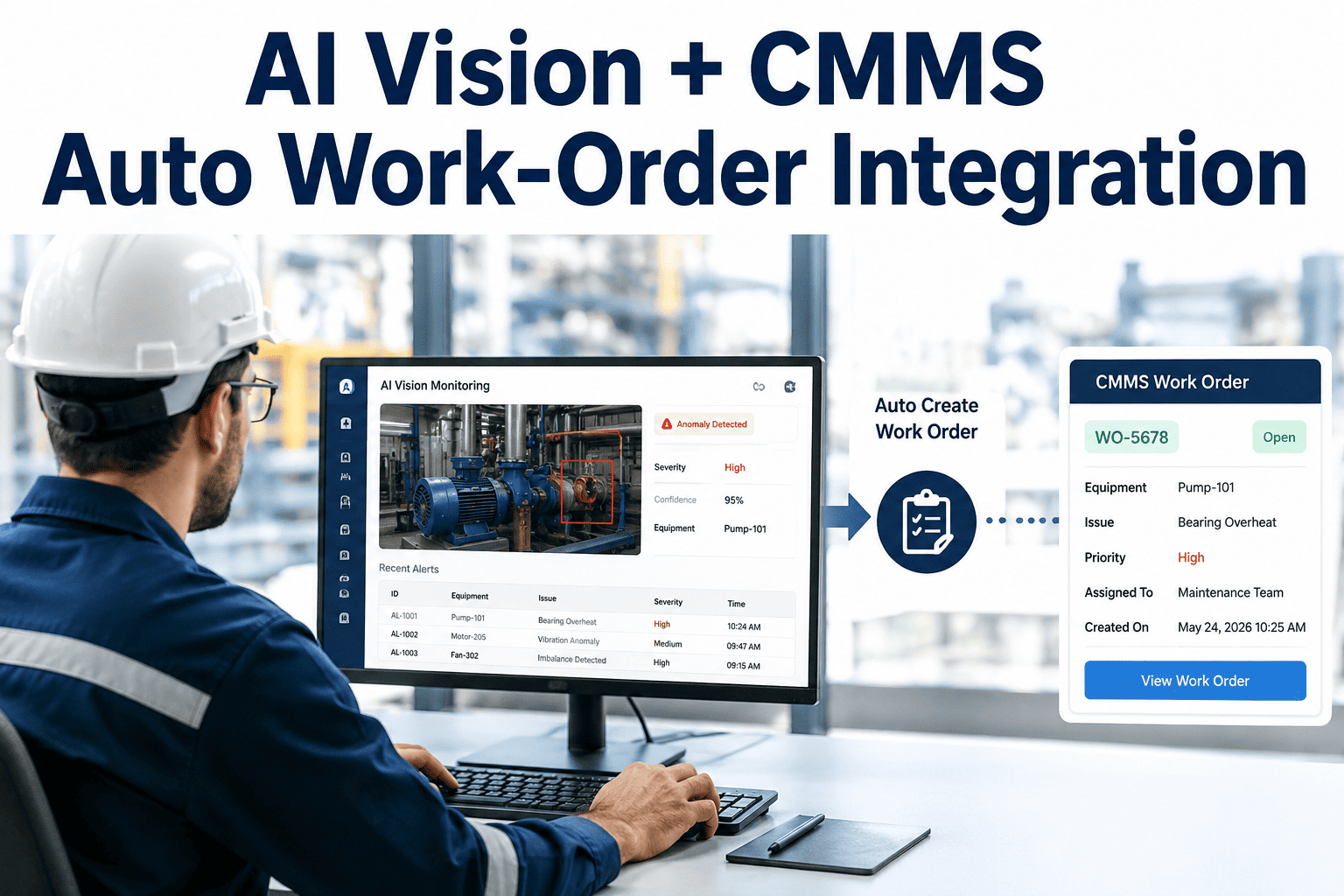
The core promise of AI vision integration is that a confirmed detection becomes a work order without a human in the loop. If a technician still has to manually create the work order after an alert, the automation has already failed — you are paying for a notification system, not an integration.

Trigger a live or simulated detection and confirm a work order appears in the CMMS queue without manual interventionCritical
Work order fields populate correctly — asset ID, fault type, detection timestamp, and camera location all presentCritical
Priority level auto-assigns based on detection severity and matches the configured severity-to-priority mappingMonitor
Duplicate detections within the suppression window do not generate duplicate work orders for the same fault eventMonitor
Recommended repair procedure and parts list auto-populate where the fault type has a configured response templateRoutine

Test Suite 2: Annotated Image and Evidence Attachment

A work order without visual evidence forces the technician to walk the floor guessing what the camera actually saw. Image attachment is where integrations quietly fail — the alert fires, the work order creates, but the image never makes it across because of file size limits, timeout errors, or a broken attachment pipeline nobody tested. Start free trial to test image attachment against your own CMMS instance.

Original detection image attaches to the work order successfully across a sample of at least 50 test detectionsCritical
Annotated overlay — bounding box, defect marker, or severity heatmap — renders correctly on the attached imageCritical
Image file size and format tested against CMMS upload limits, including under high-resolution camera outputMonitor
Attachment retry logic confirmed for network interruption — a dropped connection should not silently discard the imageMonitor
Before and after images both attach correctly once a technician closes the work order with a resolution photoRoutine

Test Suite 3: Asset Mapping Accuracy

A camera zone mapped to the wrong asset record sends a correctly detected fault to the wrong maintenance history, the wrong technician skill queue, and the wrong criticality tier. Unmapped or mismapped sensors generate noise instead of intelligence, and this failure mode is invisible in a demo — it only surfaces once the work order lands on the wrong desk in production.

Every camera zone confirmed mapped to the correct CMMS asset record, verified against the physical facility layoutCritical
Multi-asset fields of view correctly route detections to the specific asset affected, not a single shared zone recordCritical
Asset criticality tier carries through correctly from the CMMS record into the auto-assigned work order priorityMonitor
Renamed, replaced, or decommissioned assets tested to confirm mapping updates rather than routing to a stale recordMonitor
Maintenance history for each asset shows accumulated AI-generated work orders correctly attributed over timeRoutine
Testing Method

Asset mapping spot check. Walk the facility with the zone map in hand. At each camera, trigger a manual test detection and confirm the resulting work order in the CMMS references the exact asset standing in front of the camera — not the zone name, not a nearby asset, the specific equipment ID. Any mismatch here compounds into every future alert from that camera.

Test Suite 4: Alert Notification Delivery

An alert that goes to a dashboard nobody monitors is worse than no alert at all — it creates a false sense of coverage while the violation or fault sits unaddressed. Delivery testing confirms the notification actually reaches a human, through the right channel, at the right urgency.

High-severity alerts confirmed to reach the assigned recipient via push notification, SMS, or email within target SLACritical
Escalation logic tested — unacknowledged high-severity alerts escalate to a secondary contact after the defined windowCritical
Low-severity alerts correctly batch into shift or daily summaries rather than triggering individual interruptionsMonitor
Notification routing tested against shift schedules so alerts reach whoever is actually on duty, not a fixed contactMonitor
Mobile app push notifications tested for delivery reliability across both iOS and Android devices in field conditionsRoutine

Test Suite 5: Bi-Directional Data Sync Verification

Integration is not finished once an alert becomes a work order — the loop has to close. When a technician resolves the issue in the CMMS, that resolution needs to feed back into the AI system's baseline, or the model keeps comparing future frames against a fault state that no longer exists. Book a demo to see the full closed-loop sync in a live environment.

Work order closure in the CMMS confirmed to update the AI system's healthy-state baseline for that assetCritical
Parts consumption logged during work order completion correctly deducts from CMMS inventory recordsCritical
Technician-marked false positives feed back into the model retraining queue rather than disappearing after dismissalMonitor
Sandbox-to-production cutover tested with base URL and authentication swap, confirming no data loss during transitionMonitor
API and webhook error queue monitored for a full test cycle to confirm zero silent failures before go-liveCritical

Test Suite Summary: Scope and Ownership

Test Suite Test Duration Owner Critical Tests Total Tests
1. Work Order Auto-Creation 1 to 2 days Integration Engineer 2 5
2. Image Attachment 4 to 6 hours Integration Engineer 2 5
3. Asset Mapping 1 day per site Maintenance Manager 2 5
4. Alert Delivery 1 shift cycle EHS + IT 2 5
5. Bi-Directional Sync 2 to 3 days Integration Engineer 3 5

Test Once, Trust the Integration Every Time After

iFactory's AI vision platform connects to your CMMS through documented REST and webhook endpoints, with a sandbox environment that mirrors production exactly — so every test in this checklist runs against real data flows before a single live alert reaches your team.

What Facilities Report After Passing Full Integration Testing

90%
Fewer False Alerts
Reduction versus motion-only detection once contextual models and thresholds are fully validated
2x
Wrench Time Per Tech
Technicians spend less time chasing incomplete or misrouted work orders and more time on repairs
60s
Detection to Work Order
Time from confirmed anomaly to a fully populated, correctly assigned work order in the queue
Zero
Silent Failures
Target for the error queue once every test suite in this checklist passes before go-live

Frequently Asked Questions

QHow do we know if a work order was created automatically versus manually entered by a technician after the fact?
A properly integrated system tags every work order with its origin source, so AI-generated work orders should carry a distinct creation method flag separate from manually entered ones. During Test Suite 1, deliberately compare the audit trail timestamp on the work order against the detection timestamp from the AI system — if there is a meaningful delay or the creation method shows "manual," the automation loop is not actually closed and someone is still bridging the gap by hand. This distinction matters because it directly affects the response time metrics you can trust in reporting.
QWhat causes annotated images to fail attaching to work orders even when the detection itself works correctly?
The most common causes are file size limits on the CMMS upload endpoint being exceeded by high-resolution camera output, network timeout during the attachment transfer, or a format mismatch between what the AI system exports and what the CMMS accepts. Test Suite 2 specifically runs a sample of at least 50 detections rather than a handful, because attachment failures are often intermittent and tied to file size variability rather than a consistent, easily reproducible bug. Start free trial to test attachment reliability against your specific CMMS configuration.
QHow often should asset mapping be re-verified after the initial integration testing is complete?
Asset mapping should be re-verified any time equipment is replaced, relocated, or decommissioned, and as a standing practice, a full mapping spot check on a rolling quarterly basis catches drift that accumulates from smaller undocumented changes. Facilities with frequent equipment turnover, such as those using modular or mobile assets, benefit from mapping verification built into the change management process itself rather than treated as a separate periodic audit. A single unnoticed remapping error can misroute every future detection from that camera until someone traces a pattern of misdirected work orders back to the source.
QWhat is the difference between testing in a sandbox environment and testing in production?
A sandbox environment mirrors production exactly in terms of endpoints, authentication, and response formats, but runs against test data that cannot affect live maintenance records, work order queues, or technician notifications. Running the full test suite in sandbox first lets you validate every integration point without risk, and the cutover to production should require only a base URL and authentication credential change if the sandbox truly mirrors production. Skipping sandbox testing and validating directly in production risks generating false work orders that pull technicians away from real issues, or worse, missing a broken integration until a genuine fault goes undetected.
QDoes iFactory support testing against multiple CMMS platforms, or only its own system?
iFactory's AI vision platform connects to CMMS systems through documented REST endpoints and webhooks, which means the integration testing methodology in this checklist applies whether the receiving CMMS is iFactory's own platform or a third-party system your facility already uses. The core test suites — work order creation, image attachment, asset mapping, alert delivery, and bi-directional sync — are relevant regardless of which CMMS sits on the receiving end, since these are the universal failure points in any vision-to-maintenance integration. Book a demo to discuss your specific CMMS integration requirements.

Validate Every Link Before a Single Alert Goes Live

iFactory's team runs full integration testing against your CMMS before go-live — work order creation, image attachment, asset mapping, alert delivery, and sync — so the first real detection your team sees is one they can trust completely.
Share This Story, Choose Your Platform!