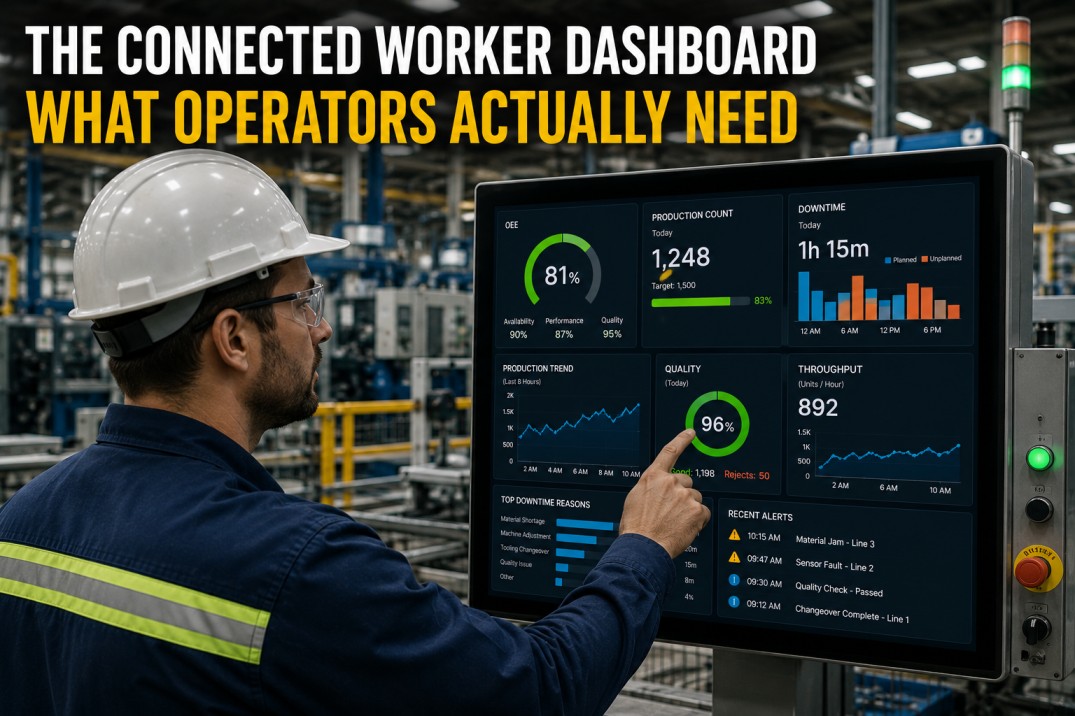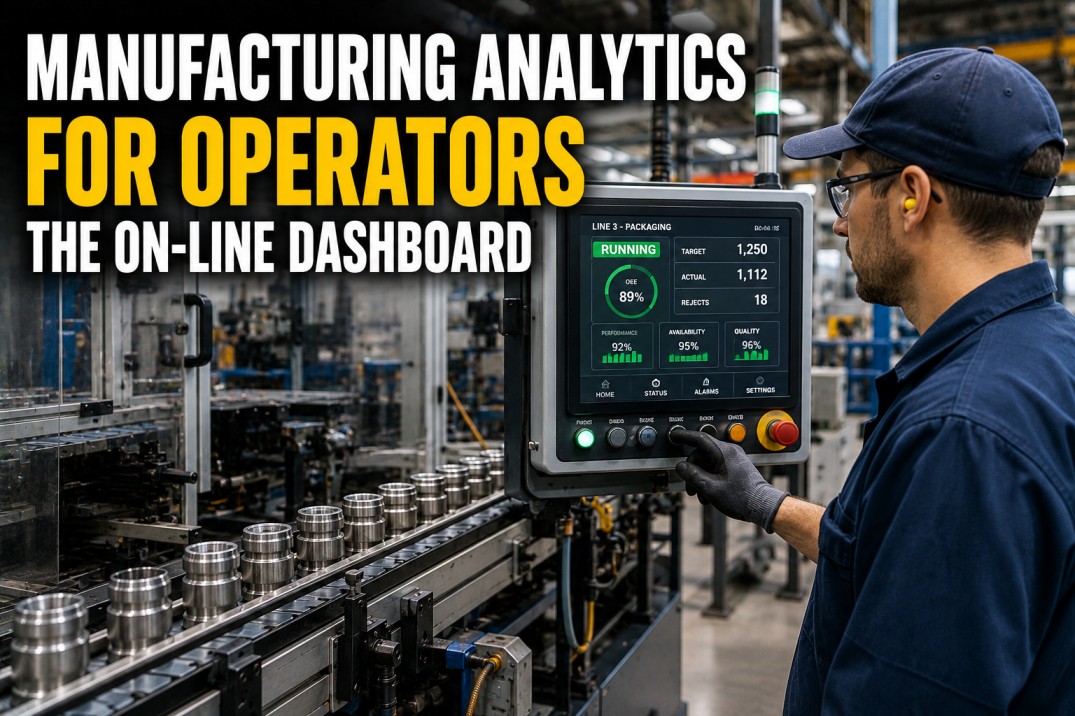
Operator dashboards are fundamentally different from every other screen in a manufacturing plant. While managers look at trends, supervisors review summaries, and executives analyse benchmarks, an operator looks at a dashboard for one reason only: to answer the single question “Am I on pace right now?” That question demands a fundamentally different design approach — fewer metrics, bigger numbers, real-time updates, touch-friendly interfaces, and colour-coded status that registers at a glance. A well-designed operator dashboard does not show every KPI available; it shows the three to five numbers that tell an operator whether the line is running at the right speed, making good parts, and staying on schedule. This guide covers the six essential operator-facing KPIs, compares operator views against supervisor and manager dashboards, walks through the four-step decision flow an operator follows when reading a dashboard, reviews four common dashboard layout patterns with real operator feedback ratings, defines six alert types with trigger conditions and response actions, and concludes with five design principles that separate dashboards operators actually use from dashboards that become wallpaper on the plant floor. Each section is built from real implementation experience across discrete manufacturing plants that have deployed line-side dashboards running iFactory’s on-line operator platform.
See if Your Operator Dashboard Passes the 3-Second Test
A quick self-assessment that checks your current operator displays against the five design principles.
Most operator dashboards fail the three-second test because they are designed by engineers for managers, not by operators for operators. This self-assessment walks you through five criteria — glance-readability, exception-only alerts, green-is-good colouring, big touch targets, and glove-friendly interaction — so you can score your current dashboard against industry best practice. The assessment takes less than five minutes and gives you a clear gap analysis with specific recommendations. Book a demo to receive the self-assessment template and a comparison benchmark against plants running iFactory’s on-line operator dashboard.
Operator Dashboard Health Scoreboard
The scoreboard tracks four metrics that measure how effectively operator dashboards are driving real-time line decisions. Daily active operators shows how many of the total operator population actively use the dashboard each shift — a direct adoption signal. Average response time measures how quickly operators acknowledge alerts and take action after seeing an off-target metric on the dashboard, capturing the speed of the see-decide-act cycle. Line stops reduced tracks the year-over-year decline in unplanned production stops, which is the primary outcome metric for effective operator dashboards. Operator satisfaction captures the usability score from regular operator surveys, directly reflecting whether the dashboard is helping or hindering work on the line.
Six Operator-Facing KPIs: What to Show on the Line
Operator-facing KPIs must be few in number, big in size, and directly connected to real-time line decisions. The six essential KPIs are line speed vs target (percentage), output count for the current shift, first-pass yield (FPY), OEE, total downtime minutes accumulated this shift, and scrap quantity produced. Each KPI displays a large-format number with a target comparison arrow (up for ahead, down for behind) and a sparkline-style indicator showing the recent trend. The colour encoding is deliberate: green means on or ahead of target, amber means caution, and red means action required. These six KPIs give an operator everything needed to assess line health at a single glance without scrolling, tapping, or interpreting charts.
Operator vs Supervisor vs Manager: Three Different Dashboards
The same production data serves fundamentally different purposes at each organisational level. Operators need real-time metrics at the line level with big numbers and immediate alerts. Supervisors need a broader view spanning multiple lines or stations with trend context and shift-level summaries. Managers need aggregated data across plants, departments, or product families with drill-down capability and period-over-period comparisons. The table below compares eight critical dimensions across the three views, highlighting how screen size, update frequency, alert types, data entry requirements, training needs, and time horizon differ depending on who is looking at the data.
| Dimension | Operator View | Supervisor View | Manager View |
|---|---|---|---|
| Metrics Shown | 3–5 big numbers | 8–12 with trends | 20+ with drill-downs |
| Update Frequency | Every 2–5 seconds | Every 30–60 seconds | Daily / shift refresh |
| Screen Size | 15–24 inch touch display | 24–32 inch monitor | 55-inch TV or desktop |
| Actions Available | Acknowledge, log, escalate | Reassign, comment, approve | Export, configure, forecast |
| Alert Types | Real-time line alerts only | Real-time + summary alerts | Strategic alerts + KPIs |
| Data Entry | Yes (scrap, downtime reason) | Review only | Review only |
| Training Required | < 10 minutes | 30–60 minutes | 2–4 hours |
| Time Horizon | This shift / right now | Today / this week | This month / quarter |
Watch an Operator Use the iFactory On-Line Dashboard
A 5-minute video showing how operators read line speed, FPY, and takt at a glance on the plant floor.
See a real operator on a real production line using the iFactory on-line dashboard to monitor line speed, output count, FPY, and takt time during a live shift. The video shows the operator responding to a line-speed deviation alert, logging a scrap reason code with two taps, and confirming that the metric returned to target after adjusting the line — all without leaving the workstation. The demonstration covers the full see-compare-act-verify cycle that operators complete dozens of times per shift. Watch the video to see how a well-designed operator dashboard fits naturally into the rhythm of production work.
The Operator’s Decision Flow: See, Compare, Act, Verify
Every interaction an operator has with a dashboard follows a simple four-step cycle. The operator sees a metric on the dashboard — typically line speed, output count, or FPY displayed as a large-format number with colour coding. The operator compares that number to the target, which is shown either as a percentage of target or as a colour indicator (green on target, red off target). If the metric is off target, the operator takes action — adjusting line speed, clearing a jam, calling for material, or acknowledging an alert. Finally, the operator verifies the result by checking that the dashboard metric returns to target after the action is taken. This cycle takes three to five seconds when the dashboard is well designed, and it repeats dozens of times per shift for every operator on the line.
Four Operator Dashboard Layouts: What Works Best on the Line
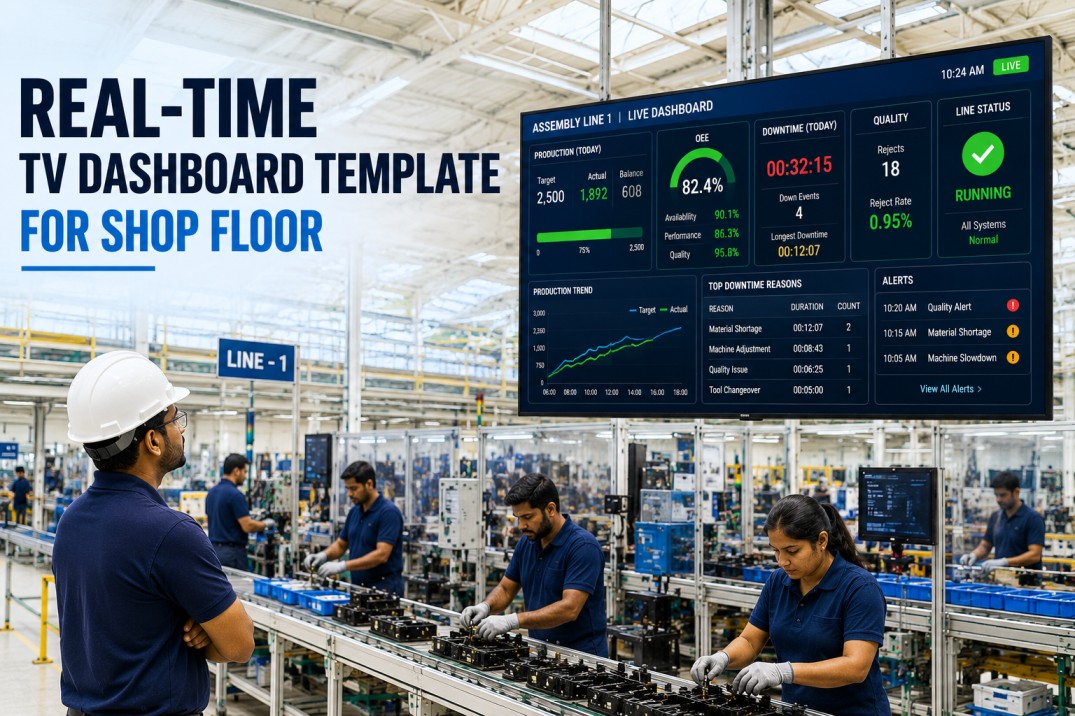
Operator dashboards come in four common layout patterns, each suited to a specific operator role and production context. The Single Big Number layout shows one metric at full-screen size and is ideal for operators who manage a single variable such as line speed. The Traffic Light Grid displays green, amber, or red status per station and works well for multi-station lines where the operator needs to triage across workstations. The Line Overview shows all KPIs for a single line on one screen and is the most common choice for operators managing an entire line end to end. The Shift Summary provides an end-of-shift performance recap used during handover and shift review. Each layout includes an operator feedback rating from plants where these layouts have been deployed in production.
Six Alert Types Operators See on the Dashboard
Operator dashboards surface six primary alert types, each with a specific trigger condition, display method, and required operator action. Line Speed Deviation triggers when speed drops below 90% of target for more than 30 seconds and requires the operator to check upstream feed or adjust line parameters. Quality Limit Breach activates when FPY falls below the 92% threshold and prompts a line pause and defect inspection. Downtime Threshold fires after five minutes of unscheduled stop and requires a maintenance call. Material Shortage warns when a feed bin falls below 10% capacity. Safety Stop triggers on emergency stop or guard-door open with the most urgent display treatment. Maintenance Due alerts the operator to scheduled preventive maintenance intervals. Each alert is colour-coded and uses the minimum attention-getting intensity appropriate to its criticality.
Five Operator Dashboard Design Principles That Drive Adoption
Operator dashboards that actually get used on the plant floor follow five design principles that are rarely documented in standard dashboard design guides. These principles come from observing how operators interact with line-side displays in real production environments, not from screen design textbooks. They reflect the reality that operators are not sitting at a desk studying a screen — they are standing, moving, touching materials, wearing gloves, and making decisions in seconds while production continues around them. A dashboard that violates any of these five principles will be ignored, regardless of how much data it displays or how accurate the numbers are. These principles are the difference between a dashboard that becomes an essential tool and one that becomes a decorative monitor mounted above the line.
Frequently Asked Questions
What makes an operator dashboard different from a manager dashboard?
An operator dashboard is designed for real-time decision-making at the line level, not for analysis or strategic planning. Operator dashboards show a small number of big, legible metrics — usually three to five — updated every two to five seconds, on a screen positioned directly at the work station. The interface uses colour coding (green for on-target, red for off-target) so the operator can assess status at a glance without reading numbers. Manager dashboards, by contrast, display larger sets of KPIs with trend lines, comparisons, and drill-down capabilities on larger screens or desktop monitors, refreshed at hourly or daily intervals. Operator dashboards also support data entry (scrap reasons, downtime codes) and alert acknowledgement, while manager dashboards are read-only. The fundamental difference is purpose: operator dashboards answer “Am I on pace right now?” while manager dashboards answer “How did we perform this period?”
What KPIs should an operator see on their dashboard?
Operator dashboards should show the few metrics that directly drive real-time line decisions. The essential set includes line speed vs target (percentage), output count for the shift (units produced), first-pass yield (FPY), OEE or a simplified version combining availability and performance, current downtime minutes (cumulative for the shift), and scrap quantity. These six KPIs give an operator everything needed to assess whether the line is running at expected performance. Additional metrics such as takt time, cycle time, and changeover duration can be added for specific roles, but the default set should never exceed six primary numbers. Each metric should be displayed as a large-format number with a clear target comparison — either a percentage of target or a green/red status indicator — so the operator does not have to do mental arithmetic under time pressure.
How often should operator dashboards update?
Operator dashboards should update every two to five seconds for real-time metrics such as line speed, output count, and downtime. Five seconds is the maximum acceptable interval for line-side displays because operators make decisions at production speed and stale data leads to incorrect actions or missed interventions. For quality metrics like FPY, a per-batch or per-hour update is acceptable because defect detection cycles are naturally longer. The key principle is that the dashboard should always reflect the current state of the line within the operator’s decision-making horizon. If the line speed reading lags behind what the operator sees on the physical line, trust in the dashboard erodes quickly. For this reason, operator dashboards should be connected directly to PLC or edge gateway data streams rather than relying on batch-processed data from a data warehouse.
What screen size works best for operator dashboards?
The optimal screen size for operator dashboards is 15 to 24 inches diagonally, mounted at eye level within arm’s reach of the operator’s primary work position. A 21-inch display is the most common choice because it provides enough area for three to five large-format KPIs plus a status row, while fitting comfortably in most workstation layouts. Screens smaller than 15 inches force metric sizes below the legibility threshold for glance-reading, while screens larger than 24 inches create visual clutter and require head movement to scan the full display. Industrial-grade touch screens with IP65-rated bezels, anti-glare coatings, and glove-compatible capacitive touch are the recommended hardware specification. The display should be positioned at a 15 to 30 degree upward tilt to reduce glare from overhead lighting and to allow the operator to read it while standing at the normal work position.
How do operators interact with touch-screen dashboards on the line?
Operator interaction with touch-screen dashboards is intentionally limited to three actions: acknowledge an alert, log a reason code (for scrap, downtime, or defect), and dismiss a notification. These interactions must use large touch targets (minimum 48×48 pixels, ideally 60×60 pixels) that work with gloved hands. The dashboard should never require typing — reason codes are selected from pre-configured dropdown lists or icon-based menus, not free-text fields. Some plants use barcode scanning or RFID badge taps as an alternative to touch for operator identification and reason logging. The interaction model follows a simple rule: the operator spends 95% of the time looking at the dashboard and 5% of the time touching it. Any interaction that takes longer than five seconds to complete is too complex for a line-side dashboard and should be deferred to a terminal or mobile device.
Put iFactory’s Operator Dashboard on Every Line
iFactory’s on-line dashboard ships with pre-built operator views, big-number KPIs, and touch-friendly controls.
iFactory’s on-line operator dashboard is purpose-built for plant-floor use, not adapted from a manager dashboard. It supports all four display layouts (single big number, traffic light grid, line overview, shift summary), the six essential operator KPIs with automatic target comparison, six pre-configured alert types with configurable thresholds, and touch-friendly controls that work with gloved hands on industrial-grade panels. The dashboard connects directly to PLCs and edge gateways for two-to-five-second updates and requires no coding to configure. Deployment on a single line takes two days, and operators typically become proficient within the first ten minutes of their first shift. Book a demo to see the on-line operator dashboard running on a simulated production line and get a free self-assessment of your current operator displays.