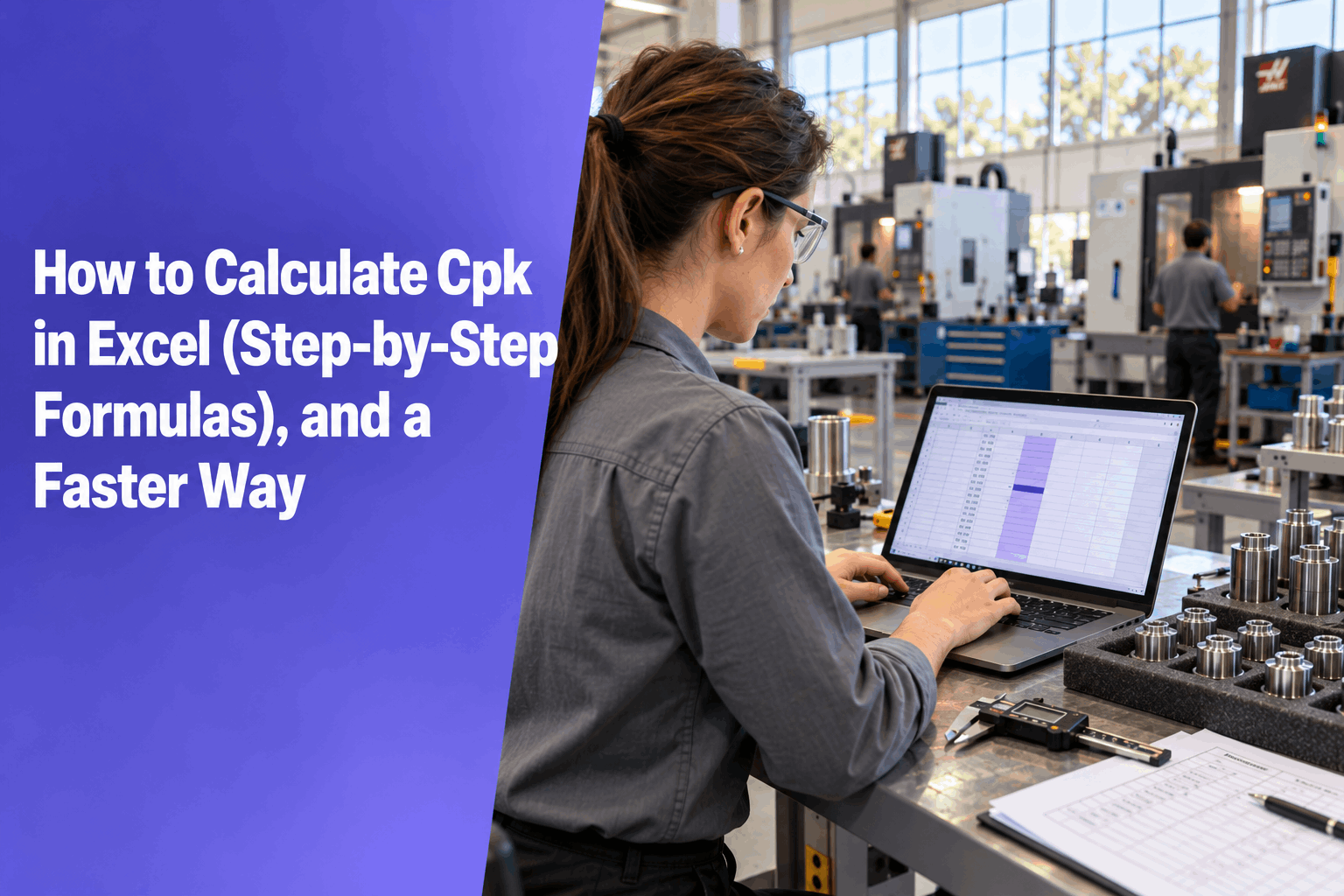
Excel has no built-in CPK function, but you can build Cpk in Excel yourself in about 10 minutes with a few standard formulas. This guide gives copy-ready formulas for individual values and for subgroups, shows the one mistake that quietly turns Cpk into Ppk, and lists what Excel will not check for you. For the math behind each step, see the Cpk formula.
Build a Cpk sheet in about 10 minutes
Name a few cells, type a few formulas and you have a working capability sheet. The formulas below use named cells, so they read the way you would say them out loud.
E1E2=AVERAGE(A2:A101)=MRbar/1.128=MIN(Cpu,Cpl)What you need before you start
Every Cpk formula Excel needs for this is listed below in copy-ready form. Get these three things in place first, and the rest is typing.
Cpk in Excel for individual values
Use this when you measure one part at a time. Put 100 values in A2:A101, in production order, with LSL in E1 and USL in E2.
- Calculate the mean. Name the cell Mean.
=AVERAGE(A2:A101) - Add the moving range. In B3, then fill down to B101.
=ABS(A3-A2) - Average the moving ranges. Name the cell MRbar.
=AVERAGE(B3:B101) - Estimate the within sigma. Name the cell Sigma.
=MRbar/1.128 - Calculate Cpu and Cpl. Name the cells Cpu and Cpl.
=(USL-Mean)/(3*Sigma) =(Mean-LSL)/(3*Sigma) - Take the smaller as Cpk.
=MIN(Cpu,Cpl) - Add Cp for comparison.
=(USL-LSL)/(6*Sigma)
Cpk in Excel for subgroups
Use this when you measure several parts at a time, for example 5 consecutive parts every hour. Put one subgroup of 5 per row in B2:F26, which gives 25 subgroups.
- Find the range of each row. In G2, then fill down to G26.
=MAX(B2:F2)-MIN(B2:F2) - Average the ranges. Name the cell Rbar.
=AVERAGE(G2:G26) - Calculate the grand mean. Name the cell Mean.
=AVERAGE(B2:F26) - Estimate the within sigma. 2.326 is the d2 constant for subgroups of 5. Name the cell Sigma.
=Rbar/2.326 - Finish with the same formulas. Cpu, Cpl, Cpk and Cp are exactly as in the individuals sheet above, because they only read the named cells.
d2 constants for other subgroup sizes
If your subgroups are not 5 parts, swap 2.326 for the value that matches your size.
The STDEV.S mistake: it gives Ppk, not Cpk
The most common shortcut is to run STDEV.S across every value and use that as sigma. It looks reasonable, and it is a real index, just not Cpk. STDEV.S gives the overall spread, which includes every shift between subgroups. Plug it in and you get Ppk.
Within sigma, from the moving range or R-bar.
=MRbar/1.128
=Rbar/2.326Overall sigma, from every value. Name it SigmaAll.
=STDEV.S(A2:A101)If you do want Ppk, keep it on purpose and label it. The Ppk Excel formula is the same as Cpk, with the overall sigma swapped in:
=MIN((USL-Mean)/(3*SigmaAll),(Mean-LSL)/(3*SigmaAll))Reporting both side by side is useful, because the gap shows how much your process moves over time. The full explanation is in Cpk vs Ppk.
Get Cp, Cpk, Pp and Ppk from your own data: paste your measurements and get a one-page capability report. 14-day free trial, no card needed.
What Excel won't check for you
The formulas will always return a number. Whether that number means anything is a separate question, and the spreadsheet will not ask it.
Stability
Cpk assumes the process runs steady. You need a control chart to confirm that, and building one in Excel is a project of its own.
Normality
The formulas assume roughly normal data. Excel will not warn you about a skewed or bimodal distribution. Check a histogram first.
Enough data
Excel happily returns a Cpk from 12 values. Aim for about 25 subgroups or 100 values before you rely on the result.
Every new data set
New study, new ranges, new fill-downs and new chances for a broken reference. Each one means redoing the sheet.
Even with a clean sheet, the result still has to be judged against your customer's target. For typical targets, see what a good Cpk value looks like.
A faster way
Once you know how to calculate Cpk in Excel, you also know how much copying, filling and checking each new study takes. Paste the same column into the Cp/Cpk Report Generator and get Cp, Cpk, Pp, Ppk, expected PPM, a histogram, a control chart, a normality check and a one-page PDF. Treat the result as an estimate to review, like any capability study.
Get Cp, Cpk, Pp and Ppk from your own data: paste your measurements and get a one-page capability report. 14-day free trial, no card needed.
Frequently asked questions
Does Excel have a built-in Cpk function?
No. Excel has no CPK function, so you build it from standard formulas: AVERAGE for the mean, ABS or MAX and MIN for the ranges, a d2 constant or 1.128 for the within sigma, and MIN to pick the smaller of Cpu and Cpl. With named cells, the whole sheet takes about 10 minutes.
Why doesn't my Excel result match my SPC software?
The most common reason is sigma. If you used STDEV.S across all values, you calculated Ppk, not Cpk. Other causes are values out of production order, a different subgroup size than the d2 constant you used, or the software using a different within-sigma method. Check those first.
Should I use STDEV.S or STDEV.P for Ppk?
Use STDEV.S. It treats your data as a sample from the process, which is what a capability study is. STDEV.P assumes you measured every part the process will ever make. With about 100 values the difference is small, but STDEV.S is the standard choice for the overall sigma.
What if my subgroups are not 5 parts?
Keep the same steps and change only the d2 constant in the within-sigma formula. For example, use 1.128 for subgroups of 2, 2.059 for subgroups of 4 or 3.078 for subgroups of 10. Every subgroup should be the same size, and the MAX and MIN range should cover the full row.
How many values do I need in the sheet?
Aim for about 25 subgroups or 100 individual values, kept in production order and taken from a steady run. Fewer values give a rough sigma, so Cpk can swing a lot from one study to the next. Check a control chart before you report the result to anyone.