The chemical tracking list in HazCom 2024 update is the table under the status cards: one row per chemical, with its three steps, its supplier contact, its due date and its status side by side. It is where most of the day-to-day work happens. You find a product, see what it still needs, and open it to record the next step. This page walks through the columns, how sorting, searching and paging work, what the row menu does, and how the table changes on a smaller screen. You can see your own chemicals in the table a few minutes after importing your list.
The chemical table · HazCom 2024 update
Every chemical, its steps and its status in one sortable table
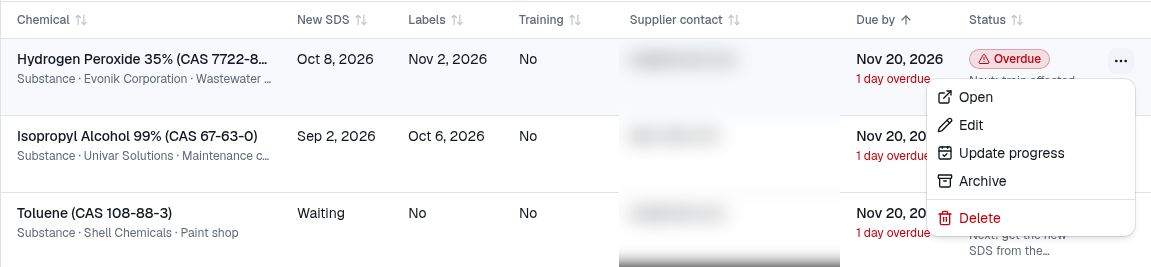
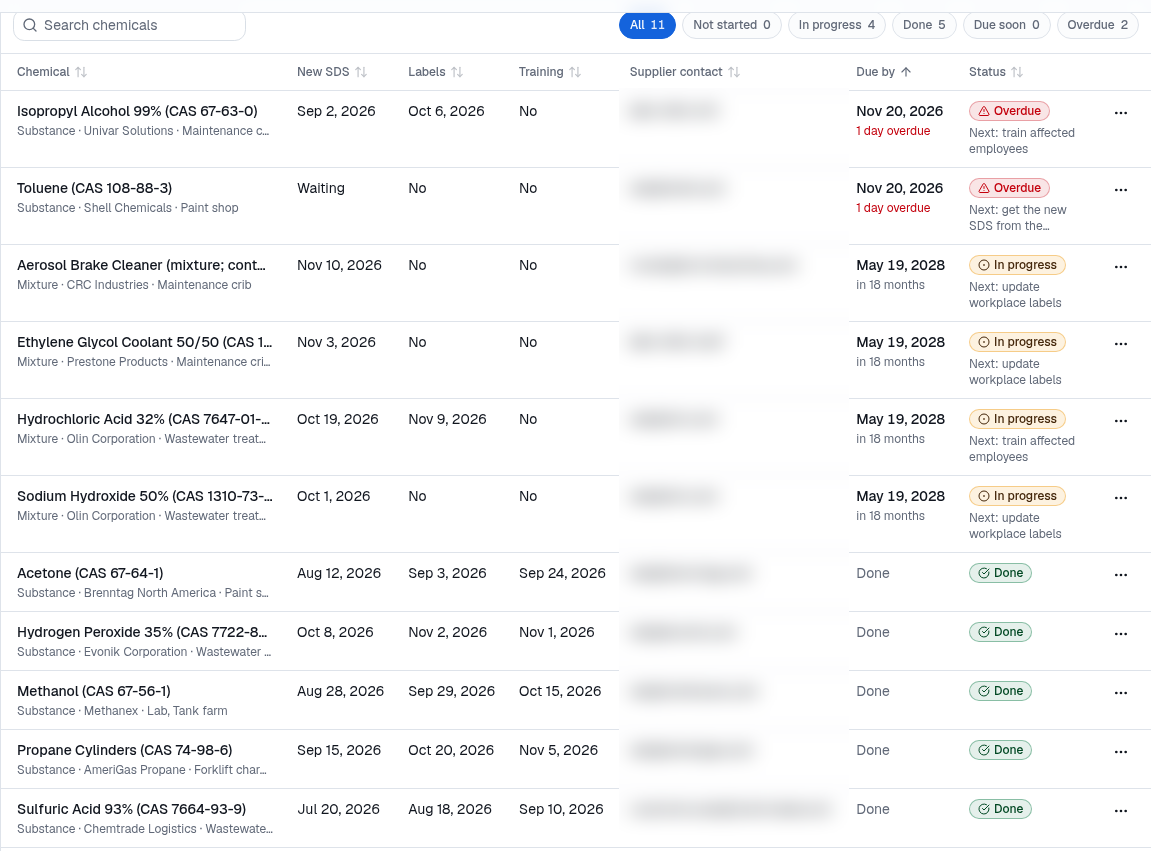
Seven columns on a desktop. Sorted by due date unless you choose otherwise, with the next step written under each status.
The columns, left to right
On a desktop the table shows these seven columns, and each header sorts.
Empty values sort last in both directions, so a blank supplier contact never pushes real rows down the page.
Load your chemicals and sort them by what is late
Import the list you keep today and the table fills in with each chemical's status.
Finding a chemical fast
Search and the status chips work together, and the table tells you when the combination finds nothing.

Search by name
Type part of a product name to narrow the rows to matching chemicals.
Status chips
All, Not started, In progress, Done, Due soon and Overdue, each with a count that follows the current search.
Clear in one click
When nothing matches, the table says so and offers "Clear search and filters".

What the row menu does
Open
Goes to the chemical's page with its Due by card, steps, details and History.
Edit or Update progress
Edit is for correcting the chemical's details; Update progress is for recording a step, such as the date the new SDS arrived.
Archive
Moves the chemical to the Archived view, kept with its history but out of reminders, totals and exports.
Delete
Removes the chemical for good, attachments included. In the Archived view, the menu offers Restore and Delete.
On a tablet or phone
Plant teams check lists away from a desk, so the table changes shape on smaller screens. On a tablet or small laptop the three step columns fold into one, "Steps done", showing a count such as "2 of 3". The separate New SDS, Labels and Training dates appear on desktop widths. On a phone, the chemical name narrows so the status and the row menu stay on screen. Search and the chips work the same at every width, and the chip counts follow the search box, so with a search typed, All shows only matching chemicals.
The footer explains how statuses work in a sentence: chemical statuses are worked out for today, Due soon means within your window, and reminder emails go out weekly. Below that, a second line reminds you that the product name offers the chemicals in your SDS register, and that adding a chemical here does not add it to the register.
The exports follow the table
The PDF report and CSV use the same search and filter you have set, so what you see is what you export.
What the table does not show
A few fields stay on the chemical's own page or are not in the module.
Notes
Notes are not a column; open the chemical to read them.
Long names
Very long product names are cut short in the table; the full name is on the chemical's page.
No custom columns
The columns are set by the module. There is no CAS or owner column.
Frequently asked questions
How is the table sorted when I open it?
By due date. Click any header to sort by that column instead, and again to reverse it.
How many rows show at once?
25 by default. Rows per page offers 10, 25, 50 or 100.
Do the status cards filter the table?
Yes, a card click filters it like the matching chip; see the HazCom dashboard status cards.
Where does "Waiting" come from?
From an empty New-format SDS received date; those rows make up the supplier SDS chase list.
Where does an archived chemical go?
To the Archived view, with its history intact. It drops out of reminders, totals and exports until you choose Restore from its row menu, which puts it back in the main table.
Can I get the table into Excel?
Yes, with Export, then CSV for Excel; see export chemical inventory CSV.
Work the whole list from one table
Find a chemical, see what it needs, record the next step and move on to the next row.
- Seven sortable columns on desktop
- Search and status chips together
- Row menu for open, edit and archive
14-day free trial · no card needed