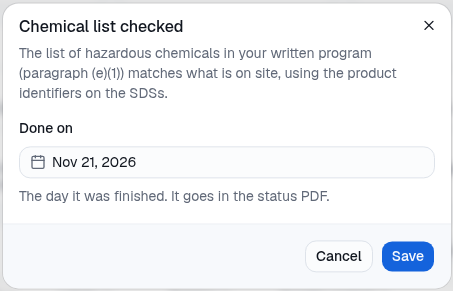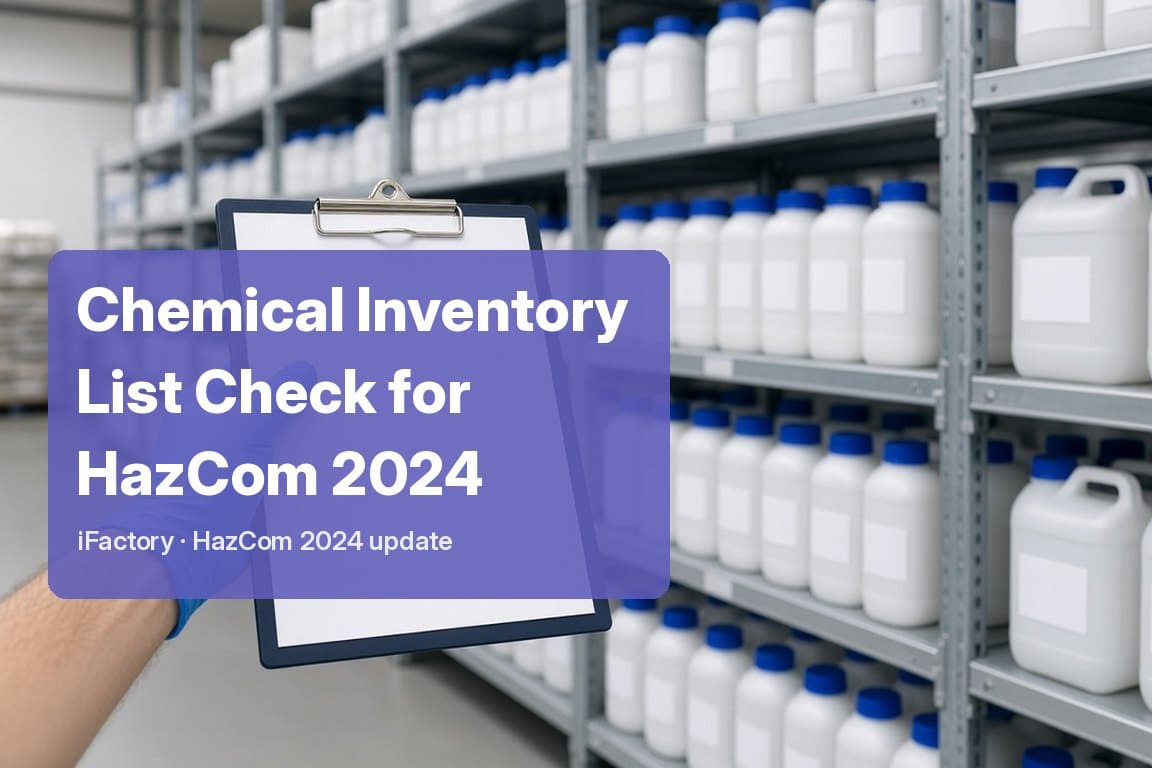
Your chemical inventory list is the backbone of the written hazard communication program: paragraph (e)(1) of 29 CFR 1910.1200 asks for a list of the hazardous chemicals known to be present, using a product identifier that is referenced on the appropriate safety data sheet. In HazCom 2024 update, checking that list is the first of two steps recorded once for the whole plant. The module calls it Chemical list checked, and its help text sets the test: the program's list should match what is actually on site, checked by the product identifier printed on each SDS. This page shows how to run that check with the module's own table and exports, and how to record it. You can run the list check in the module on the chemicals you import.
Plant-wide step · Chemical list checked · (e)(1)
Check the list against the floor, then record the day you did it
The chemical table is your working copy. When it matches what is on site, an owner or admin records the date, and the PDF shows who did it.

What to compare, and where the module helps
A list check is a comparison between three things: what the list says, what is physically on site, and what the SDSs call each product.
Paragraph (e)(1) allows the list to be kept for the workplace as a whole or for individual work areas.
Use the tracker as the list you walk the floor with
Import the inventory you have, correct it as you go, then record the check.
Tools for the walk-through
Nothing here is a separate audit feature. These are the everyday parts of the module that make the check quicker.
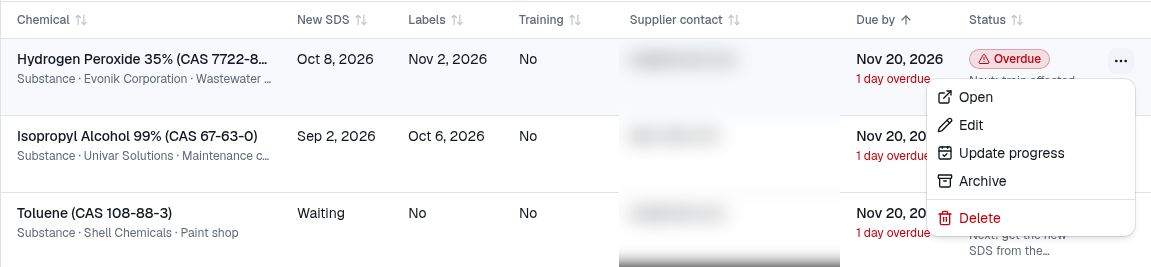
A printout by area
Export CSV for Excel, sort by Work areas and print each area's page for the person walking it.
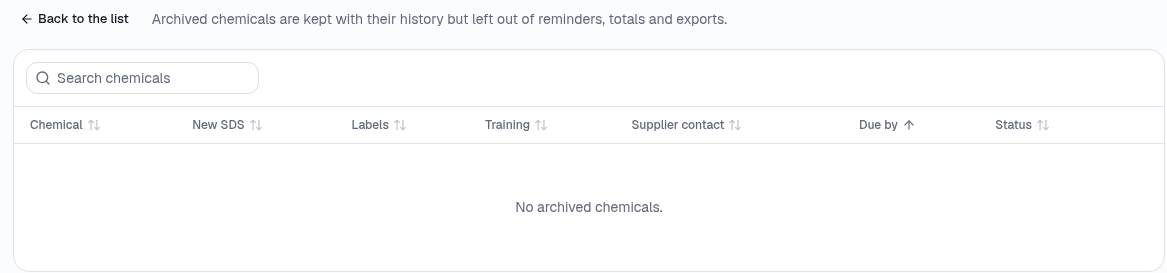
Archive, don't delete
Products that left the site go to the Archived view. Their change trail stays, and they stop counting toward totals, emails and files.
Search by name
Type a product name in the search box to check whether it is already listed before adding it.
Running the check, start to finish
Export the current list
CSV for Excel, sorted by work area. This is the sheet each area lead checks.
Walk each area
Compare containers and SDSs on site with the printed rows. Mark names that differ, products missing and products gone.
Correct the module
Edit names to match the SDS, add what was missing, archive what has left.
Record the date
When the walk-through is finished, an owner or admin opens Chemical list checked in the plant section and saves the finish day.
Why the list check comes before the program update
The written program's chemical list is one part of the program, so a program revision built on an out-of-date list carries the error forward. Checking the list first also improves the rest of the 2024 work: every chemical you add starts with its three steps open, and every one you archive stops counting toward Overdue. By the time you record the written program step, the counts on the status cards describe the chemicals that are really on site.
The check is not one-off in practice. New products arrive and old ones leave. Recording the date tells a reader of the status PDF when the list was last confirmed, and Change lets an owner or admin move the date forward after a later check.
Who sees the step
Everyone using the module sees the step and its date. Only owners and admins can record or change it.
Limits to plan around
The module helps with the list. It does not do the walking for you.
No scanning
There is no barcode or QR scan of containers in this module.
No CAS matching
There is no CAS field, so matching is by product name and manufacturer.
No per-area sign-off
The step has one date for the plant, not one per work area.
Frequently asked questions
Does recording the check change any chemical's status?
No. It is a plant step. Chemical statuses come from each chemical's own three steps.
Can I restore a chemical I archived by mistake?
Yes. Open the Archived view and choose Restore from the row menu.
What happens if I add a product that is already listed?
The module refuses it with "This product from this manufacturer is already on the list."
Where does the check appear in reports?
In the For the whole plant table of the status PDF, listed with its description, the day saved and the person who saved it.
What about the other plant step?
The written program is recorded the same way; see hazard communication program update.
How should product names be typed?
As the product identifier on the SDS. The chemical tracking list page shows how names appear in the table.
Confirm the list, then show when you did
Work from the module's table, correct it on the floor, and record the date for the whole plant.
- Names held to the SDS product identifier
- Archive keeps history, drops the count
- Date and recorder in every PDF
14-day free trial · no card needed