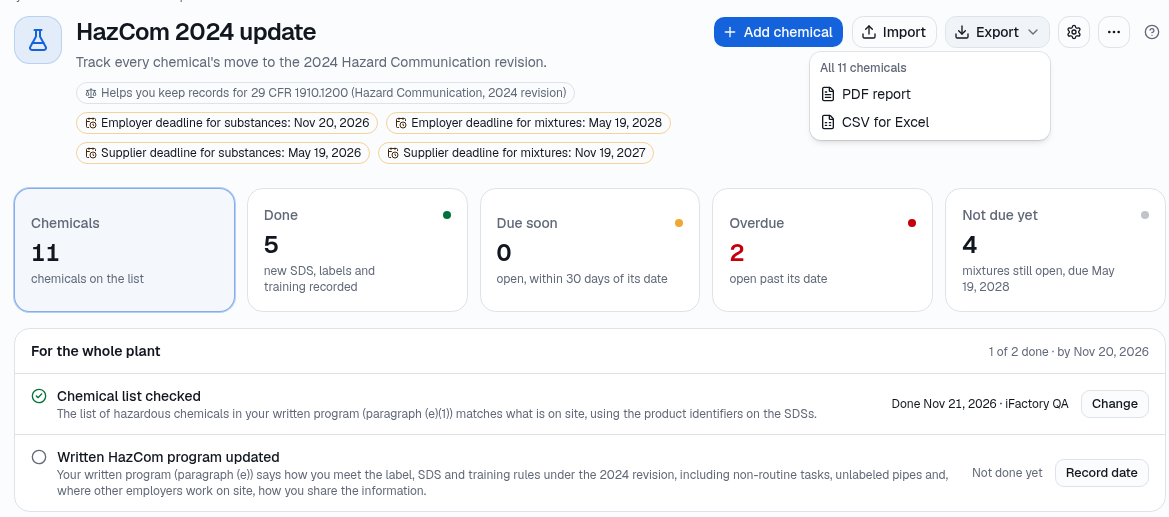
To export chemical inventory CSV files from HazCom 2024 update, open Export and choose CSV for Excel. The file downloads at once, named after the module and the day, such as hazcom-2024-2026-11-21.csv, with one row per chemical and a column for every field plus the status the module worked out. It follows the view on screen, so a filtered table gives a filtered file. This page lists the columns, shows a real export, and covers what people use the CSV for once it is open in Excel. You can export your own chemical list as CSV after a short import.
Export · CSV for Excel
Every field, every status, ready to sort in Excel
Fourteen columns: the eleven fields you enter, then Due by, Status and Details with the next step. Open chemicals come first.
The columns in the CSV
Taken from the header row of a CSV exported from the portal. The columns follow the module's fields in a set order, so each export comes out in the same layout as the last one.
The CSV covers chemicals on the active list. Archived chemicals are left out of exports.
Get your chemical list into Excel in one click
Import once, keep recording steps, and export a fresh CSV whenever someone asks.
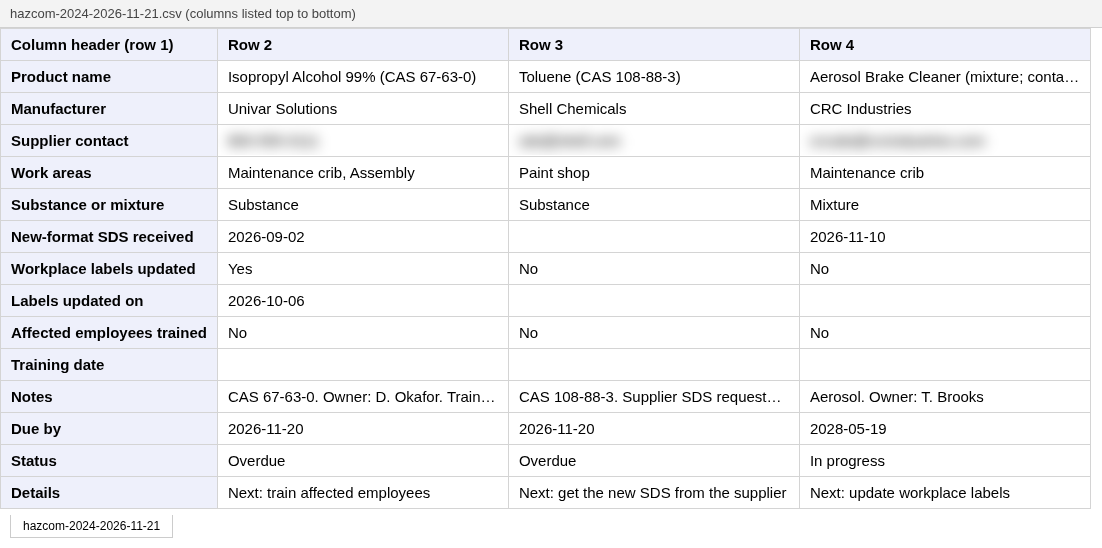
A real export, column by column
The first rows of a CSV exported from a test list of 11 chemicals, rotated so each column name reads down the left edge.
Open chemicals first
In the portal, open rows lead the file: overdue and in-progress chemicals, then the Done ones.
Status as of today
Status and Details are worked out on your company's clock on the day of the export.
Blank means not done
An empty date column means that step has no date yet; the Yes or No column says the rest.
Exporting just the rows you need
Set the view
Click a status card or chip, such as Overdue, or type in the search box.
Open Export
The menu names what it will export, for example "All 11 chemicals", so you can check before downloading.
Choose CSV for Excel
Only the rows matching the filter and search come out.
Work in Excel
Sort or filter by Work areas, Status or Manufacturer, and share the slice that each person needs.
What teams do with the CSV
The PDF report is for reading; the CSV is for working. Purchasing can filter Details for "Next: get the new SDS from the supplier" and work down the supplier contacts. An area supervisor can filter Work areas to their own department and see which labels are still marked No. A trainer can pull the chemicals where Affected employees trained is No and plan sessions by area. The EHS lead can keep a dated copy beside the status PDF, since the file name carries the export date.
Because every export reads the live records, there is no second list to keep in sync, and nobody has to retype a status that the module already worked out. Export again whenever the picture changes rather than editing an old file and passing it around.
Each export is logged
The module writes an audit event for every CSV and PDF export, with how many chemicals were exported and the filter used.
What the CSV does not contain
It carries the module's fields and nothing more.
No change history
Each chemical's History stays on its page in the portal.
No plant steps
The chemical list check and written program are in the PDF report, not the CSV.
No archived rows
Chemicals in the Archived view do not appear in the file.
Frequently asked questions
Can I export only overdue chemicals?
Yes. Filter to Overdue first; the CSV then holds only those rows.
What if we have no chemicals yet?
While a company has none of its own, the export uses the sample records if they are loaded. Once your own chemicals are in, exports use them.
Is there a printable version?
Yes, PDF report in the same menu; see the HazCom status report PDF.
Do the columns match the import template?
The first eleven do. The chemical inventory template page lists them.
Who can export the CSV?
Anyone in your company who can open the module. The audit event records who exported, when, and how many chemicals were in the file.
Will tomorrow's export say the same thing?
Not always. Due by stays the employer date for each chemical's kind, but Status and Details are worked out again on the day you export, so a chemical can move from Due soon to Overdue overnight.
How are yes or no steps written?
As Yes or No in Workplace labels updated and Affected employees trained, next to their date columns.
Hand every team the slice of the list it needs
Filter on screen, export CSV for Excel, and let each team work its own rows.
- Eleven fields plus Due by, Status and Details
- Same filter and search as the screen
- Dated file name and a logged export
14-day free trial · no card needed