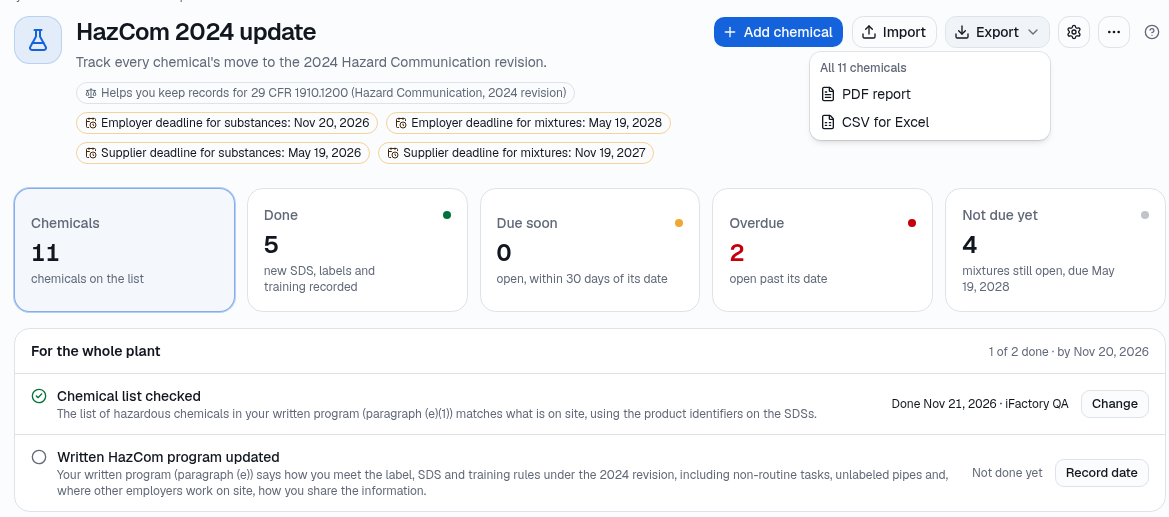
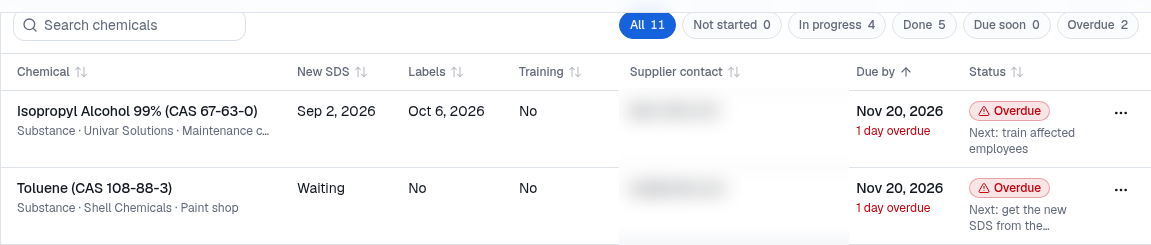
When you need to request updated SDS from supplier contacts, the hard part is not the email. It is knowing, on any given day, which products are still missing a 2024-format sheet and who to ask for each one. HazCom 2024 update, the iFactory module for 29 CFR 1910.1200, keeps that list for you. Every chemical without a New-format SDS received date reads "Waiting", with its Supplier contact beside it and a next step of "get the new SDS from the supplier". As sheets arrive and you record their dates, rows drop off the list. You can build your supplier SDS chase list from the chemical list you already keep.
Supplier SDS chase list · one of the module's highlights
Every product still waiting on a new SDS, with who to ask
The chase list is the chemical table itself: rows reading "Waiting" in New SDS, the supplier contact next to them, and your own follow-up notes on each record.
Why the SDS chase is where plants lose time
iFactory's tool page puts it plainly: suppliers answer slowly, products come from distributors who point back at the manufacturer, and a spreadsheet does not show who still owes what. A chase list fixes the last part. It cannot make a supplier reply faster, but it stops products from being forgotten and makes every follow-up start from the same, current list.
What OSHA's directive says to employers
OSHA's HazCom 2024 enforcement directive, CPL 02-02-079, says that if an employer has made a good faith effort to contact the manufacturer, importer or distributor and still has not received an SDS, the OSHA Area Office may be contacted to help. Keeping a note of each attempt makes that conversation easier.
What makes up the chase list
Three fields on each chemical record do the work.
New SDS column
Reads "Waiting" until a New-format SDS received date is recorded, then shows the date.
Supplier contact
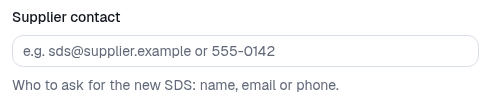
Who to ask for the new SDS: a name, an email or a phone number, in one text field.
Notes
Free text for the follow-up story, such as "Asked twice; escalate to purchasing".
Next step
"Next: get the new SDS from the supplier" on the row and on the chemical page.
See who still owes you a new SDS
Import your chemical list with a supplier column, and the waiting rows appear with the contact beside them.
A weekly routine for the chase
Sort by New SDS
Sort the table on the New SDS column, or filter and scroll, to gather the "Waiting" rows.
Export the list if you share it
Export a CSV for Excel and hand it to purchasing; it carries the supplier contact and notes for each product.
Contact each supplier
Send the request from your own email or phone. The module does not send it for you.
Write what happened in Notes
Add the date and the answer, for example "Requested Nov 2; follow up". The change is kept in History.
Record the date when the sheet arrives
Pick the New-format SDS received date. The row leaves the chase list and moves on to labels. See recording each new-format SDS.
The chase list in the portal
The supplier contact is entered once, when you add or import the chemical. The form's help text says what to put in it.
Picked up on import
Columns headed "Supplier", "Vendor", "Distributor" or "Supplier email" are matched to Supplier contact.
Overdue first
A substance still waiting on its SDS is Overdue, because the employer date of November 20, 2026 has passed.
Mixtures in view
Mixtures waiting on an SDS stay open under Not due yet, with time left to May 19, 2028.
What the chase list does not do
It shows who to ask and what is missing. The asking is still yours.
No supplier emails
No request templates and no emails to suppliers are sent from the module.
No request log
There is no dated request field or escalation timer. Use Notes, which keeps its history.
No supplier portal
Suppliers do not log in or upload sheets. You record each date yourself.
Frequently asked questions
How do I request an updated SDS from a supplier?
Contact the supplier listed in Supplier contact, ask for the SDS issued under the 2024 revision, and note the request in Notes. Record the date when it arrives.
The distributor says to ask the manufacturer. Where do I record that?
Update Supplier contact to whoever you now ask, and add a note. History keeps both versions.
Can purchasing work the list without a login?
Export the CSV and share it. Only people in your company with a sign-in see the live records.
Can I keep the chase list in our spreadsheet instead?
You can import it once and keep working in the module. See moving a chemical tracking spreadsheet.
What should go in Supplier contact?
Whoever can actually send the new SDS: a regulatory or SDS email address, an account rep's name, or a customer service phone number.
What if a product has no supplier contact yet?
The row still reads "Waiting". Open it, choose Edit and add the contact so the next follow-up has a name.
Can I tell substances from mixtures on the list?
Yes. Each row's second line shows Substance or Mixture, then the manufacturer and work areas, so you can chase the overdue substances first.
Keep the supplier SDS chase current
Every product without a new SDS, its contact and its notes, in one list that shrinks as sheets arrive.
- "Waiting" until the new SDS is dated
- Supplier contact beside every row
- CSV export to share with purchasing
14-day free trial · no card needed