An equipment inspection log should be complete without anyone copying paper sheets into a spreadsheet. The questions it has to answer are simple: which assets were checked, which failed, and whether each failure got a work order. In iFactory Inspection the History tab and the CSV export answer all three from the same records. This page lists the filters, the columns and the limits of each export, with the test round we exported on 26 Nov 2026. Open the history in your workspace once your company is set up.
Inspection · Inspection log
Equipment inspection log with CSV export
Every round is listed in History, with filters to find the one you want and a CSV export for the spreadsheet. Nobody has to copy anything from paper.
The log at a glance
The log is one history screen and three CSV exports, so a manager can look at it on screen or take the data away to analyse it.
The History screen can be filtered by asset, checklist, from and to dates, and by failed rounds only. That is enough to answer most audit questions in a few taps.
Answer "was it checked?" from one place
The History screen, the CSV and the PDF are made from the same records, so they cannot disagree with each other about whether a round was done.
What each export holds
Each export has one row for each round, finding or asset, depending on which one you choose. The columns are different because the questions are different.
Rounds
One row per round
Done at, Checklist, Version, Asset code, Asset, Done by, Items, Failed, Failed items, Work orders raised and Site.
Findings
One row per finding
Work order, item, round, asset, status, priority, assignee, raised and done dates.
Assets
One row per asset
Code, area, type, criticality, make and model.
The test day, exported
In our portal walkthrough the four rounds of the day exported cleanly, and the CSV matched the History screen and the PDF record. This is test data in a QA account.
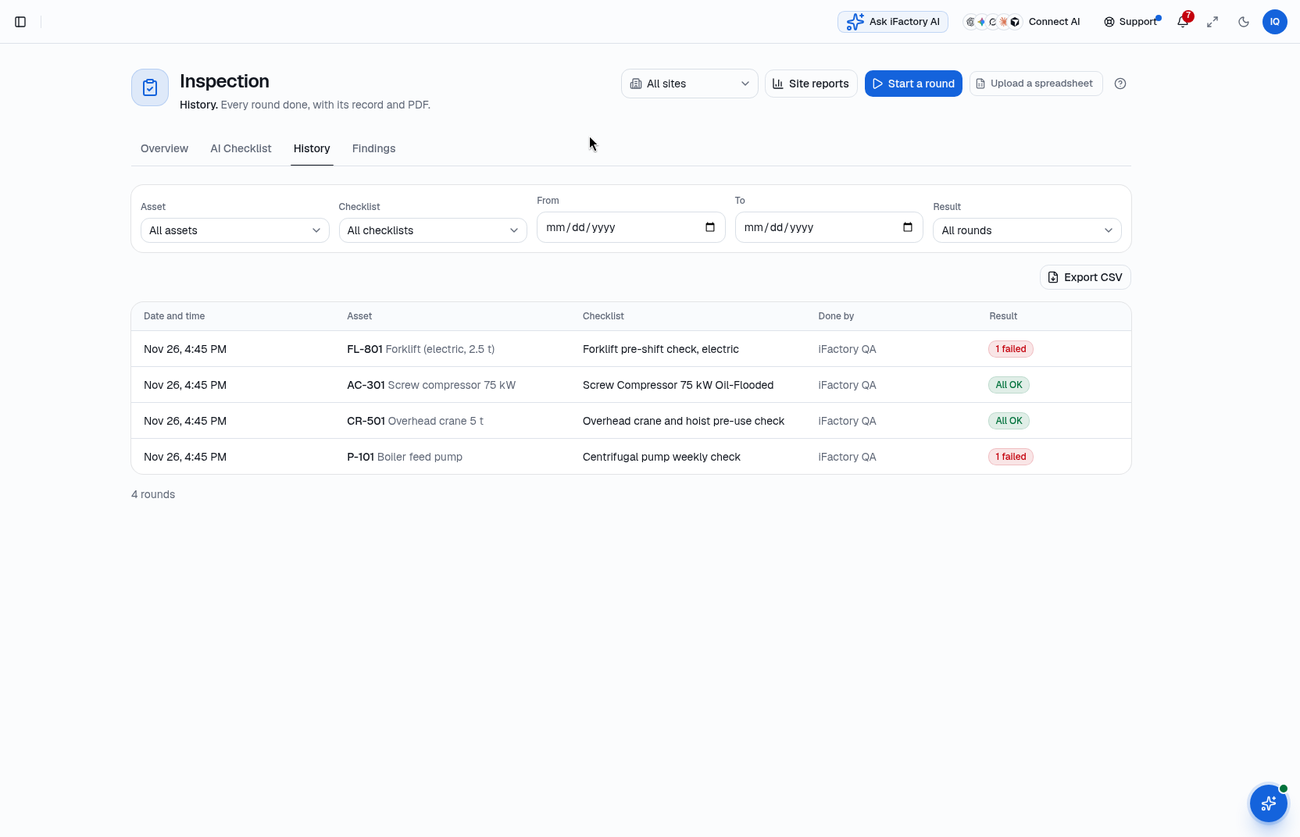
History screen
The History screen showed the four rounds of the test day, with the filters along the top of the list.
CSV
The CSV had one row for each of the four rounds, with the columns listed above.
A PDF record can be created for each round when someone wants a single document to keep or to send.
What the log does not do
The log lists the rounds that were done and what was recorded. It does not judge whether the rounds were good enough.
No reading history
Results are OK, Failed or N/A, so the CSV holds the outcome of each item and no measured values. A reading is only there when a technician wrote it in a note.
Export size
Each export holds at most 10,000 rows. For a large site, use the filters to export one period or one checklist at a time.
Your plan
What a site can do depends on its plan, so check which plan you are on before relying on a feature across several sites.
What goes into the log without anyone writing it
A paper inspection log depends on someone remembering to fill it in. Here the log is a by-product of doing the round. When a person submits a round, History gains a row with the time it was done, the checklist and its version, the asset code and name, who did it, how many items there were, how many failed and which items failed.
Because every round writes the same fields, the log can be filtered and compared. You can look at one asset over time, one checklist across assets or one person's rounds, and the columns do not change from week to week.
Using the log in a review
A monthly review does not need every round opened. Export the CSV and sort by failed items to see what is going wrong, by asset to see which machine is the repeat offender, or by person to see who is doing the rounds. The export also lists the work orders raised, so a failed item can be followed to its repair.
Open a single round when you need the detail. The round record shows each item with its how-to-check line, limit and answer, and can be downloaded as a PDF to attach to an equipment file.
Keeping the log trustworthy
A log is only as good as the habit behind it. If rounds are ticked quickly without looking, the log will show all-OK rounds that tell you nothing. Watch the N/A count, read the failure notes and compare how long rounds take. A technician who finishes a 14-item round in thirty seconds is not looking at the machine.
The log shows what was recorded. It does not prove that a check really happened or that a reading was right, so it works best alongside supervisor spot checks.
What a good log contains
A log is only useful if it answers the questions people ask afterwards: what was checked, when, by whom, what was found and what was done about it. History in the app lists each round with its date, the person who did it, the results and any notes and photos.
Failures are linked to their work orders in the Findings tab, which shows the status of each. That closes the loop between finding something and fixing it, which a paper log rarely does.
Export History to CSV for a meeting or an audit, or create a PDF record of a round when someone wants a single document.
Frequently asked questions
What does the History tab show?
Every round that has been done, with the checklist, the asset, who did it, how many items failed and how many work orders were raised. You can filter by asset, checklist, from and to dates, and failed rounds only. It answers which assets were checked and which failed from one screen, without opening each round.
What is in the rounds CSV?
One row per round, with eleven columns: done at, checklist, version, asset code, asset, done by, items, failed, failed items, work orders raised and site. Findings and assets have their own exports. A findings row shows the work order, item, round, asset, status, priority, assignee and the raised and done dates.
How many rows can I export?
Each export holds up to 10,000 rows. For a large site, use the filters to export one period or one checklist at a time, so each file stays below the limit and is easier to open. The same filters on the History screen apply to what you export.
Does the log show whether a failure got a work order?
Yes. The rounds export has a column for work orders raised, and the findings export has one row per finding with the work order, status and assignee. That lets a manager check that every failure was followed up, and see how long each one has been open without going into each work order.
Is there a PDF record too?
Yes. A PDF record can be created for each round when someone wants a single document to keep or send. It is made from the same data as History and the CSV, so the three agree. The PDF is one round per document, and the CSV is the better choice for looking at many rounds together.
Does the log keep a history of readings?
No. Results are OK, Failed or N/A, so the CSV holds the outcome of each item and not a measured value. A reading appears only where a technician wrote it in a note on a failure. If you need a trend of temperatures or vibration, keep your own record alongside the log.
Keep one log for every round
Run rounds on a phone and filter or export the history when you need it.
- History with filters
- CSV for rounds, findings and assets
- PDF per round
14-day free trial · no card needed