Most plants already have an equipment list somewhere, usually a spreadsheet with a column for the tag and a column for the area. Retyping it into a new app is the job that makes people put inspections off. iFactory Inspection lets you drop that file into Assets, matches your columns to its own and adds the equipment in one go. This page follows a real six-row import in our QA account, shows which columns the importer looks for and what it leaves empty. You can open Assets in your own workspace once your company is set up.
Inspection · Assets
Import your asset register from Excel or CSV before the first round
Drop your file in, or download the template first if you prefer to start from its layout. The importer matches your columns to its own and tells you how many assets it added and how many it updated.

Your file on the left, the importer's columns on the right
The importer reads these columns: Code, Name, Site, Area, Type, Criticality, Make, Model, Parent code, Serial number, Installed, Warranty until and Notes. It lists the ones your file did not have. Our test file had six rows and these columns.
In the file
Code, Name, Area, Type, Criticality, Make, Model
P-101 Boiler feed pump, Boiler house, Pump, High, Grundfos CR 32
Not in the file
Site, Parent code, Serial number, Installed, Warranty until, Notes
Reports file the assets under Not at a site
Test file entered by iFactory in a QA account.
Skip the retyping and start with your real equipment
Six rows or six hundred, the same importer reads them, so a small test file is a good way to check the mapping before the whole register goes in.
What the import reported
After the mapping was confirmed, the importer ran and the asset list updated straight away, with no waiting for an overnight job.
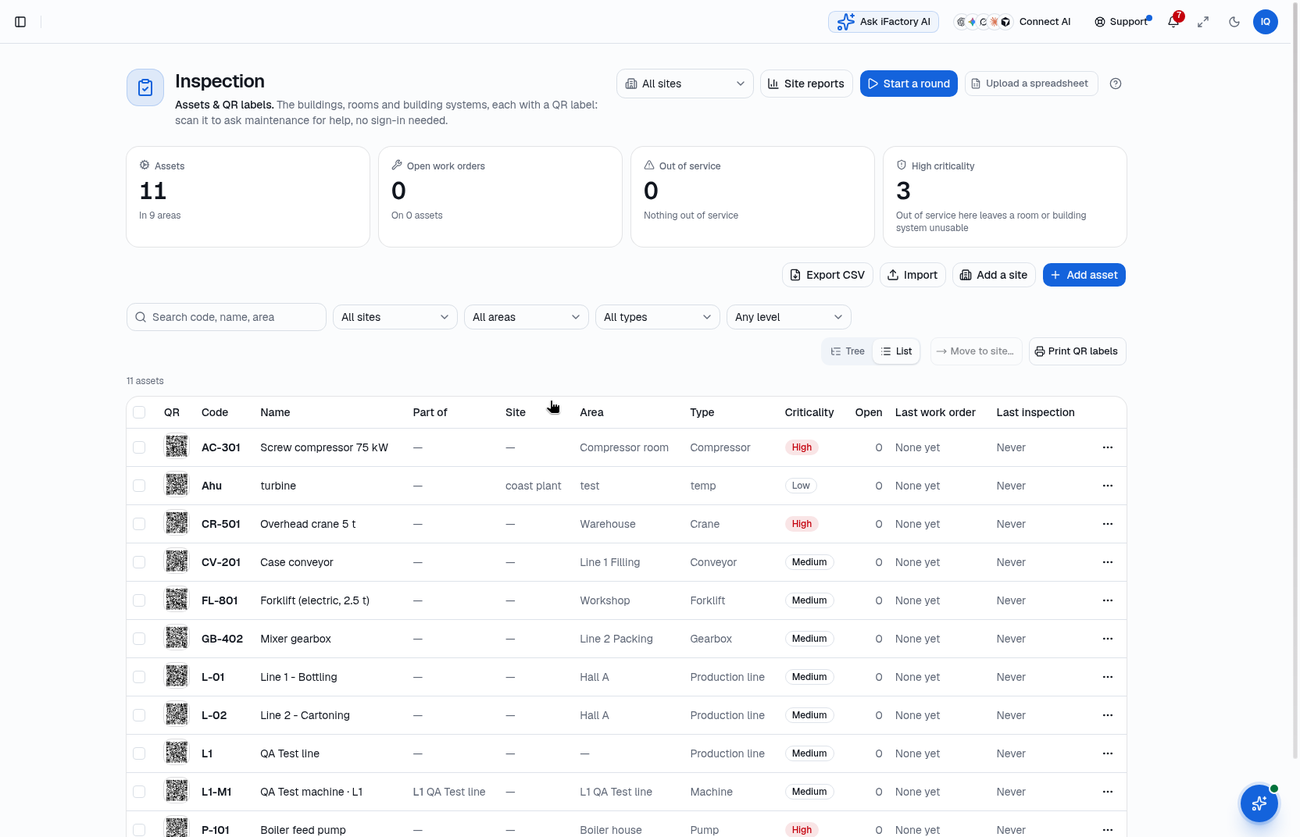
The QA account already had five assets before the import, which is why six added rows made a total of eleven. The count is a useful check after any import.
The list after the import
The imported rows appear next to what was there already, with their code, name, area, type and criticality. Types from your list later feed the checklist editor, so a checklist can apply to every Pump or every Crane.
One list, two apps
The same asset list is shared with iFactory Maintenance, so a company that uses both only keeps one register and does not enter a machine twice.
A QR label for each asset
Every asset gets a QR label that you can print, and after an import the importer links straight to printing labels for the whole register.
Site column for reports
Include a Site column if you want rounds grouped by site in reports. Without one, the assets are filed under Not at a site.
What the import does not do
The importer brings in your equipment. It does not write your checklists for you, so the next step is choosing or drafting one.
Only what is in the file
Columns that your file does not have stay empty, and you can add the details later on each asset's page.
Leftover types stay
Types already in the account, including old test ones, still appear in the type list.
A checklist is a separate step
After the import you still choose a ready checklist or draft one with iFactory AI. The asset types in your file are what let a checklist apply to every pump or every crane.
Getting a register file ready
Most plants already have an asset register somewhere: a maintenance spreadsheet, an export from an older system, or a list a planner keeps by hand. The importer takes an Excel or CSV file, so the starting point is whatever you have. The Import your assets dialog has a link to download a template if you would rather start from the expected columns than reshape your own file.
Give every row a short code that a technician would recognise on the machine, such as P-101, and a name people use, such as Boiler feed pump. Area and Type matter because Type is what a checklist can cover as a group: a checklist set to every Pump finds every imported row whose type is Pump. Criticality and the make and model are worth including if you have them.
From the import result to the first round
After matching the columns the importer reports what it did. In our test the six-row file gave Added 6, updated 0, and the list then showed eleven assets because five already existed in that account. Columns not in the file, such as Site, Serial number, Installed and Warranty until, are simply shown as not in file, so a partial register still imports.
The practical next step is to print labels from the link on the result and to save a checklist that covers a type. Rounds then appear on the due list for every imported asset of that type. One thing to know: rows without a Site column are filed under Not at a site in the site reports, so add the column if you need figures by site.
Frequently asked questions
Where do I import an asset register in iFactory Inspection?
In Assets, where you can drop an Excel or CSV file or download the template first. The importer reads your file, matches your columns to its own and shows the mapping before it runs. Afterwards it tells you how many assets it added and how many it updated, and the asset list updates straight away.
Which columns does the importer look for?
Code, Name, Site, Area, Type, Criticality, Make, Model, Parent code, Serial number, Installed, Warranty until and Notes. It lists the ones your file did not have. Our test file had six rows and several of these columns. Columns that the file does not have simply stay empty and can be filled in later on the asset.
What happens if my columns are named differently?
The importer matches your columns to its own, and you can check the mapping before it runs. If a header does not match, choose the right column for it from the list. Anything you leave unmapped is ignored. A small test file is a good way to check the mapping before you import the whole register.
Can I include more than one site?
Yes. Include a Site column and the assets are grouped by site, which lets reports group rounds by site as well. If the file has no Site column, the assets are filed under Not at a site. You can move them later by editing an asset, so it is not a problem if you start without it.
What do I do after the import?
Choose a ready checklist or draft one with iFactory AI, set which assets it covers, how often and who does the round, then save it. The asset types you imported feed the checklist editor, so a checklist can apply to every pump or every crane. You can also print QR labels for the whole register in one session.
What happens if I import the same file again?
Assets that already exist are updated rather than duplicated, and the importer tells you how many it added and how many it updated. That makes it safe to re-import a corrected spreadsheet. Check the counts afterwards. Our test added 6 to an account that already had 5 assets, which is why the total was 11.
Import your equipment list and get to the first round
Bring the spreadsheet you already have into Assets.
- Excel or CSV, or start from the template
- Added and updated counts after the import
- A QR label for every asset
14-day free trial · no card needed