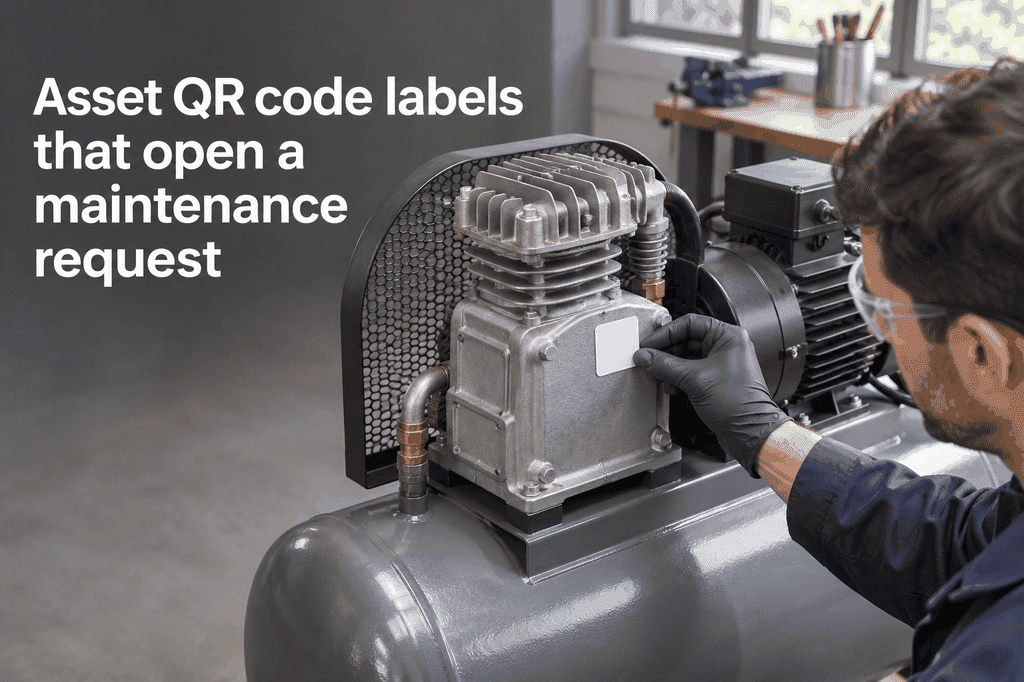
Maintenance requests usually start with someone saying a machine sounds wrong and nobody being sure which machine, or who to tell. An asset QR code label fixes the first half: stick it on the equipment and anyone can scan it to report a problem against the right asset. In iFactory Inspection every asset gets a label. This page shows what the label says, what a scan opens, how labels print and what a scan does not yet do. Get your asset labels in the app once your company is set up.
Inspection · Assets and QR labels
Asset QR code labels that open a maintenance request
Print the label, stick it on the machine, and anyone can scan it to ask maintenance for help, without signing in.
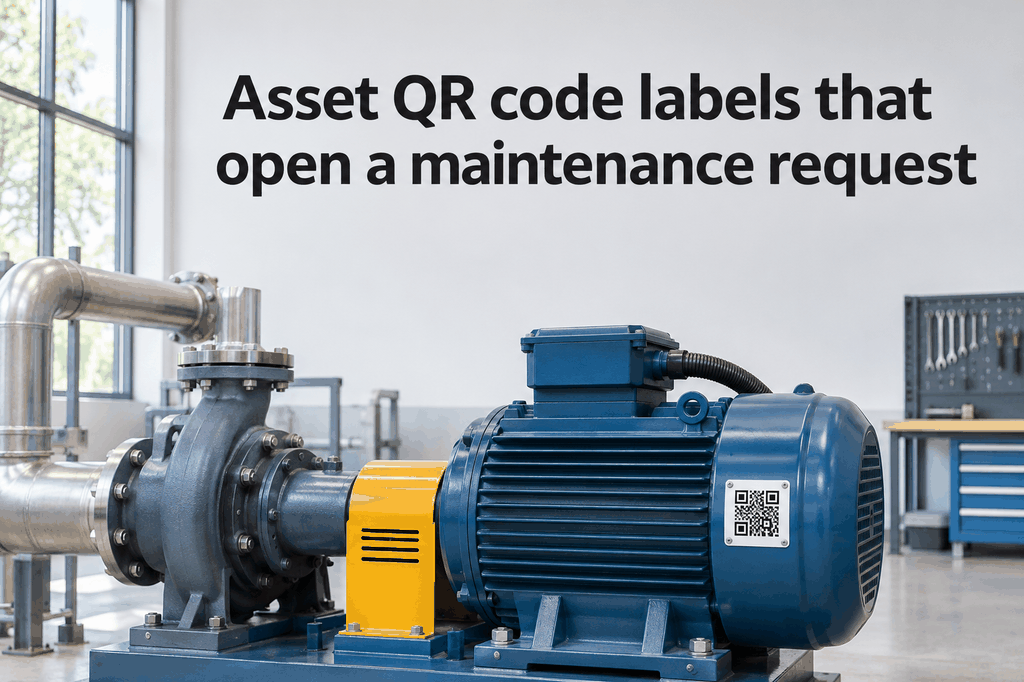
From the label to the request
This is the label on pump P-101 in our QA account and what happens when someone scans it.
On the machine
P-101 Boiler feed pump
Scan to ask maintenance for help
On the phone
A public request page, no sign-in needed
That asset, ready for maintenance
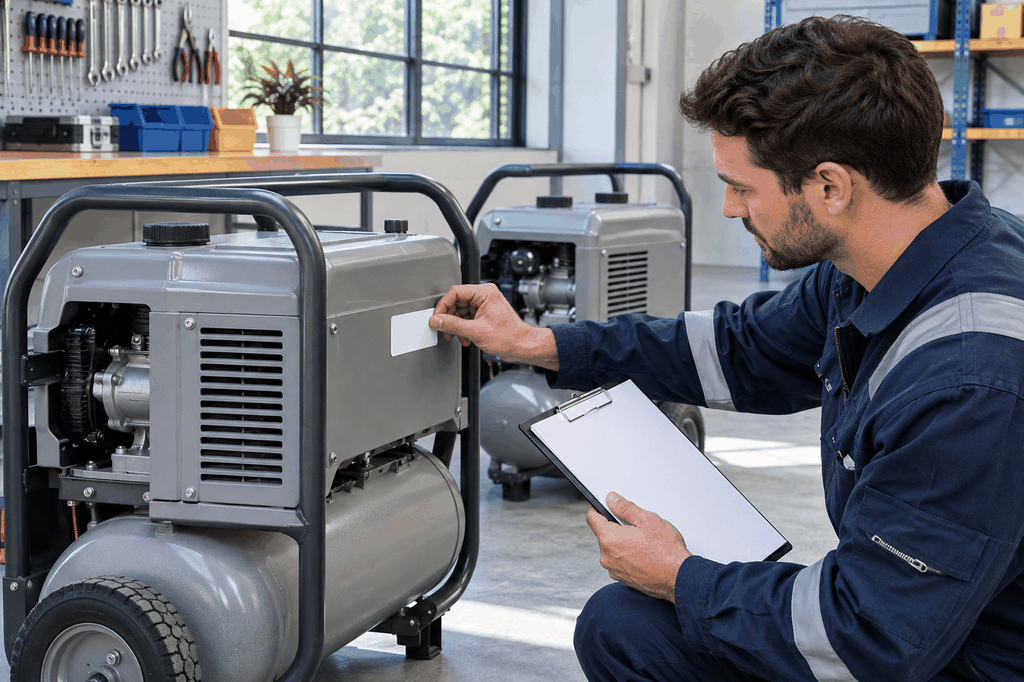
Put the label where the problem is seen, so the person who notices a fault can report it from the machine without looking up the asset.
The request lands on that asset, ready for maintenance, with the machine already identified and no typing of an asset code.
What you can do with a label
These four controls sit on the asset page, so everything to do with a label is in one place.
Print label
Prints the QR label for that asset, ready to stick on the machine.
Stick it on the machine in a place where it can be seen and scanned, and where it is not going to be washed or scraped off.
Copy request link
Copies the same request link that the QR code opens, so it can be shared without printing a label.
This is useful for a message, an internal form or an email, when someone needs the request page for that asset without being at the machine.
Reissue QR code
Issues a new code and retires the old link, so an old label stops working as soon as the new one is issued.
Use this for a copied or misused label, or when a label was shared somewhere it should not have been.
Print many
Labels for many assets print together as a single PDF, so a whole area can be done in one go.
Choose the assets in an area, print the sheet and walk round sticking the labels on. It is quicker than printing each one.
The asset page behind the label
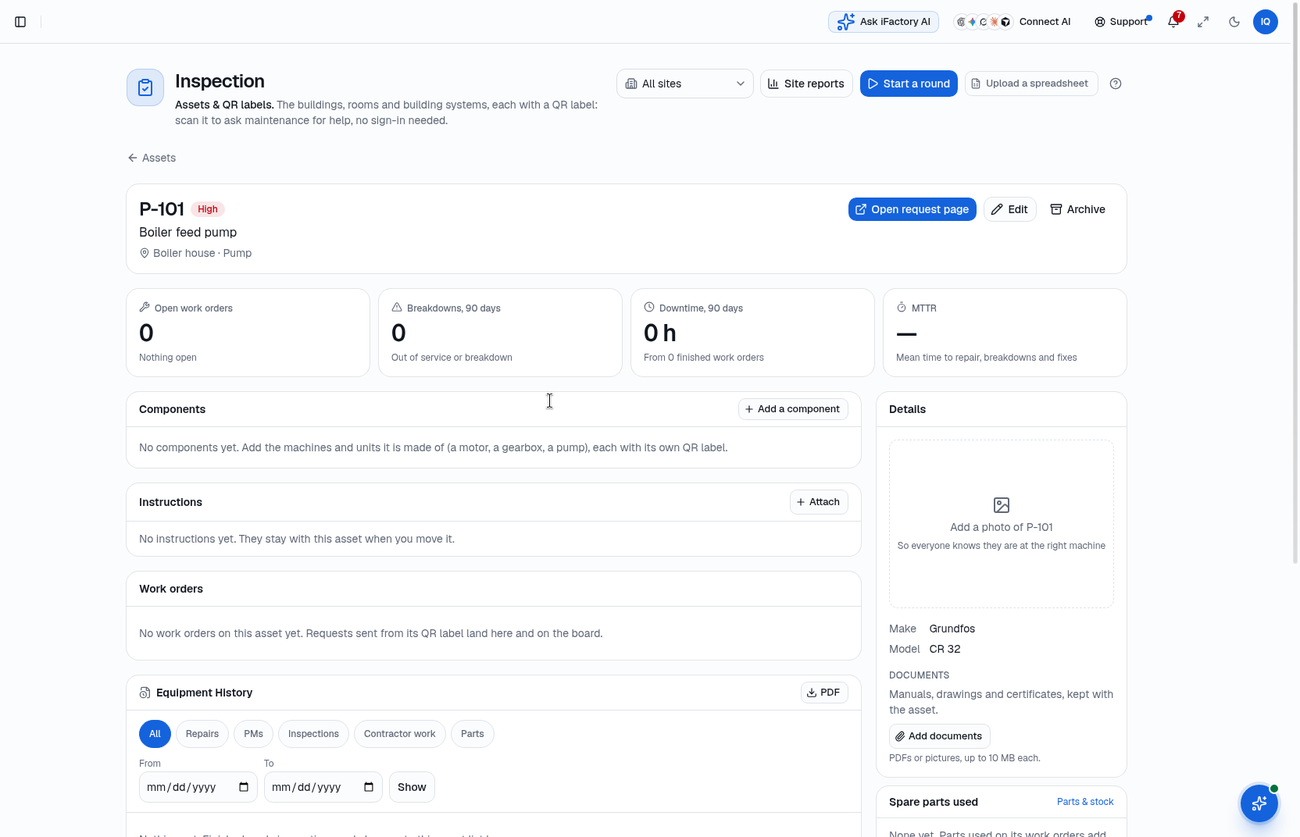
The label sits on the asset's own page, below its details. The page also lists the asset's components, instructions, work orders, PM schedules and inspections, so what the label reports can be seen next to the history.
Details
The details tab holds the code, name, criticality, area, type, make and model, so the person scanning the label can check they have the right machine.
History
The history tab collects the components, instructions, work orders, PM schedules and inspections linked to the asset, so everything about it can be found in one place.
Edit or archive
Editing and archiving are both on the asset page, which keeps the register tidy when a machine is replaced or retired.
What a scan does not do yet
Scanning a label opens a maintenance request and not an inspection round. That is a deliberate limit worth knowing before you label a plant.
Not a round
Scanning a label opens a maintenance request. To run an inspection round, open the asset or the round from the home screen of the app.
Public page
The request page needs no sign-in, so anyone who can scan the label can raise a request. Place labels where you are happy for that to be used.
Reissue to retire
If a label has been copied, reissue the code. That replaces the old link, so the copy stops working.
Where to put a label, and who scans it
A label belongs where a person who sees a problem is standing: on the machine frame near the controls, on the guard, or on the gearbox side that faces the walkway. The label shows the asset code and name and the line Scan to ask maintenance for help. Anyone with a phone can scan it, including someone who has never used the app.
The scan opens a request page for that asset, so the report arrives already tied to the right machine. That removes the usual back-and-forth about which pump it was.
Printing, copying the link and reissuing
On the asset page there are three controls under the label: Print label, Copy request link and Reissue QR code. Print produces the label for the machine; copy the request link if you want the same page somewhere else, for example in a laminated instruction. Reissue is for a label that has been defaced or that you no longer want in circulation.
After a spreadsheet import, the importer links straight to printing labels, so a whole register can be labelled in one session.
Keeping labels readable
Labels in dusty or wet areas wear. Check them during rounds and note any that are unreadable, so they are replaced before the asset can no longer be identified.
Frequently asked questions
What is an asset QR code label in iFactory Inspection?
It is a printed label for an asset with a QR code. Anyone who scans it opens a maintenance request page for that asset, with the machine already identified, so the request lands on that asset ready for maintenance. The label is printed from the asset page, and the code can be reissued if the label is copied or misused.
Does the person scanning need to sign in?
No. The request page needs no sign-in, so anyone who can scan the label can raise a request. That makes reporting a fault easy for operators and visitors. It also means you should place labels where you are happy for that to be used. If a label is copied or misused, reissue the code and the old link is retired.
Can I print labels for many assets at once?
Yes. Labels for many assets print together as a single PDF, so you can do a whole area in one go. After a spreadsheet import, the importer links straight to printing labels, so a whole equipment register can be labelled in one session. Single labels can still be printed one at a time from the asset page.
What if a label is copied, damaged or misused?
Use Reissue QR code on the asset page. It issues a new code and retires the old link, so a copied label stops working at once. A damaged label can be printed again from the asset page. Check that the new label is stuck on the machine and the old one is removed.
Does scanning a label start an inspection round?
No, not yet. Scanning a label opens a maintenance request, not an inspection round. To run a round, open the asset or the round from the home screen. This is worth telling operators when you roll labels out, so that nobody expects the scan to open the checklist.
Where do requests from a label end up?
They land on the asset the label belongs to, ready for maintenance to pick up. The asset page keeps the history: components, instructions, work orders, PM schedules and inspections. A person looking at the asset sees the request alongside everything else known about it, which helps them judge whether it is a repeat problem.
Label your equipment and get requests on the right asset
Print a label per asset and let anyone report a problem in seconds.
- A label for every asset
- Public request page, no sign-in
- Reissue a code if needed
14-day free trial · no card needed