Inspection findings are the part of a round that matters most, and the part paper handles worst: the defect is written on a sheet and nobody works it. In iFactory Inspection every failed item becomes its own finding, a work order that stays open until someone finishes it or cancels it. This page shows how inspection findings tracking works in the app, using a real test finding from our own QA account, and what the Findings list does not do. You can open the Findings list in your own workspace once your company is set up.
Inspection · Findings
One list for every failed item, from New to closed
Each finding carries the note from the round, the item's how-to-check text with its pass limit, the asset and a due time set by priority, so whoever picks it up has everything they need.
Finding status, step by step
A finding moves through the same statuses as any work order in the app. These are the steps, and each one tells the person reading the list something different about where the repair stands.
- NewA finding is raised by a failed item on a round, and in this state nobody has picked it up yet.Start work, Assign, Waiting on, Mark done or Cancel.
- AssignedA person on the team now owns it, so there is a name beside the finding and it cannot be left unclaimed.The assignee starts it when work begins, and the start is recorded so the response time can be measured.
- In progressWork has started. The time from raised to picked up is kept as the response time.Mark done, or move it to Waiting.
- WaitingWork has stopped for a stated reason: parts, a shutdown, another trade or something else. The finding stays open and the reason is in plain view.Resume work, Mark done, Back to assigned or Cancel.
- DoneThe fix is finished and the finding is marked done, which records who finished it and when.It can then be closed, which keeps the record and takes it out of the open list.
- CancelledIf the finding turns out not to need action, it can be cancelled with a reason.A cancelled finding stays on the record as cancelled and not as done, so the history does not look as if a repair was made.
Status names are the app's own. Due times come from the item's priority when the round is submitted.
Due time, set by priority
The due time on a finding comes from the item's priority when the round is submitted.
In the test run below, WO-0002 was High priority and due 24 hours after it was raised.
Stop losing defects between the round and the repair
Each failed item opens its own finding, so nothing waits for someone to read a sheet and write a job later.
What the Findings list shows
The Findings tab sits next to Overview, AI Checklist and History. Its own line sums it up: every failed item, followed up, with who is on it, comments, photos and the close.

Open, Closed, All
Counts at the top of the list show how many findings are in each state, and search and filters by asset and by priority help you find the ones that matter.
Where it came from
Each row shows the asset, the priority, the checklist round it came from, the status, the assignee and its age.
Same work, one board
If your company also uses iFactory Maintenance, findings are cards on its board too, so nobody has to keep a second list.
One finding, followed through
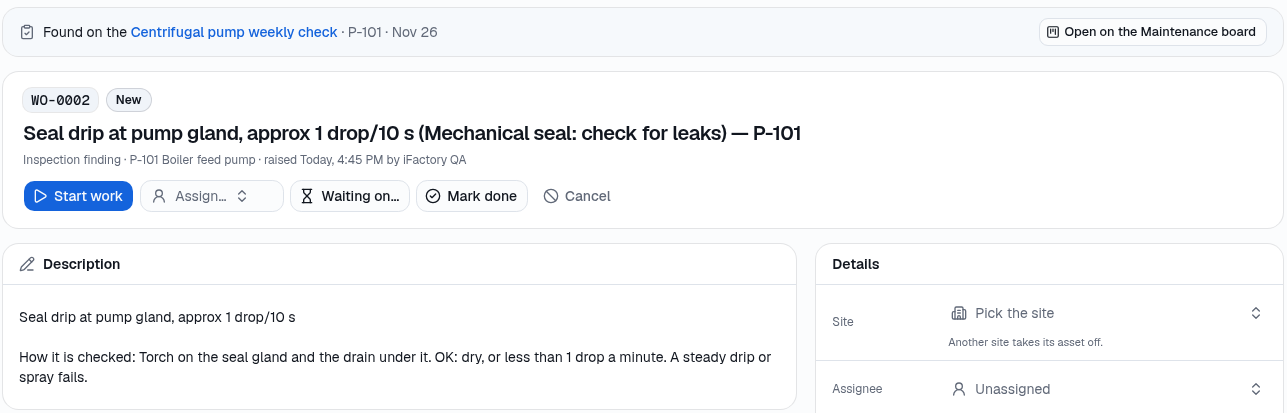
This is a real test run on a boiler feed pump, P-101, on 26 Nov 2026, using the ready Centrifugal pump weekly check.
The item fails on the round
The mechanical seal item says: torch on the seal gland and the drain under it; dry, or under 1 drop a minute, passes. The inspector marked it Failed and wrote the note the app asks for on every failure: seal drip at pump gland, about 1 drop every 10 seconds.
The finding opens itself
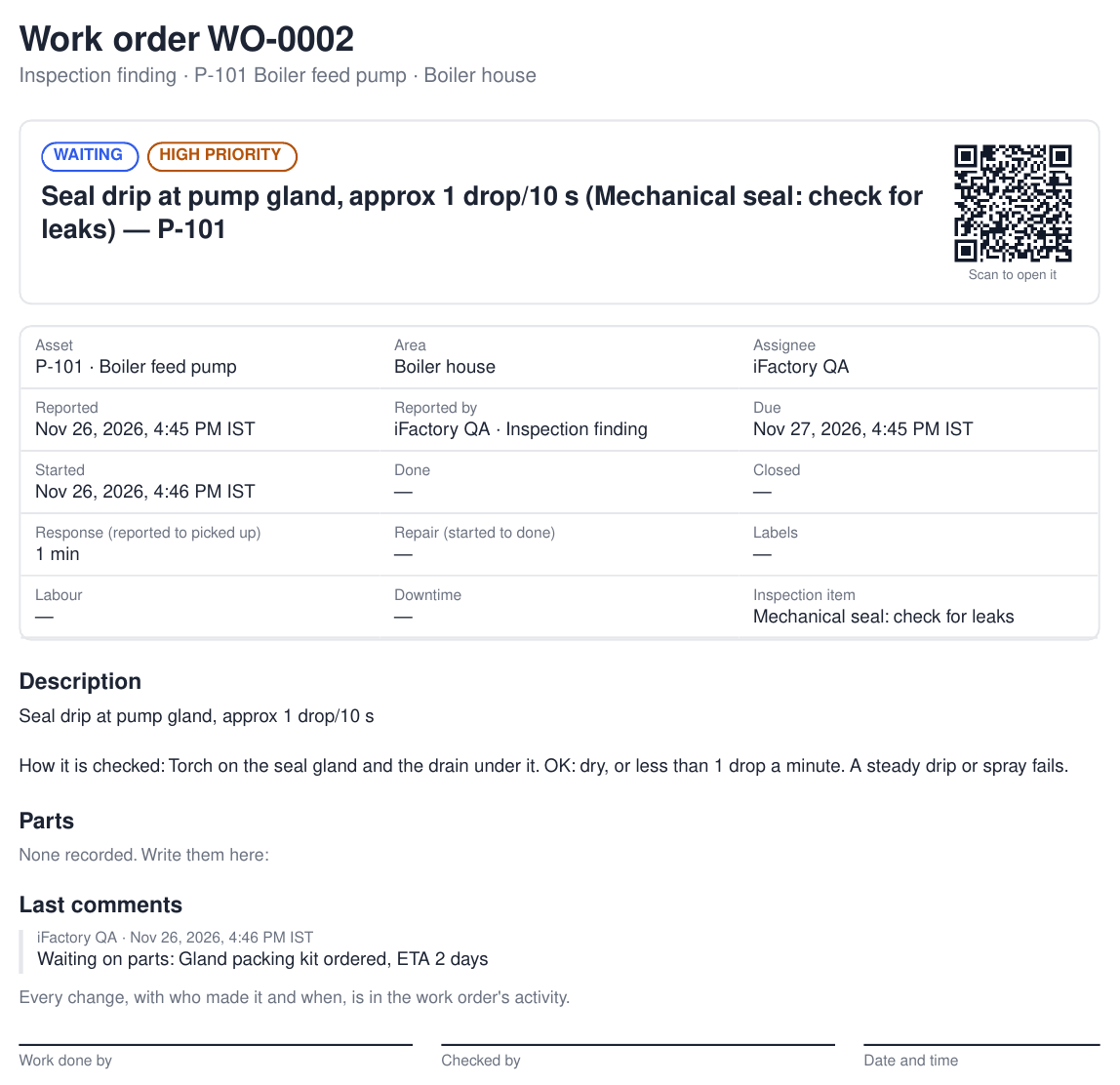
On submit, WO-0002 appeared as an Inspection finding: High priority, due 24 hours later, with the note, the how-to-check text and a link back to the round and the asset.
Someone picks it up
It was assigned and started one minute after it was raised, which the work order keeps as its response time.
Work stops for a reason
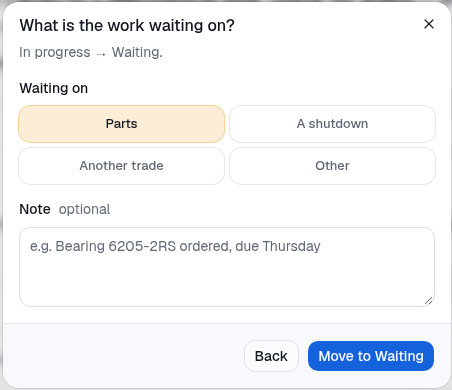
Moved to Waiting on parts with the comment that a gland packing kit was on order. The finding stays open, with the reason in plain view.
Waiting is a status, not a gap
Most follow-up stalls for ordinary reasons. Instead of a finding that just sits there, Waiting asks what the work is waiting on and keeps an optional note.

Records you can hand to someone else
Each finding has its own one-page PDF: status and priority, asset and area, assignee, reported, due, started, done and closed times, the inspection item, the description with how it is checked, parts, the latest comments and printed lines for Work done by, Checked by and Date and time. A QR code on the sheet opens the work order.
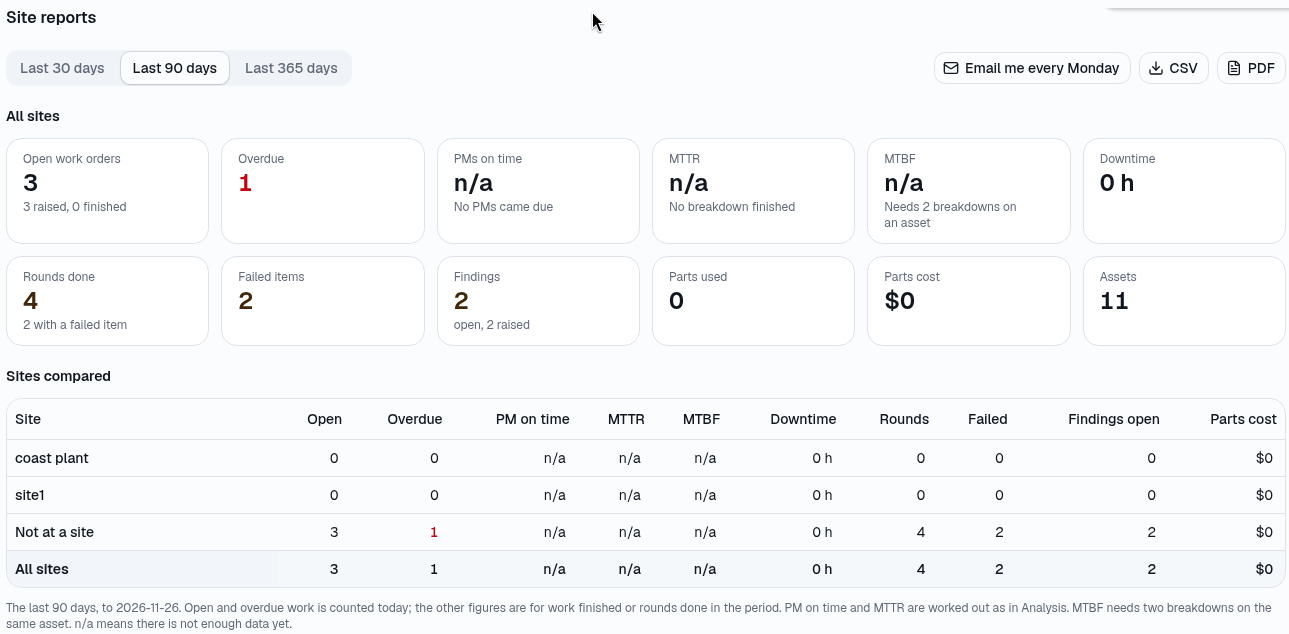
For a list, Export CSV gives one row per finding: work order, item, round, when the round was done, asset code and name, status, priority, assignee, raised and done. Site reports adds the counts across sites: open and overdue work orders, rounds done, failed items and findings, for the last 30, 90 or 365 days, with an option to email the report every Monday.
What the Findings list does not do
It follows up what your rounds find. It is not an audit or incident system.
No overdue reminders
Overdue findings show in the list and in Site reports. The app does not send a reminder email or push for each one, so someone needs to look at the list.
Printed sign-off only
The PDF record has lines to sign by hand. There is no electronic signature in the app.
Only failed items
A finding starts from a failed item on a round. Problems seen outside a round are raised as maintenance requests, for example from an asset's QR label.
Frequently asked questions
What is an inspection finding in iFactory Inspection?
A finding is a work order that is raised automatically when an item fails on a round. It carries the note from the round, the how-to-check text with the pass limit, the asset and a due time set by the item's priority. It stays open in the Findings tab until someone finishes it or cancels it.
Can a failed item be saved without a note?
No. The app asks what is wrong on every failed item, so the person doing the round has to write a note before the item can be saved. A photo is optional. The note goes into the finding, so the person who repairs the machine sees what the inspector saw without having to ask.
Who hears about a new finding?
It appears in the Findings tab and in the list of work orders, ready to be assigned. If your company also uses iFactory Maintenance, it shows as a card on its board too. The app does not send an email or a push message for each one, so someone should check the list, and overdue findings also show in Site reports.
Can I change the due time of a finding?
The due time is set from the item's priority when the round is submitted: Urgent in 4 hours, High in 24 hours, Medium in 72 hours and Low in 14 days. To change what is normal for an item, change its priority in the checklist. A finding that is waiting on parts stays open with the reason shown.
What does Waiting mean on a finding?
Waiting means work has stopped for a stated reason, such as parts, a shutdown or another trade. The finding stays open and shows the reason, with an optional note. In our test, WO-0002 was moved to Waiting on parts with the comment that a gland packing kit was on order, so nobody had to ask why it was still open.
Does every problem become a finding?
No. A finding starts from a failed item on a round. Problems seen outside a round are raised as maintenance requests, for example from an asset's QR label. The Findings tab follows up what your rounds find. It is not an audit or incident system, so it does not replace your own incident reporting.
Track every inspection finding to a close
Rounds on a phone, a finding for each failed item, and a clear reason whenever work stops.
- Due times set by priority
- Waiting on parts, a shutdown or another trade
- PDF and CSV for every finding
14-day free trial · no card needed