
A maintenance inspection app earns its place on the shop floor only if the person holding the phone can finish a round without fighting it. iFactory Inspection runs in the phone's browser, so there is nothing to download from an app store: open the link, sign in and the rounds that are due are waiting. This page walks through what a technician sees from the home screen to the saved record, using a real test round on a boiler feed pump from our QA account, and says plainly what the phone round does not do. You can open the Inspection app in your own workspace once your company is set up.
Inspection · Mobile rounds
A maintenance inspection app that runs in the phone's browser
Rounds are listed by what is overdue, due today and coming up. Each item on a round shows the check, how to check it and the pass limit, and the technician only has to tap OK, Failed or N/A.

The home screen sorts rounds by when they are due
The Overview opens on four counts, so a technician sees what to do first. These are the counts our QA account showed on 26 Nov 2026 after four checklists were saved, one for each asset.
This is test data entered by iFactory in a QA account and not customer data. Below the counts, each round is listed with its asset, how often it is done and a Start button.
Take the round to the machine, not the other way round
The checklist, the limits and the result are all on the phone that the technician already carries, so the round is done at the machine and not afterwards from memory.
From the due list to a saved record
This is the path of one round on a phone, described in the order in which the screens appear.
- Open the roundPick a round from Overdue, Due today or Coming up. Pressing Start opens the run screen with the first item.Each item carries a section and a priority and, where the machine must be isolated first, a lockout flag, so the technician knows what kind of check it is before starting it.
- Read the checkThe item says what to look at, how to check it and what passes, so the person holding the phone does not need to remember a manual.The pass limit is on the screen under the item, so nobody has to remember it and two people reach the same answer.
- Answer OK, Failed or N/AThere are three buttons for each item, and a counter such as 14 of 14 answered shows how far through the round the technician is.There is no number field yet, so results are choices and not readings. A figure belongs in the note when an item fails.
- Say what is wrongA failed item asks for a note that says what is wrong. Adding a photo is optional but it often saves the fitter a trip.The browser shrinks a photo to under 1 MB before it uploads, so a round does not stall on a weak signal.
- SubmitBefore the round is submitted, the screen tells the technician that a work order will be raised and at what priority, so there are no surprises afterwards.The app needs a connection while the round is submitted, so a technician in a dead spot should walk to somewhere with a signal first.
- Find it in HistoryThe round is saved with who did it and when, and its PDF record is ready to open from History.Each failed item is already its own finding in the Findings tab, so the follow-up starts the moment the round is saved.
The last screen before Submit
In the walkthrough the inspector reached item 14 of 14 with one failure. The count of failed items and work orders to raise sits next to the Submit button, and an Ask iFactory AI chip offers a question such as which rounds are overdue.
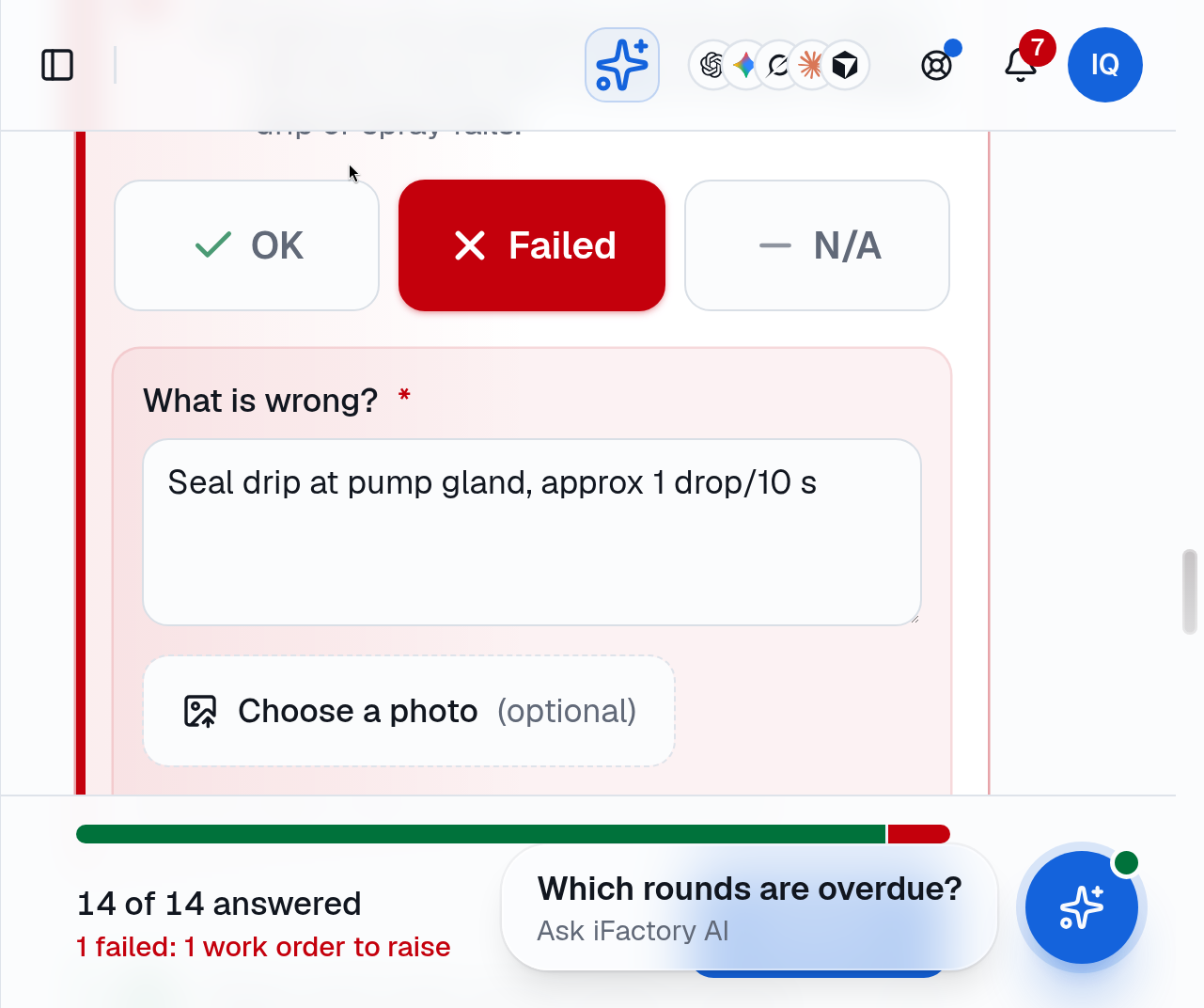
Fail with a reason
The note box is part of the failed answer, so the person who saw the defect describes it on the spot while it is fresh.
Know what happens next
The screen says that the failure raises a work order on that asset, with its priority, before anything is submitted.
Ask while you are there
Ask iFactory AI sits on the run screen for questions about your rounds, so a technician can ask about the history without leaving the round.
What the phone round does not do yet
The phone round is a checklist round and not a data logger, which is worth knowing before you plan how readings are recorded.
No numeric readings
There is no number field. A pass or fail against the written limit is what is saved, with a note on failures.
Needs a connection to submit
Rounds run in the browser, and the app needs a connection while you submit them.
Not an app-store app
It opens in the browser, so there is no separate install to keep up to date and nothing for IT to push to each phone.
A round, as the person holding the phone sees it
Picture a technician at the start of a shift. They open the link in the phone's browser, find the checklist on the due list and tap the asset. There is nothing to download first. The run screen asks one question per item, each with the how-to-check line and the limit printed under it, so the person does not have to remember what passes.
Each answer is OK, Failed or N/A. A failed item opens a note box and an optional photo button, and the screen tells the person plainly that this raises a work order and at what priority. When every item is answered the counter reads, for example, 14 of 14, and Submit saves the round to history. The few seconds spent on the note are what the maintenance team will read later.
Frequently asked questions
Do I need to install anything to run an inspection round?
No. iFactory Inspection runs in the phone's browser, so there is nothing to download from an app store. Open the link, sign in, and the rounds that are due are waiting on the home screen. There is also no separate update to keep up to date, because it opens in the browser every time.
What can an inspector answer on each item?
OK, Failed or N/A, with three buttons per item and a counter such as 14 of 14 answered. There is no number field yet, so results are choices and not readings. A failed item asks for a note and takes an optional photo. N/A is for an item that does not apply to the machine on this round.
How big can a photo be?
The browser shrinks the photo to under 1 MB before it uploads, so you do not need to resize anything. That keeps the round quick on mobile data. The photo is optional, and a failed item can be submitted with a note only. The photo and the note both travel into the work order.
What happens when an item is marked Failed?
The item asks for a note and offers a photo. Before the round is submitted, the screen tells the technician that a work order will be raised on that asset, and at what priority. After submitting, the failed item is already its own finding, due by priority from 4 hours for Urgent to 14 days for Low.
Where do finished rounds go?
The round is saved with who did it and when, and its PDF record is ready to open from History. Failed items are already findings in the Findings tab. History can be filtered by asset, checklist and date, and exported to CSV. The app needs a connection while you submit, so submit from somewhere with a signal.
Can the person doing the round ask the app a question?
Yes. Ask iFactory AI sits on the run screen for questions about your rounds, so a technician can ask about the history without leaving the round. It does not change the checklist or the results. Any answers should be checked against your own records and the maker's manual before anyone acts on them.
Run your next equipment round from a phone
Open the link, pick a round and answer the items at the machine.
- Rounds sorted into overdue, due today and coming up
- OK, Failed or N/A with a note and photo
- A work order raised for every failed item
14-day free trial · no card needed