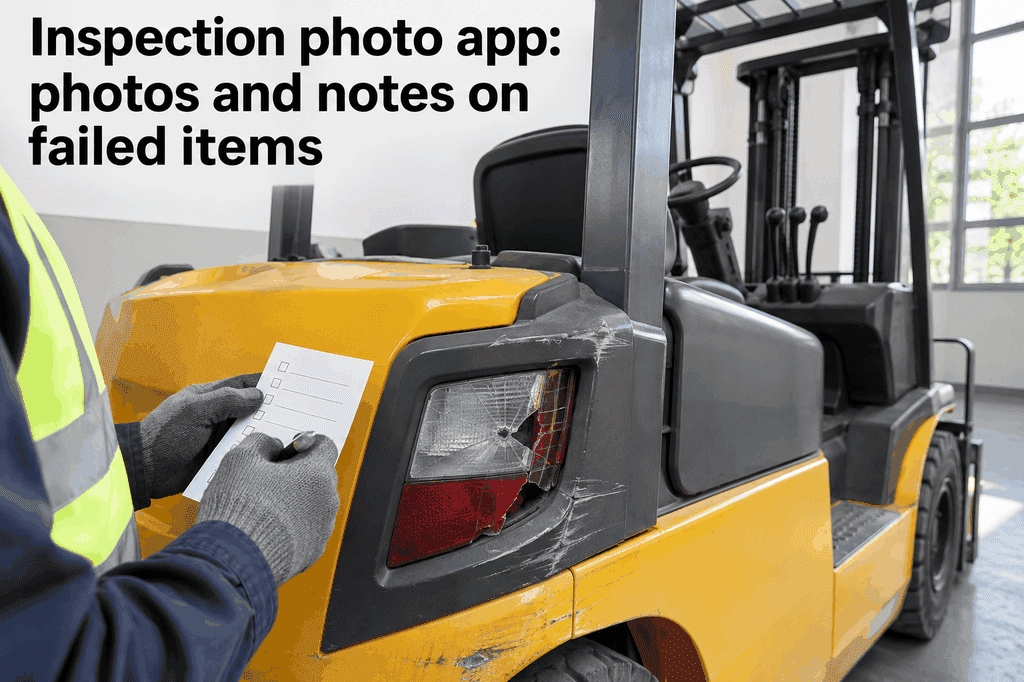
A photo on a failed item saves the person fixing it a walk to the machine. It also settles the arguments that start with "it did not look that bad". In iFactory Inspection a failed item on a round offers a note and a photo, and both go with the failure into the work order and the round's PDF record. This page shows how a photo gets there, where it ends up and, honestly, what the app does not do with it. Try photo evidence in your workspace once your company is set up.
Inspection · Photo evidence
Inspection photo app: photos and notes on failed items
The photo and the note travel together with the failure, from the technician's phone to the repairer's work order, without anyone having to forward anything.

Where a photo goes
Here is the path a photo takes, from the screen where the round is run to the finished record, so you know where to find it afterwards.
- Mark the item FailedWhen an item is marked Failed, the run screen offers a note box and a Choose a photo button. On a phone this opens the camera or the gallery.The note can be up to 500 characters, which is enough for what was seen, where, and how bad it looked.
- The phone shrinks itThe browser shrinks the photo to under 1 MB before it is uploaded, so a round does not stall on a slow connection.Because the photo is shrunk first, the upload also works on mobile data from a part of the plant with a weak signal.
- The work orderThe photo and the note are attached to the finding's work order, so they stay with the job from the day it is raised until it is closed.The fitter sees both the picture and the note before going to the machine, so they can bring the right parts and tools the first time.
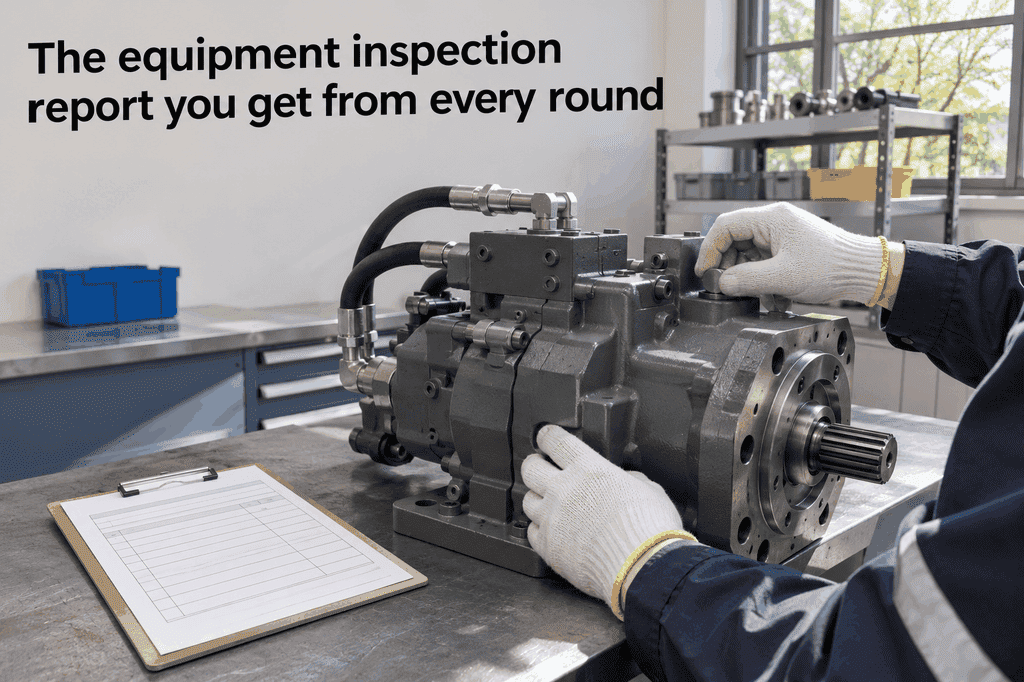
- The PDF recordPhotos and notes on failed items appear in the round's PDF record, so a printed copy shows what was found as well as what was ticked.The photo is kept with the round it was taken in. Later rounds on the same asset have their own photos.
Show the fitter what the inspector saw
A photo is evidence for people. It helps the next person see what the inspector saw, and the app does nothing else with it.
With a photo and without
The photo is optional. A failed item can be submitted with a note only, and it will still raise the work order.
Note only
The work order is raised
No photos yet
Note and photo
The work order is raised
The photo with the note
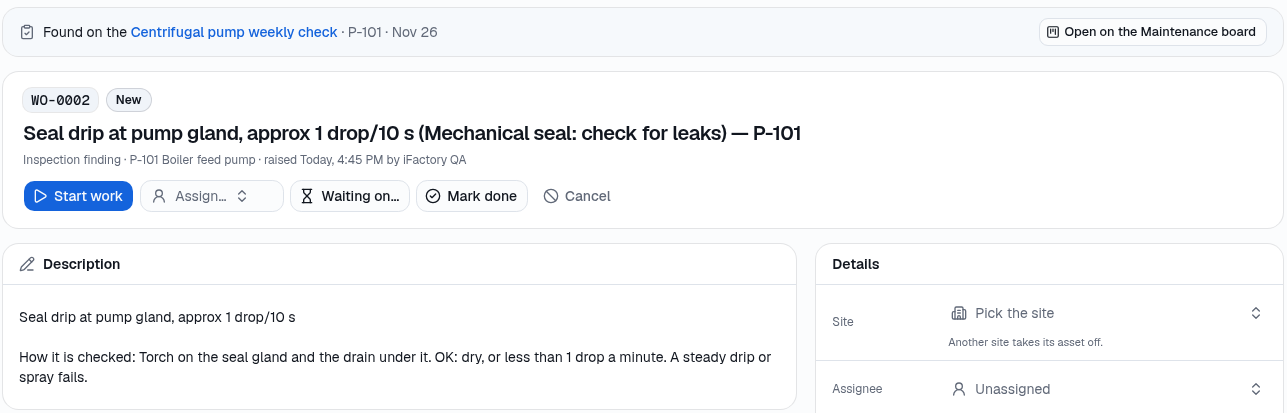
In our portal walkthrough the pump failure was submitted with a note only and still raised the work order. That was test data in our QA account.
Where the photo is asked for
Photos matter most where a picture settles the question, such as a cracked guard or a leaking seal. If you want one every time for an item, make the photo part of your instructions in the how-to line.
How-to line
To make it a habit, write photograph the leak into the item, so that the technician is told to take the photo as part of the check.
Optional
A failed item can be submitted without a photo, so a round is never held up by a camera that will not focus.
Per item
Each failed item can carry its own photo, so a round with three failures can have three pictures, one on each finding.
What the photo is for
The photos are for people to look at. The app does not analyse them or judge what they show.
No image analysis
There is no AI image analysis in iFactory Inspection, so nobody should expect the app to spot a crack or measure a leak from a picture.
Not required
The app does not force a photo, because a rule that cannot be followed gets ignored, and the note is enough to raise the work order.
Failed items only
The photo prompt appears on failed items, which keeps the pass path of the round quick.
A photo at the moment of failure
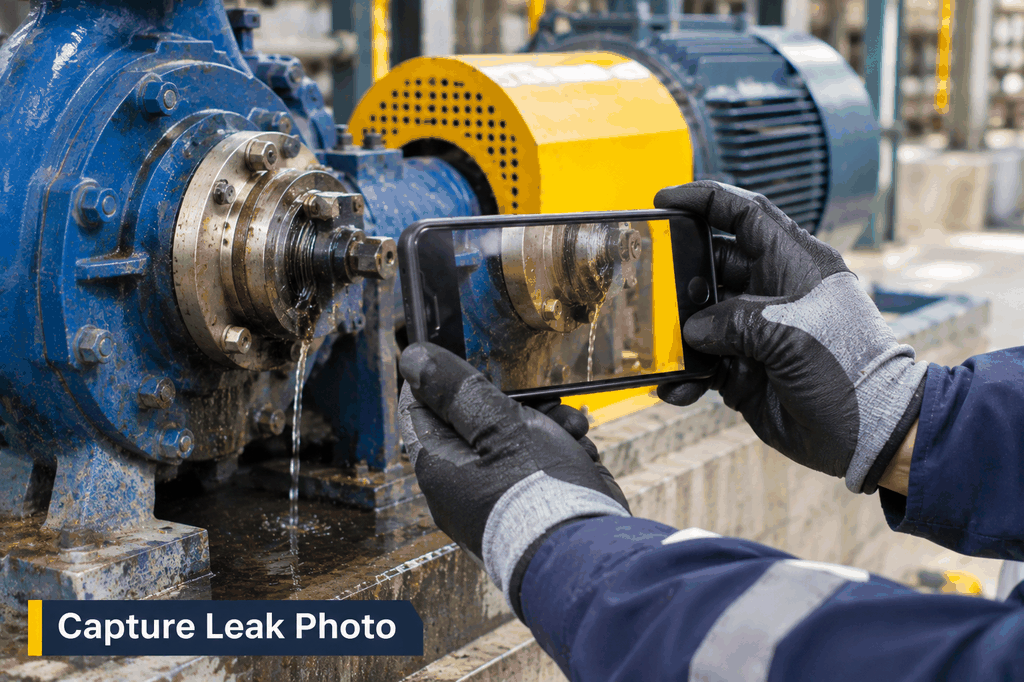
When an item is marked Failed, the run screen shows a note box and a Choose a photo (optional) button. On a phone the button opens the camera or the picture library, so the person can show what they found while they are standing at the machine. A seal drip, a cracked guard or a worn belt is easier to understand in a picture than in a sentence.
The photo travels with the finding. It is attached to the failed item, so the maintenance planner sees it when the work order opens and the technician who does the repair can see what the problem looked like before they arrive.
What a photo does not replace
A photo is optional because a note is often enough and because the person doing the round should not be slowed down for items that pass. The note is what the work order carries, so write what you saw, where and roughly how bad: seal drip at pump gland, approx 1 drop/10 s.
In our own test round no photo was taken on the failed pump item, and the finding said No photos yet. The workflow works either way. If your site has a rule about photographing certain failures, add that to the item's how-to-check text so the person knows to do it.
When a photo helps most
A note says what the technician thinks. A photo shows what they saw. On a failed item, the app asks for a note and allows a photo, and both travel with the work order, so the person who picks it up sees the same thing the inspector did.
The best photos are of things that change: a weeping seal gland, a cracked coupling insert, milky oil in a sample jar or a guard that is missing. Include something that shows where it is, such as the asset tag, so the picture is not mistaken for another machine.
A photo is not needed on a pass. Taking one for every item slows the round and fills the record with images nobody opens. Keep them for failures and for the occasional pass you want on record.
Frequently asked questions
Can I add a photo to a failed inspection item?
Yes. When an item is marked Failed, the run screen offers a note and a Choose a photo button, which opens the phone's camera or gallery. The photo goes with the failure into the work order and into the round's PDF record. The note can be up to 500 characters and gives the context for the picture.
How big can the photo be?
The browser shrinks the photo to under 1 MB before it is uploaded, so you do not need to resize anything yourself. That keeps the round quick on mobile data and in places with a weak signal. The shrinking happens on the phone, which is why a large camera image will still save without trouble.
Where does the photo end up?
On the finding's work order, so the fitter sees it before they go to the machine, and in the round's PDF record, so a printed copy shows what was found. It is kept with the round it was taken in. Later rounds on the same asset have their own photos, so the history shows how a fault developed.
Is a photo required on a failed item?
No. A failed item can be submitted with a note only, and it still raises the work order. In our portal walkthrough the pump failure was submitted that way. If you want a photo every time for an item, write it into the how-to line, for example photograph the leak, so that the technician is reminded.
Does the app analyse the photo?
No. There is no AI image analysis in iFactory Inspection. The photo is evidence for people, so the fitter and the supervisor look at it and decide. That is a deliberate limit, and it means a photo should always be backed by a note that says what the picture shows and why the item failed.
Should I take photos of passing items?
Usually not. A photo is not needed on a pass, and taking one for every item slows the round and fills the record with images nobody opens. Keep photos for failures and for the occasional pass you want on record, for example the condition of a seal just after it was replaced.
Add photos to your failed items
Run a round on a phone and attach a photo to any failure.
- Note and photo on a failure
- Shrunk under 1 MB
- Goes into the work order
14-day free trial · no card needed