Scheduling inspections usually means a planner rebuilding a spreadsheet each week and hoping the shift leads read it. In iFactory Inspection the schedule is not a document. Each checklist has a frequency, the next due time is the last round plus that frequency, and the home screen sorts everything into what is overdue, due today and coming up. This page explains what that screen shows, how to read it at the start of a shift, and the one thing it does not do: send you an alert for an individual overdue round. See your own schedule in the app once your company is set up.
Inspection · Scheduling
Inspection scheduling that works out what is due for you
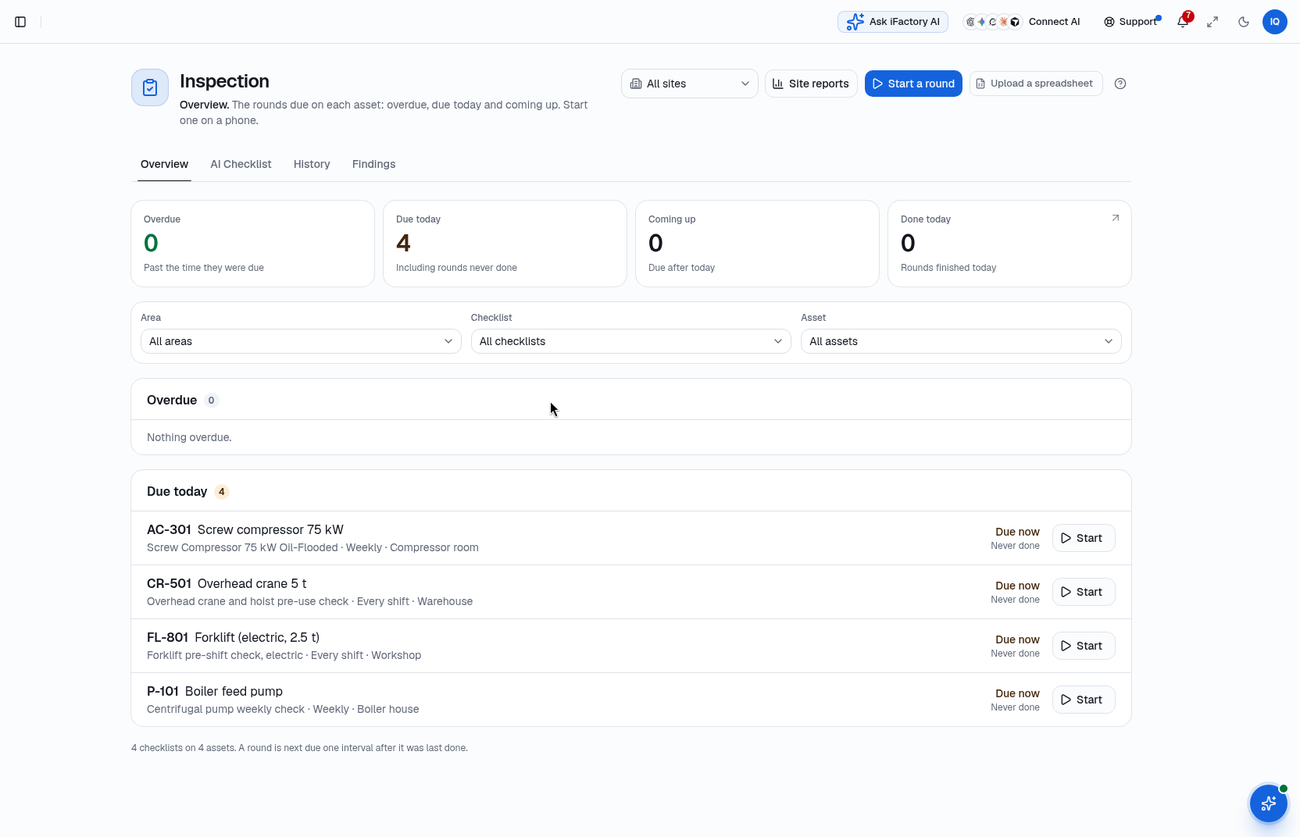
The home screen lists what is overdue, what is due today and what is coming up, for every asset and checklist, along with who each round is assigned to.

Saved checklists in, a due list out
In our QA account four checklists were saved, one for each asset. The home screen then read Overdue 0 and Due today 4, because a new round is due as soon as the checklist is saved.
Checklists saved
Screw compressor 75 kW, AI-drafted weekly check
Overhead crane, pre-use every shift
Forklift, pre-shift electric, every shift
Boiler feed pump, weekly
Home screen
0
4
0
0
This was test data entered by iFactory in a QA account. A round that has never been done is due now, which is why all four were due on day one.
What each row on the due list tells you
Each row on the due list answers the questions a shift lead asks at the start of the day, and opening a row starts the round straight away.
The asset
The asset is shown with its name and code, so the technician knows which machine the round is on.
The code matches the one on the asset's QR label, so there is no doubt that the right machine is being checked.
The checklist
The checklist name tells you what will be checked, and the version it will use is shown with it.
Showing the version means everyone knows which set of items and limits the round will use.
The frequency
The frequency shows how often the round is meant to be done, and it is one of four choices.
The frequency is every shift, daily, weekly or monthly, and it is set once on the checklist.
Who it is assigned to
Each row shows the person or role named on the checklist, so a shift lead knows whose round it is.
That lets a shift lead see who owns each round and chase it if it is overdue.
Replace the weekly spreadsheet with one due list
Opening a row starts the round on a phone, so there is no separate step between seeing what is due and doing it.
Three places to see what is due
The home screen is the main place to look, and for most plants it is the only schedule view that is needed.
What scheduling does not do yet
The app does not send an alert for an individual overdue round, so someone has to look at the list.
No per-round alerts
The app does not send an email or a push message for each overdue round, so make the home screen part of every shift start and let the list do the reminding.
Monday email is a report
The Monday email is the Site reports digest and not an overdue-round reminder, so it should not be relied on to chase individual rounds.
Not a calendar view
Rounds are listed by due bucket, as overdue, due today or coming up, and they are not drawn on a calendar.
How the due list is built
You do not build a schedule in this app. You save a checklist, choose what it covers, set who does it and how often, and the due list is worked out from that. A checklist that covers every Pump produces one row per pump. Add a pump to the asset list later and a row appears for it without anyone editing the checklist.
Each row shows the checklist, the asset and when it is due. Rounds are ordered with Overdue first, then Due today, then Coming up, and the footer states how many checklists cover how many assets, so you can see at a glance whether anything is not covered.
Keeping the schedule honest
Because the next due time follows the actual date of the last round, the schedule cannot drift into a calendar fiction. A late round is visible as late, and the next one is counted from when it was really done.
If a machine is retired, archive the asset and its rounds drop off the list. Archive a checklist and it can no longer be run. That keeps the due list to work that is real.
A supervisor can read the History tab to see whether rounds are being done at the interval you chose, and the CSV export puts the same information in a spreadsheet for a monthly review.
Check overdue first
Start each day with the overdue list, then what is due today. Rounds that keep appearing as overdue are a sign that the schedule or the assignment needs to change.
Frequently asked questions
How does iFactory Inspection schedule inspections?
Each checklist has a frequency of every shift, daily, weekly or monthly, and the next round is due one frequency after the last one. The home screen sorts every asset and checklist into overdue, due today and coming up, with who it is assigned to. A round that has never been done is due now.
Where do I see overdue inspections?
On the home screen, where overdue rounds are listed first, then those due today and those coming up. Each row shows the asset, the checklist, the frequency and who it is assigned to, and opening a row starts the round. The Findings tab and Site reports separately show overdue findings from rounds that failed.
Will I get an alert when a round is overdue?
No. The app does not send an email or a push message for each overdue round, so make the home screen part of every shift start. The Monday email is the Site reports digest and is not an overdue-round reminder. A supervisor can also read History to see whether rounds are being done at the interval chosen.
How do I set the interval?
When you save a checklist you choose how often it is done: every shift, daily, weekly or monthly. The ready checklists come with a sensible starting frequency, which you can change. The frequency applies to every asset the checklist covers, so a machine that needs a different rhythm should be given its own checklist.
What happens to rounds when I archive an asset?
If a machine is retired, archive the asset and its rounds drop off the list. Archive a checklist and it can no longer be run. That keeps the due list to work that is real. The past rounds stay in History, so the record of what was done on the machine is not lost.
Can I schedule a round for a specific date?
Not as a calendar entry. Rounds are listed by due bucket, as overdue, due today or coming up, and they are not drawn on a calendar. The next due time follows the actual date of the last round plus the frequency, so a late round moves the clock and the schedule cannot drift into a calendar fiction.
Start every shift from one due list
See what is overdue, due today and coming up, then open the round.
- Due list per asset and checklist
- Ask iFactory AI which rounds are overdue
- Weekly Site reports by email
14-day free trial · no card needed