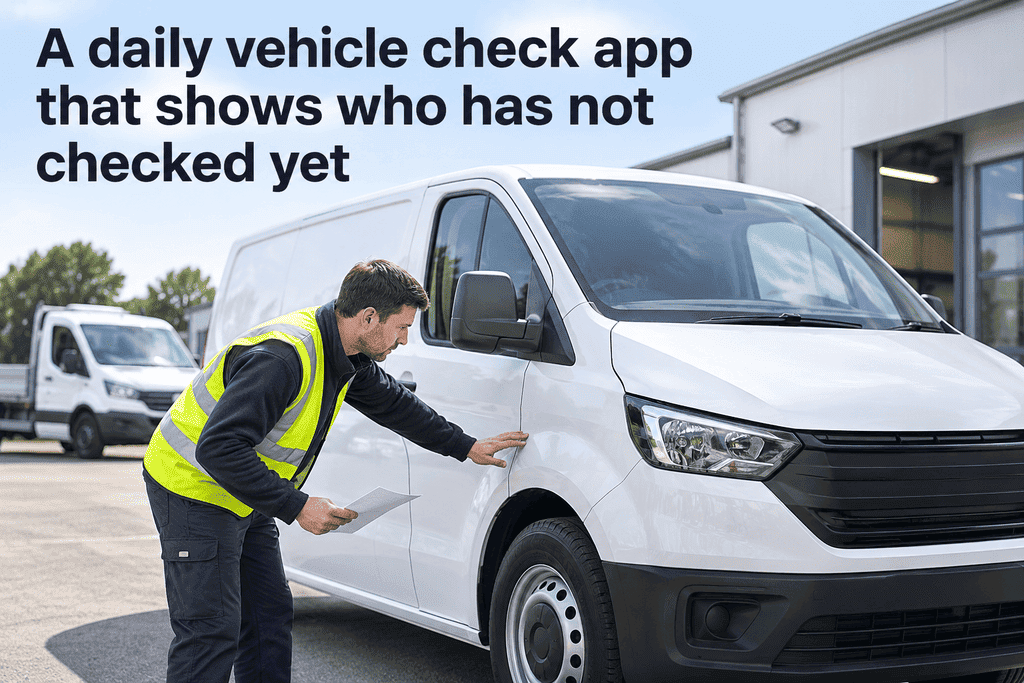
A bus pre-start checklist should match the bus, not a generic car form. Fleet Maintenance, the iFactory micro app, ships a bus list that covers the doors, the exits, the ramp and the passenger systems, with separate lists for coaches, light vehicles and trailers. Drivers scan the QR label in the cab, and they can use a bus pre-start checklist without creating an account.
Fleet Maintenance · Buses · Daily check
A bus pre-start checklist that matches the bus
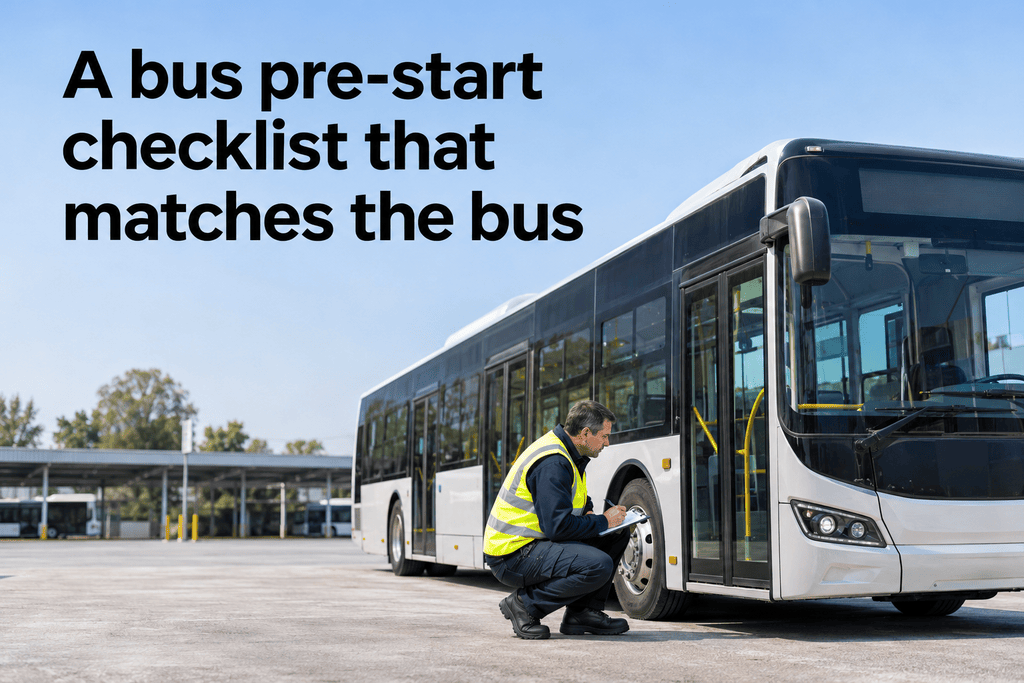
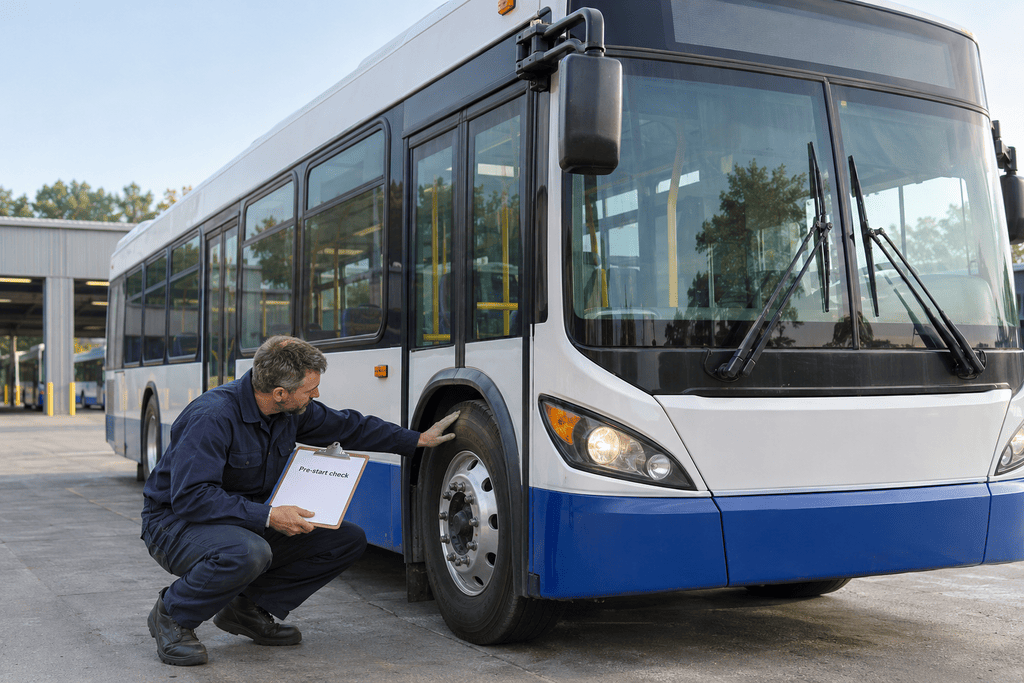
The bus list covers doors and interlocks, emergency exits and hammers, the wheelchair ramp, destination sign, CCTV, fare card readers, tyres, wheel nuts and lights. Each item is answered Pass, Fail or N/A on the driver's phone, and every check lands on a depot grid.
What is on the bus list
The list is grouped the way a driver walks the bus, so the check follows a natural route from the doors to the wheels.
Match the check to the bus
Switch off the items your buses do not have, and drivers only see what applies to the vehicle they are standing beside. Try the bus list on the sample fleet.
How the driver does it
The check takes about one scan and a walk, and the driver never needs to log in.
Scan and pick a name
The driver scans the QR label fixed in the cab and chooses their own name from the list you keep. If you have switched PINs on, they enter theirs too.
Enter readings
Odometer and engine hours are entered first, so service plans and cost figures for that bus rest on a current reading rather than an old one.
Mark each item
Every item is answered Pass, Fail or N/A on the phone. Items that do not apply to the bus can be removed in Setup instead of being marked N/A each day.
Add detail on a fail
A failed item takes a note, a severity and up to three photos, and the driver says whether the bus is safe to drive or must be marked Do not drive.
What the depot sees
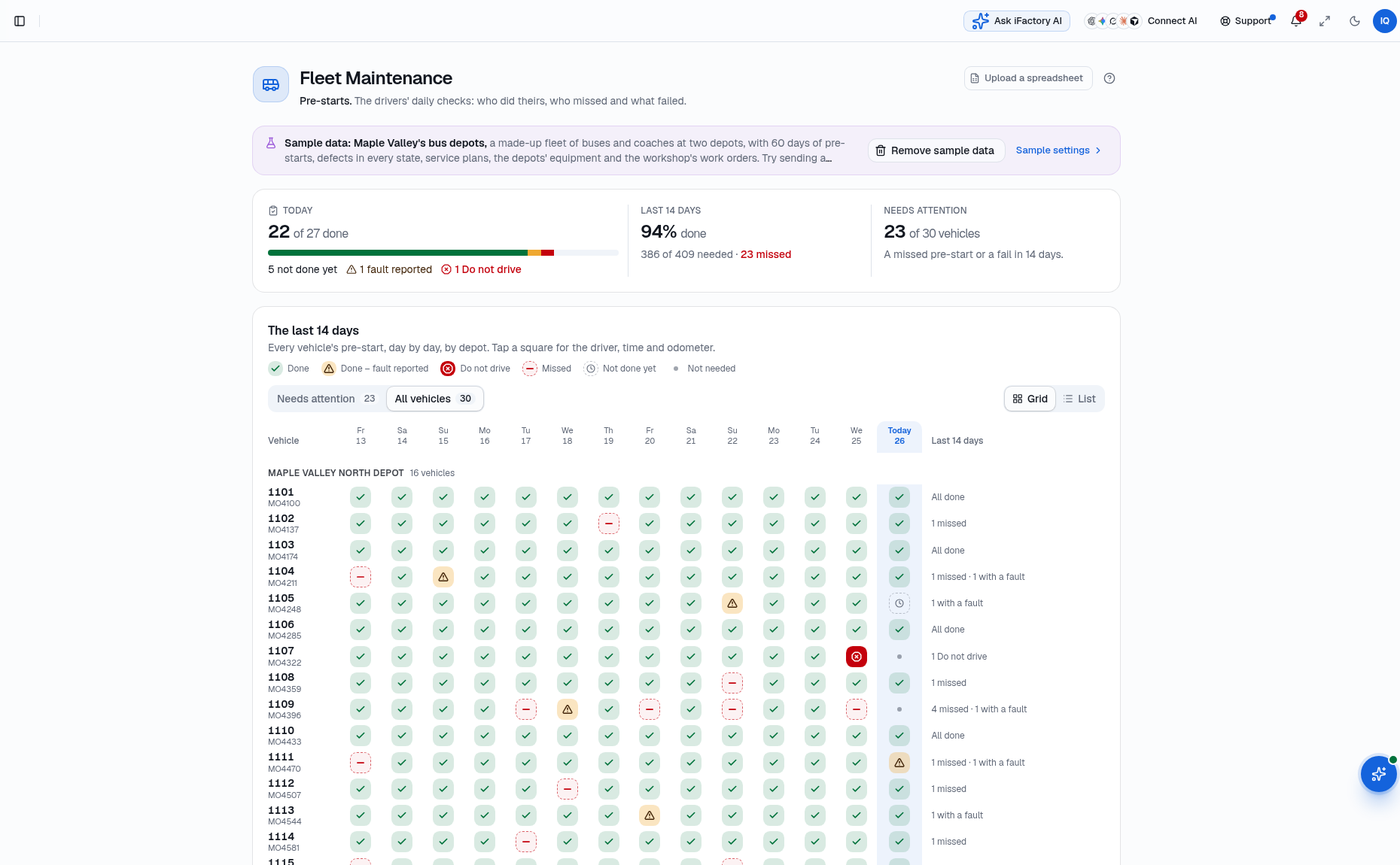
Every submitted check lands on the 14-day pre-start grid, grouped by depot, which turns a pile of forms into one picture.
Done
Which buses were checked today, so a supervisor can confirm that every bus on the road has been looked at by its driver.
Had a fault
Which checks contained a failed item, so the workshop can look at the notes and photos before the bus comes back in.
Do not drive
Which buses were taken off the road. Each one has an urgent work order raised automatically and linked to the check.
Missed
Which buses were not checked at all, which is often the first thing a supervisor wants to know before the first service departs.
Why a bus needs its own list
A generic form misses the items passengers depend on, and a list that is too long teaches drivers to tick everything without looking.
Passenger safety
Doors, exits, hammers and the ramp are what protect people on board, so they are on the list by name and can be failed with photos.
Fitted to your fleet
Not every bus has CCTV or fare readers, so Setup lets you switch items off and keep the daily check short and honest.
Frequently asked questions
What does the bus list include?
It covers doors and interlocks, emergency exits and hammers, the wheelchair ramp, destination sign, CCTV, fare card readers, tyres, wheel nuts and lights. The items are grouped the way a driver walks around the bus, and each one is answered Pass, Fail or N/A on the phone in the cab.
Can I remove items that my buses do not have?
Yes. Items that do not apply to your fleet can be switched off in Setup, so drivers are not asked about equipment that is not fitted. That keeps the daily check short, and it avoids the habit of ticking N/A on items without looking at them each morning.
How many photos can a failed item take?
A failed item can take up to three photos along with a note and a severity. The driver also chooses whether the bus is safe to drive or must be marked Do not drive, which takes it off the road and raises an urgent work order for the workshop to act on.
Do coaches use the same checklist?
No. Coaches, light vehicles and trailers each have their own list, because their equipment and risks differ. Each vehicle uses the list for its own kind from the first scan, so a bus is never checked against a van's questions and the grid compares like with like.
Is there a printable version of the list?
The vehicle pre-start checklist template page covers the printable side, and the Fleet Maintenance tool page lists the full set of features. The checklist itself is answered on the phone from the QR label, so the printed label in the cab is the part you will normally print and fix in place.
Check the bus, not a generic form
A checklist built around the bus, with the evidence on one depot grid every morning.
- Bus-specific items
- Setup switches
- 14-day grid
14-day free trial