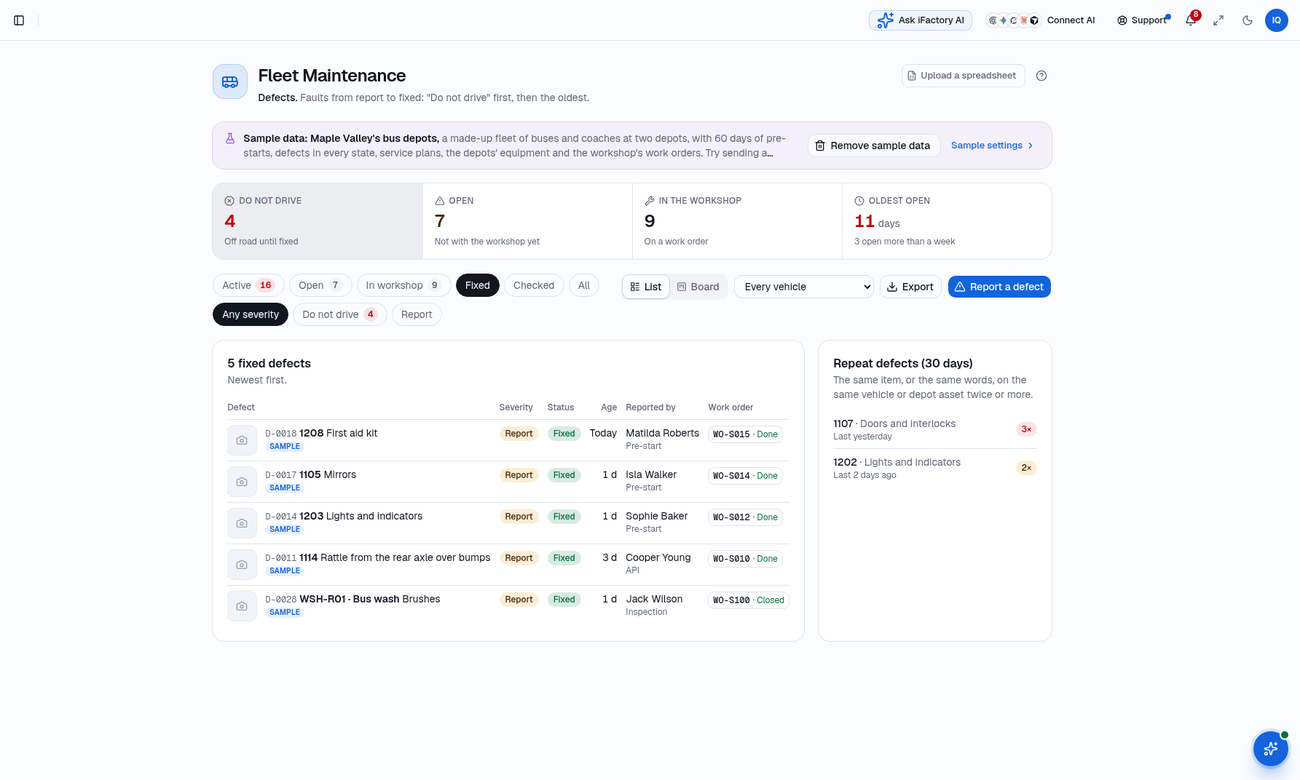
Some people will always want the defect list in a spreadsheet, whether for a pivot table, a committee pack or a monthly review. Fleet Maintenance, the iFactory micro app, exports the defects page to Excel (.xlsx) or PDF from a menu on the page, and the file follows the filters on screen. Use it to export the defect log while the live list stays in the tool.
Fleet Maintenance · Defects · Exports
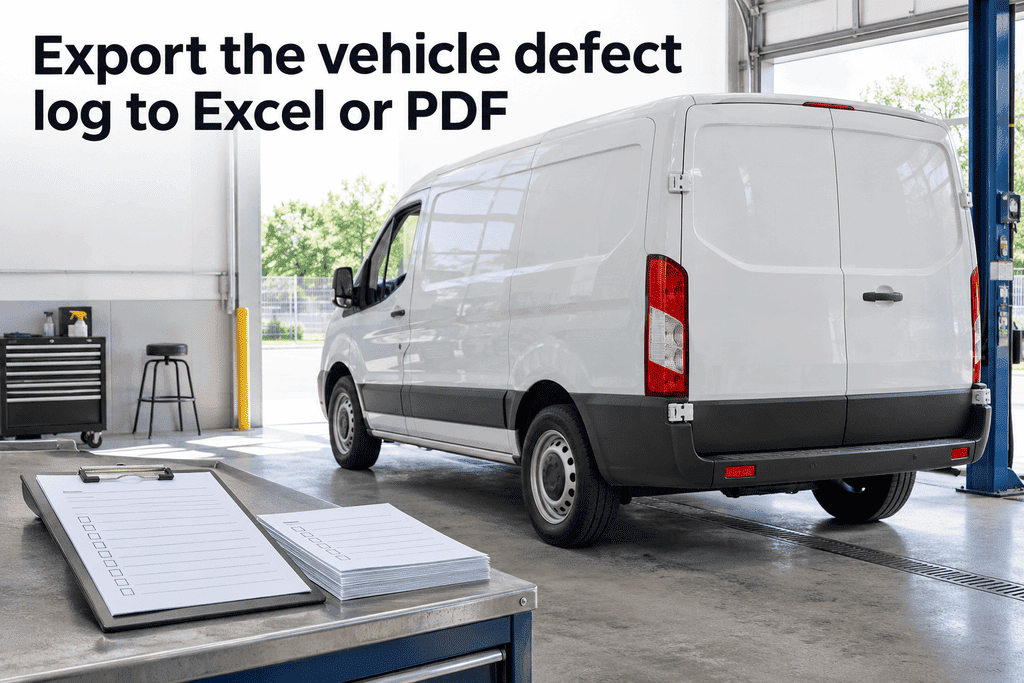
Export the vehicle defect log to Excel or PDF
Filter the defects page, pick Excel or PDF, and the file carries exactly what you see. The date is added to the file name, so each export is easy to find and copies do not collide on a shared drive.

Three steps to a file
There is nothing to set up first, and the export works from whatever view the defects page already shows.
Filter the defects page
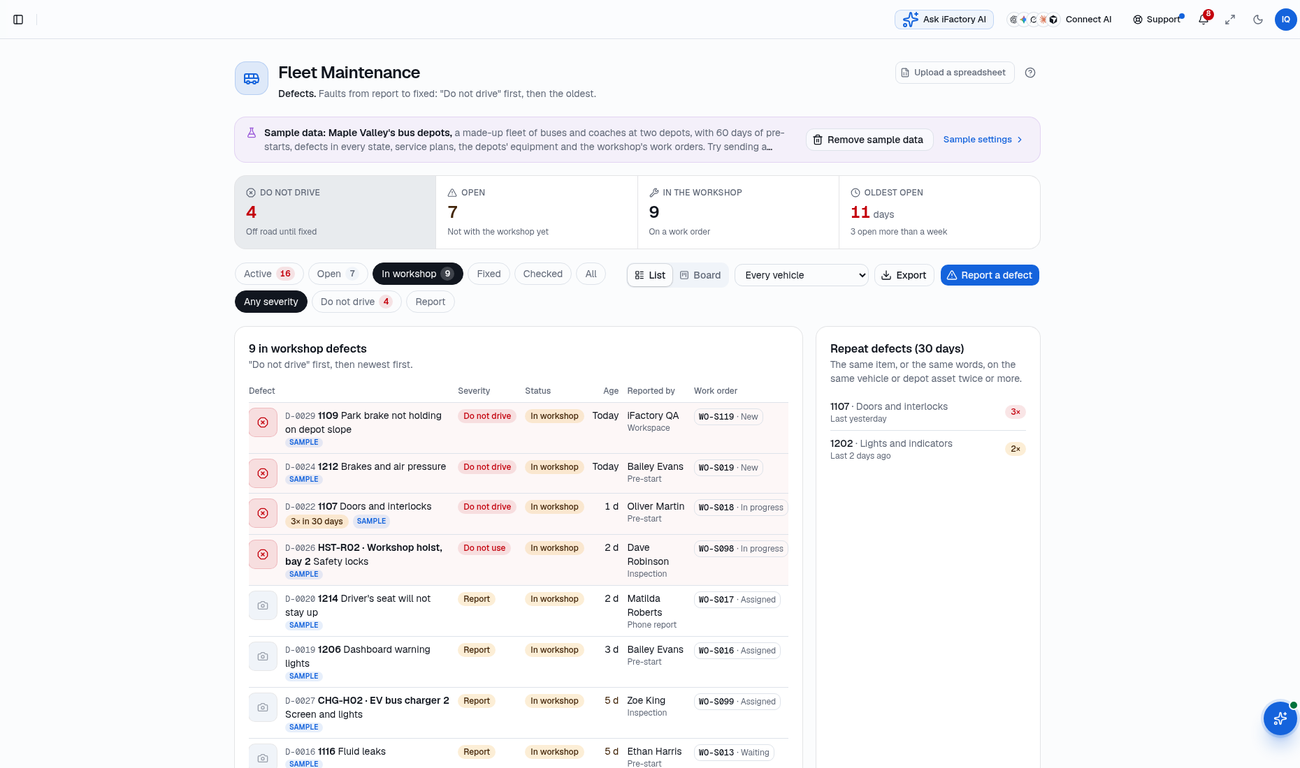
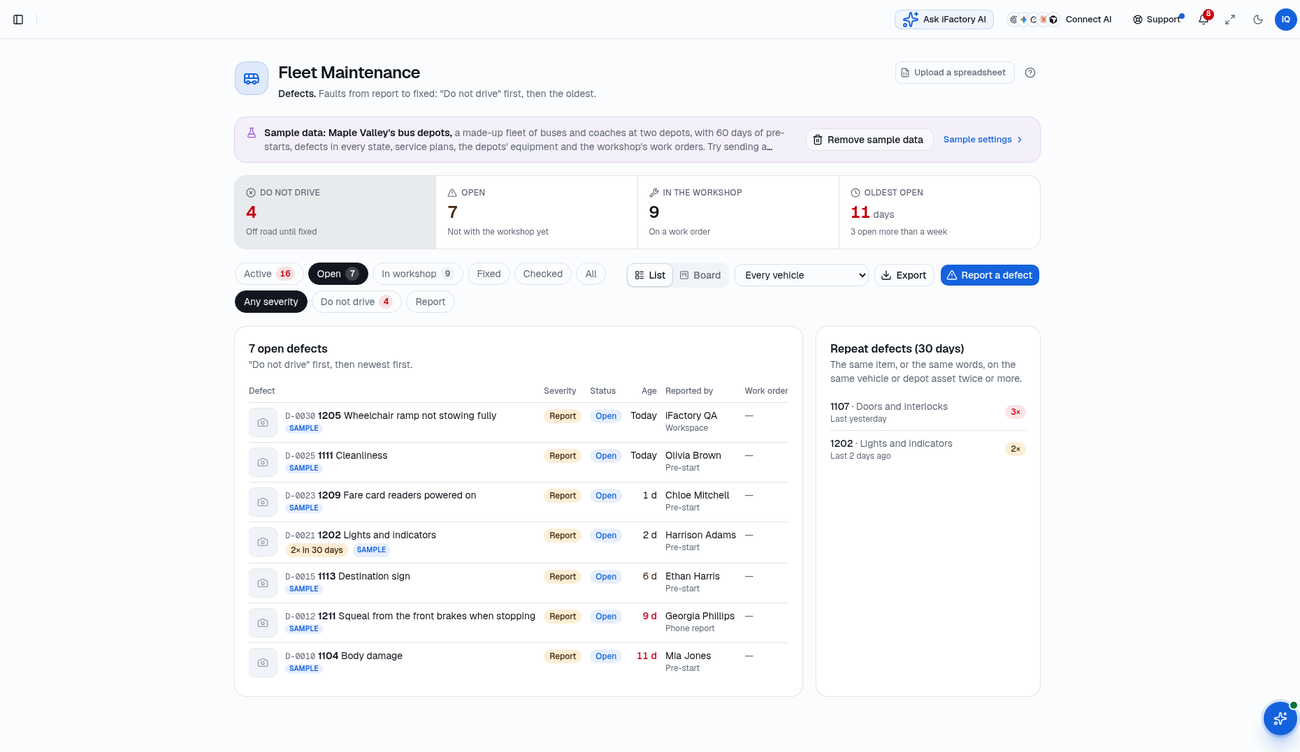
Choose a tab such as Open, In workshop, Fixed or Checked, or narrow the list to one depot or one vehicle, so the file holds only what you need.
Open the export menu
The menu on the page offers Excel (.xlsx) or PDF. Pick the format that suits the person who will read the file.
Open the file
The file name carries the date, for example fleet-defects followed by the day, so exports made on different days never overwrite each other.

Which format for what
Both formats come from the same filtered page, so they always agree with what was on screen.
Get the list out when needed
Filter first and export second, so the file holds just the open items, one depot or one vehicle. The sample defects are ready to try.
A snapshot, not the workplace
The export is a copy for reporting, and the real work keeps happening in the app, where it is linked to vehicles and work orders.
Live list
Work happens on the defects page, where a defect can be assigned, linked to a work order and moved through the tabs.
Export
A copy for reporting. Once downloaded it does not update, so export again when you need a fresh view.
Filters
Open, In workshop, Fixed, Checked, by depot or vehicle. The file follows whichever of these you have chosen.
File name
Dated, so copies do not collide. Add your own label if you keep several exports for different depots in one folder.
Habits for tidy exports
A few habits keep exported files useful and stop them being mistaken for the live list.
Filter before exporting
An export of every defect is rarely what a meeting needs, so narrow the list first and keep the file short.
Use the same filter each month
Comparing like with like is what makes a monthly spreadsheet worth reading.
Check the live list
If a figure in the file looks odd, open the defects page, because the live list always holds the current state.
Share the right format
Send the PDF to readers who only need to look, and the Excel file to analysts who want to sort, filter and chart the columns themselves.
Keep a dated folder
Save each month's files in one folder, so a reviewer can find last month's export without opening the app or asking anyone to run it again.
A monthly review is easier when each export uses the same tab and the same depot filter, because the columns stay the same and a pivot table can be reused. The live defects page remains the place where a defect is assigned, linked to a work order and moved to Fixed and Checked, so a change made in the spreadsheet never becomes the official record.
The vehicle register and the services list export in the same way, which helps when a meeting wants the open faults beside the services that are due soon. Filter each page first, download both files, and keep them with the dated defect export so a later reader can see what the lists looked like on that day.
Frequently asked questions
Which formats can I export?
The defects page exports to Excel (.xlsx) or PDF from a menu on the page. Excel suits your own pivot tables and charts because the columns are the same each time, while the PDF suits a meeting pack because it reads like the page on screen, with no spreadsheet knowledge required.
Does the file follow my filters?
Yes. The file carries what you see on screen, so a tab such as Open or In workshop, or a single depot or vehicle, limits the export in the same way. That means you filter once, check the page looks right, and then download the file without extra steps.
Is the file name dated?
Yes. The file name includes the date, for example fleet-defects followed by the day. That keeps exports made on different days from overwriting each other, and it helps when several people save copies into the same shared folder and need to know which one is the latest.
Does the export replace the live list?
No. The live list stays in the tool, where defects are assigned, linked to work orders and moved through their tabs. The export is a snapshot for reporting. If someone edits the downloaded file, nothing changes in the app, so the live list remains the single source of truth.
Can I export other lists?
Yes. The vehicle register and the services list can also be exported. The fleet maintenance spreadsheet alternative page explains how the app compares with a spreadsheet, and the Fleet Maintenance tool page lists every feature, including the exports available on each page.
Export the defects you can see
Excel for analysis, PDF for the meeting, and the live list still in the app.
- Excel and PDF
- Follows filters
- Dated file name
14-day free trial