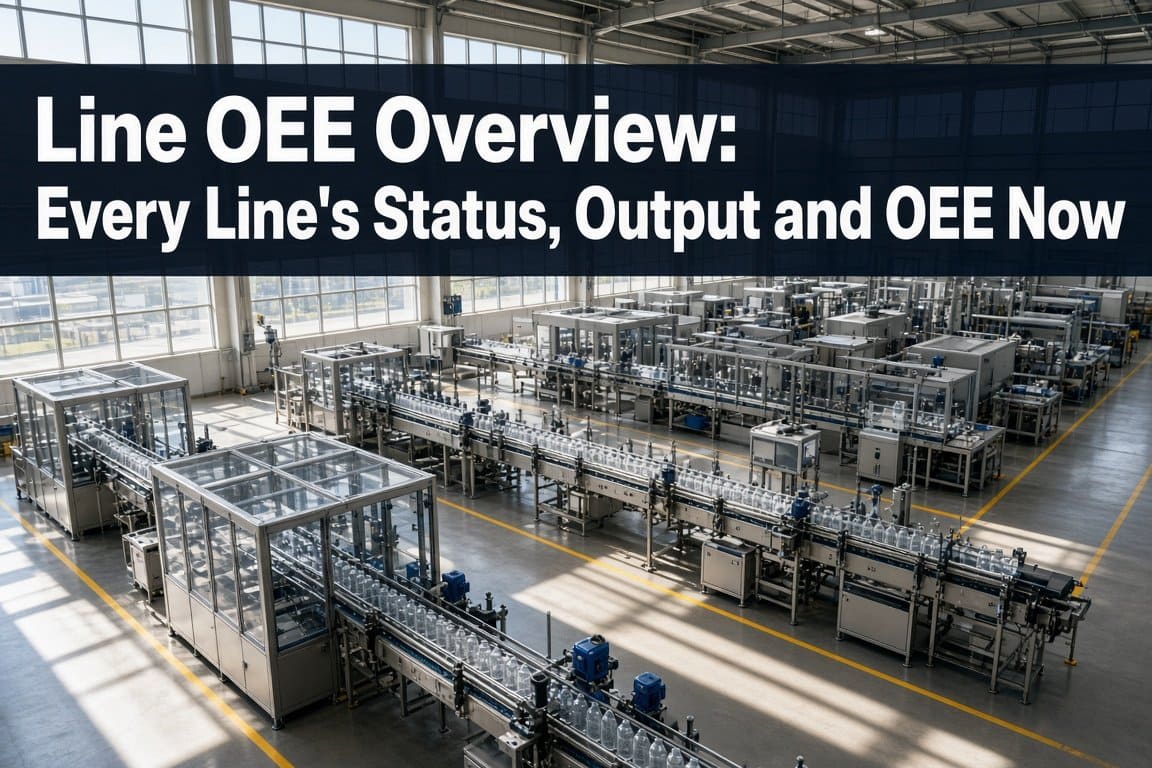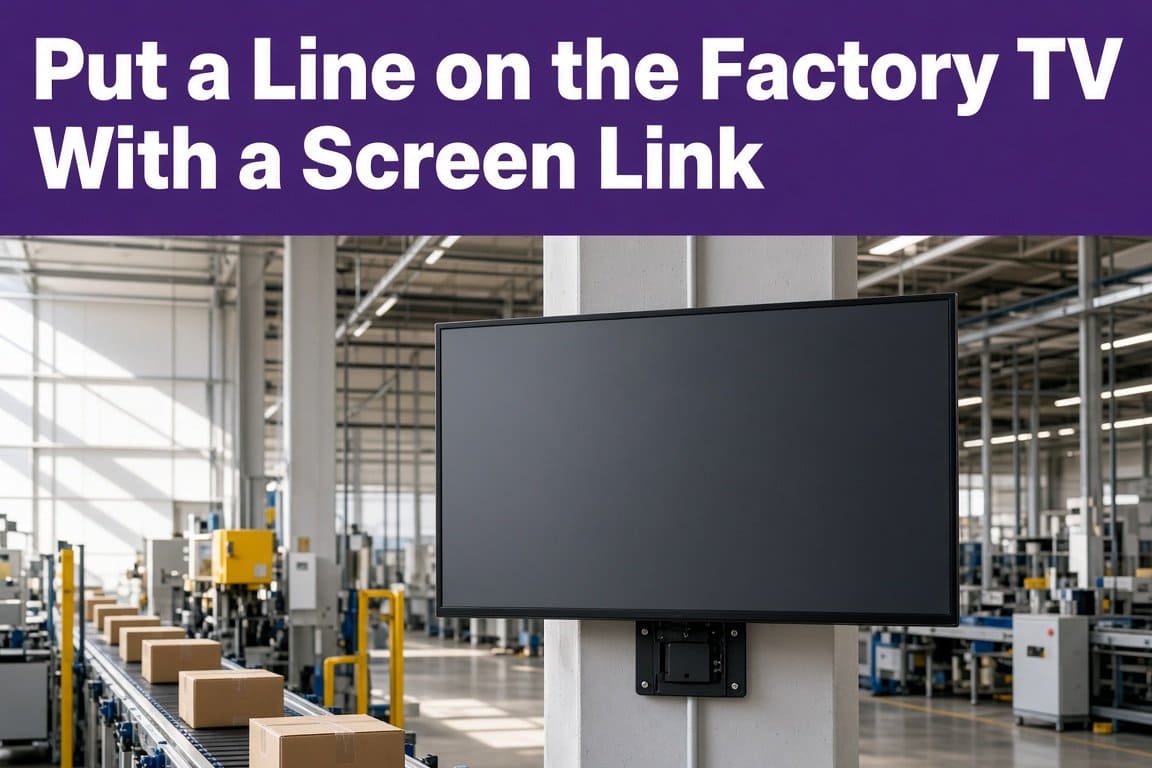
The TV screen button on the Line OEE Overview creates a link for a shop-floor display. Open the link in the browser of a TV, or on the small PC behind a monitor, and it shows a live scoreboard for the floor. The scoreboard is built from the same records as the Overview, so the floor sees the same numbers as the office. You can sign up to access Line OEE and put your first line on a screen today, with 14 days of Pro features and no card.
iFactory Tools · Production · Live views
Put the line's numbers where the team can see them
One link, any TV with a browser, no sign-in on the screen, and you can end the link at any time.
Put a screen up in four steps
Press TV screen
On the Line OEE Overview, the button creates a screen link.
Open it on the display
Use the browser on a smart TV, or a small PC plugged into a monitor.
Leave it running
The scoreboard updates from the same records as the Overview.
End it when needed
End the link from the tool; the screen then shows an ended page.

Where teams put the screen
Give the floor the same numbers as the office
Any TV with a browser, no sign-in on the screen. Pro features are free for 14 days, no card required.
Built from the Overview's records
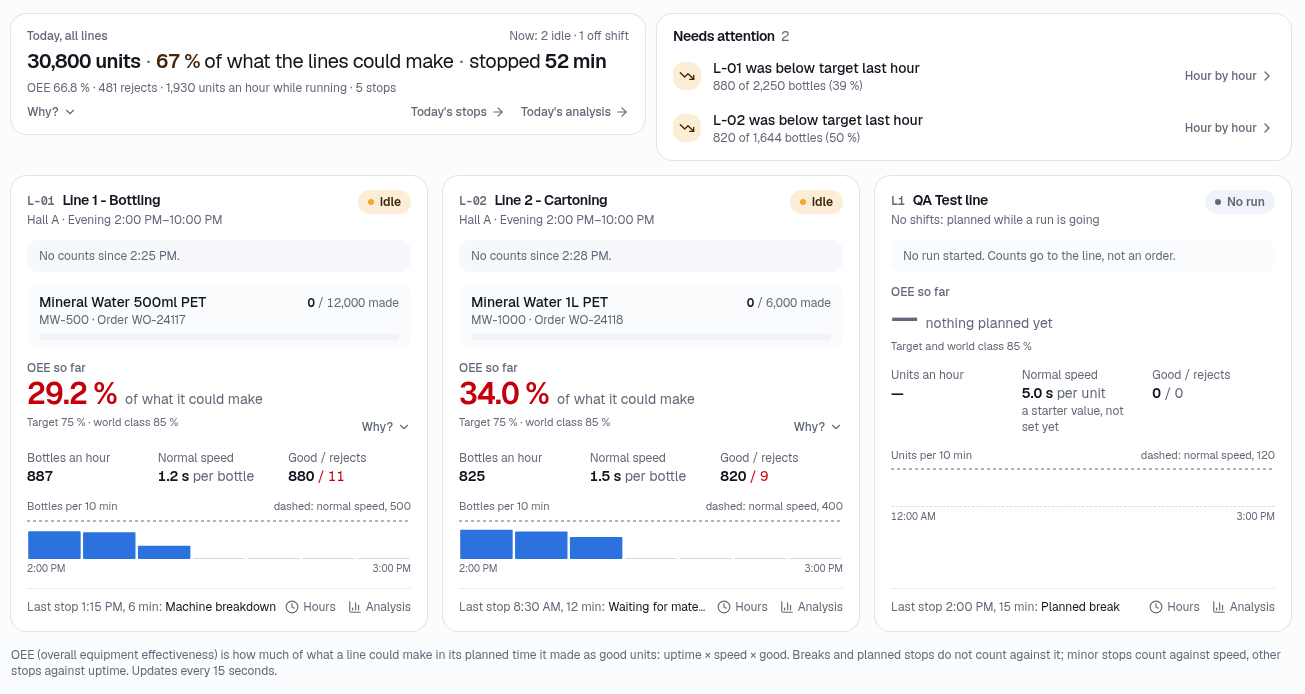
The Overview shows every line's status, output and OEE now. The TV scoreboard reads the same records, so a number on the floor matches the number in the office.
Screen link safeguards
| Question | Answer |
|---|---|
| Who can open it? | Anyone with the link; it is tied to your company |
| Sign-in on the TV? | Not needed |
| Can it be stopped? | Yes, end the link from the tool |
| After it is ended? | The screen shows an ended page instead of data |
| Tested? | A scripted QA journey checks Hour by hour and TV together |
Treat the link like a key
Share it only with screens you own
A screen link opens without a sign-in by design. Put it on displays inside the plant, and end it from the tool if a screen is moved, replaced or the link is shared by mistake.
Expert review
A close review of the device pages shows the TV handled the same way as the phone: its own link, tied to the company, with a way to end it. Because the scoreboard reads the same records as the Overview, there is no second set of numbers to reconcile.
Shop-floor screens work best when they show few numbers that people act on. Use one in the daily review first and move it to the line once the team trusts the figures. The Overview shown is from a test account.
Factory TV questions
Does the TV need someone to sign in?
No. The TV opens the scoreboard from its own link, tied to your company, so no one types a password on the shop floor.
What does the TV show?
A live scoreboard for the floor, built from the same records as the Overview, so the floor sees the same numbers as the office. You can sign up to access Line OEE and open one on any screen.
Can I stop a link from working?
Yes. Each link can be ended from the tool. An ended link shows an ended page instead of data.
What hardware do I need?
Any TV or monitor with a web browser, or a small PC connected to it. There is no extra device from iFactory to install.
Where should the screen go?
At the end of the line, in a supervisor's area or in the meeting room for the daily review. You can get started with Line OEE and try one screen first.
Put your first line on a screen
Press TV screen, open the link on a display, and let the floor see the shift as it runs.
- Any TV or monitor with a browser
- Same numbers as the Overview
- End a link at any time
Free for 14 days · no card needed